
Note:
If your printer frequently needs to be leveled although it has not been moved, or the surface the printer stands on appears to be level, contact Formlabs Support or your authorized reseller.

Before printing can begin, the printer must be completely level. This built-in check ensures that resin is dispensed correctly and the printer does not overfill the tank. Leveling may be necessary during the initial printer setup, or after moving the printer to another location.
Note:
If your printer frequently needs to be leveled although it has not been moved, or the surface the printer stands on appears to be level, contact Formlabs Support or your authorized reseller.
Turning on the printer
Plug in the printer to turn it on. During initialization, the printer checks whether the surface it is standing on is level.
Tip:
The printer only needs to be leveled when the touchscreen prompts you to level the printer.
Leveling the printer
When the printer is not level, the dot at the center of the concentric rings shifts out of place. A printer foot is highlighted with an arrow indicating the direction to turn.
Note:
To level your printer through the printer’s touchscreen without prompts:
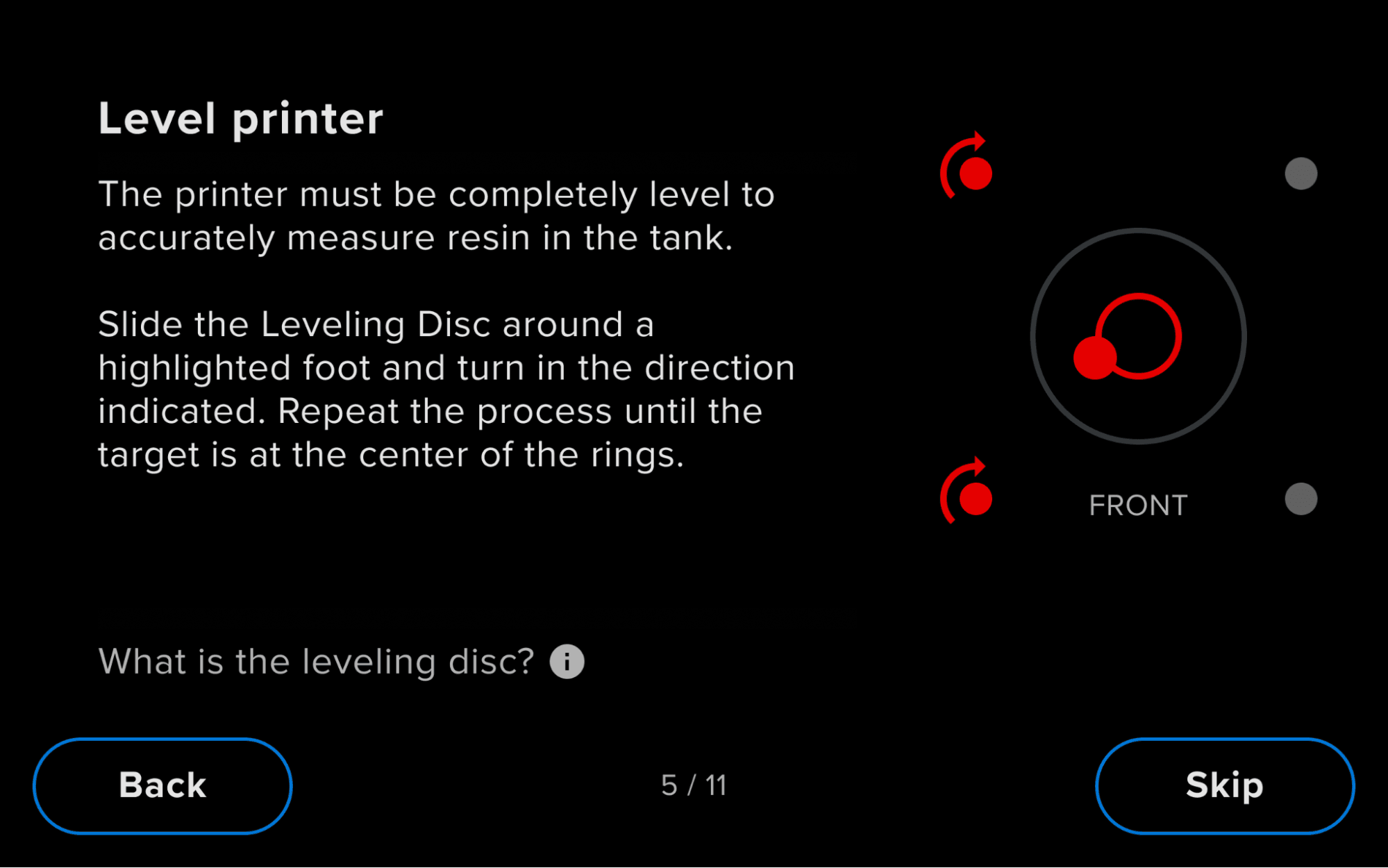
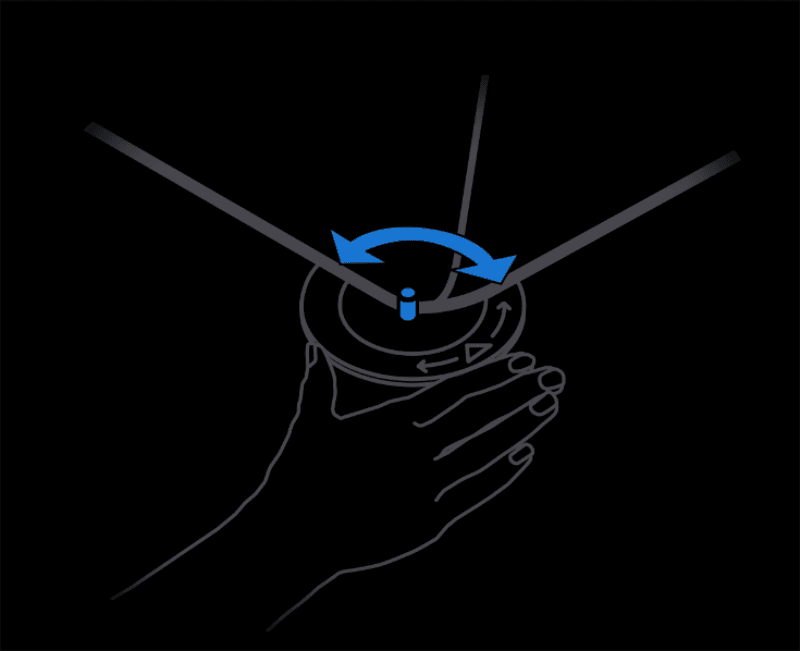
Slide the leveling disc included with your printer around the foot indicated on the printer’s touchscreen. Rotate the leveling disc clockwise to raise and counter-clockwise to lower each foot of the printer.
Note:
Completely leveling the printer may require adjusting multiple printer feet.
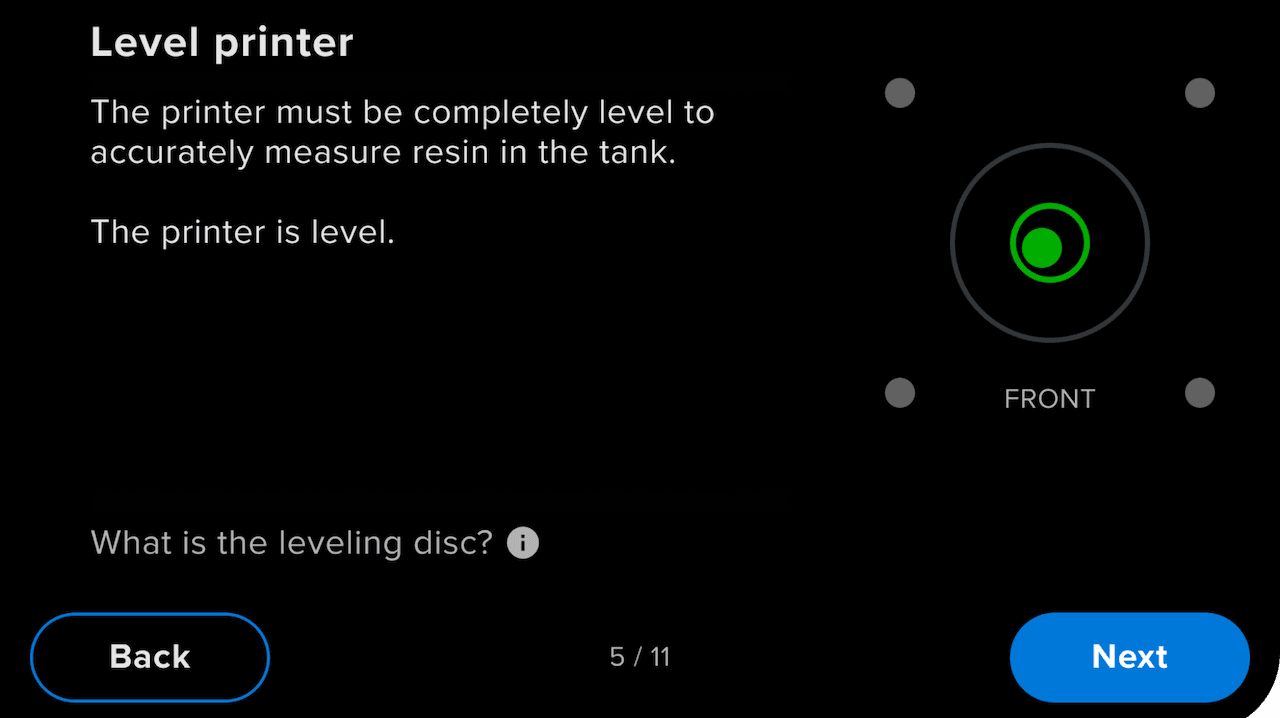
When the dot is at the center of the concentric rings and the four dots around it turn blue on the printer’s touchscreen, the printer is level. On a Form 4 or Form 4L generation printer, the dot at the center of the concentric rings turns green. Start a print or continue printing.
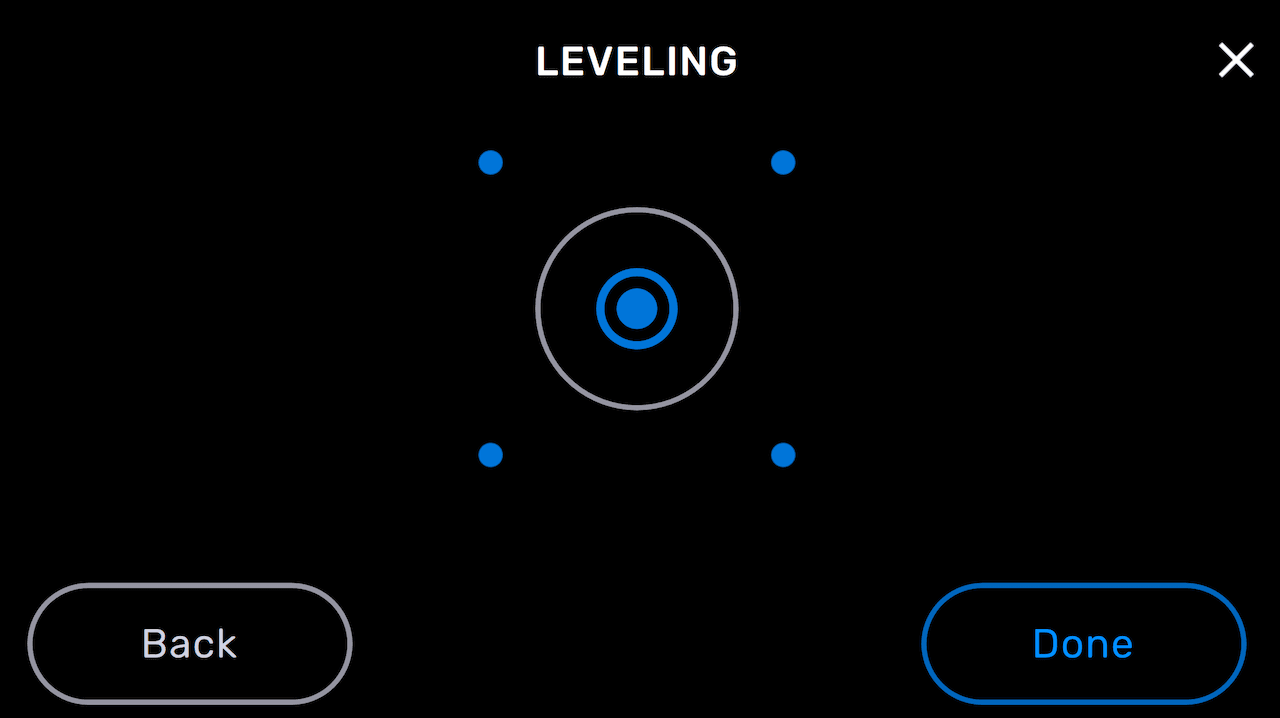
Printer is confirmed as level on a Form 2 and Formlabs LFS printer (Form 3 or Form 3L) touchscreen.
Printer is confirmed as level on a Form 4 or Form 4L generation printer touchscreen.