
Note:
This functionality is only supported on Formlabs Fuse 1 generation printers. If the printer type is changed to a Formlabs SLA printer, any locking settings are cleared.

When preparing a print job for a Formlabs SLS printer, some models may need to be oriented or positioned in a specific way to print successfully. To account for this, PreForm allows you to restrict models’ orientation and position before running the packing algorithm to automatically prepare print jobs in the most optimal way.
Note:
This functionality is only supported on Formlabs Fuse 1 generation printers. If the printer type is changed to a Formlabs SLA printer, any locking settings are cleared.
Locking and unlocking models
Locking the rotation or translation or a particular model restricts how you interact with that model. The 3D Packing feature also treats specific models differently depending on their movement freedom.
To restrict the rotation and translation freedom on a specific model:
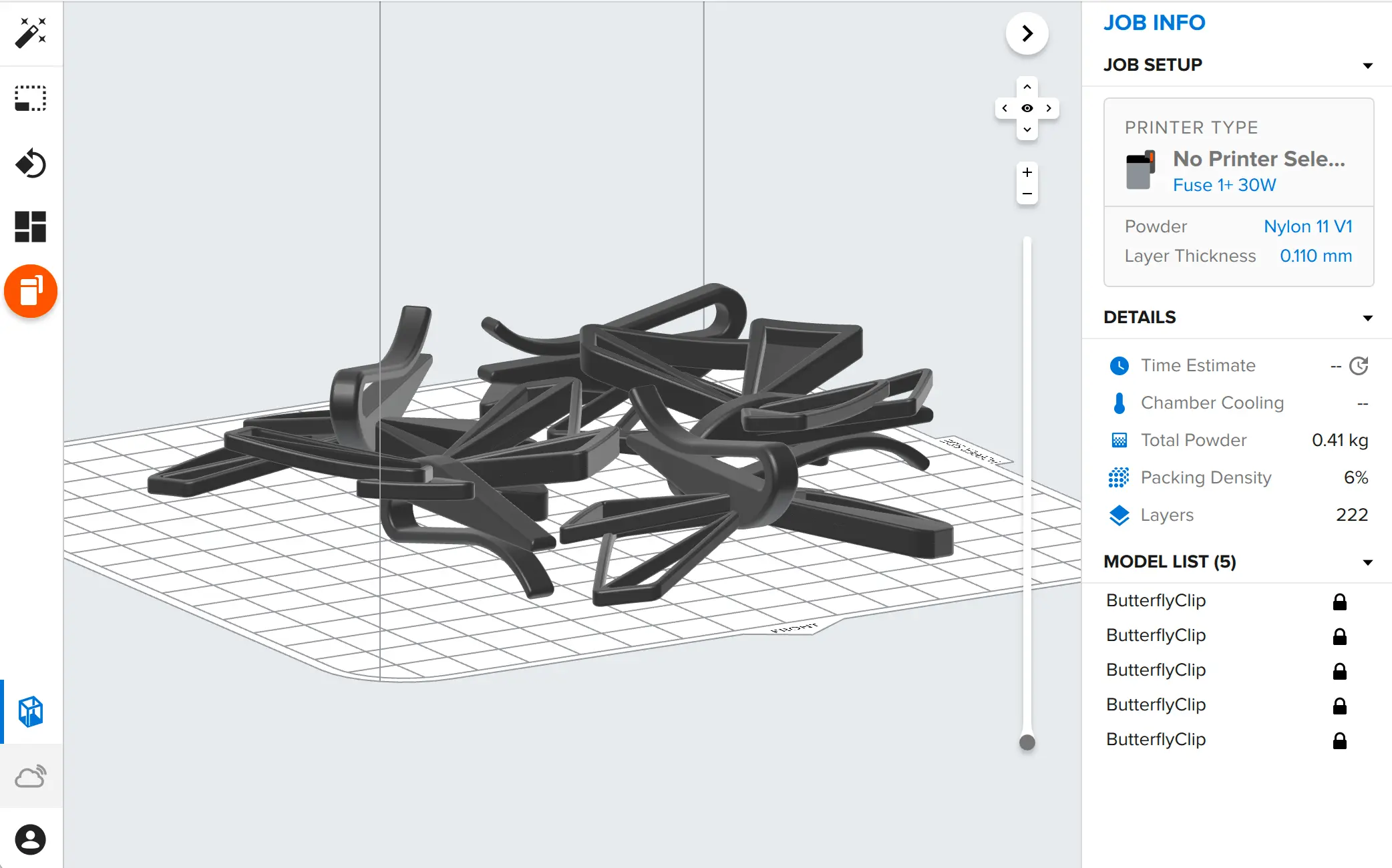
These options can also be viewed and changed by clicking the lock icon next to each model’s name in the Model List. This icon appears when you hover over a model’s name in the Model List if no setting has been applied. The Model List shows any locks that have been applied to models in the 3D scene. Clicking the icon allows you to lock or unlock the model.
Note:
In PreForm versions before 3.28.0, the Packing dialog also had a Lock Orientation checkbox. This checkbox has been removed in favor of locking individual models. To lock rotation or translation for all models in a job, select all models in the scene and apply a lock setting from the right-click menu (e.g. Lock / Unlock < Lock XYZ Rotation).
Interacting with locked models
When rotation or translation are locked for a model, these operations cannot be performed until the model is unlocked. If a model’s rotation is locked, the manipulator for rotation is also disabled, as shown in the video below. To manipulate a model, the model must be unlocked first.
Saving and loading model locking
After a model is locked, these changes are saved to the FORM file. When reopening the FORM file the model must be unlocked first in order to modify the properties of models with locked rotation and or translation. This ensures models do not get moved or rotated improperly if files are distributed to other team members before printing.