Adjusting the camera privacy settings (Form Studio 1)
Adjusting the camera privacy settings (Form Studio 1)
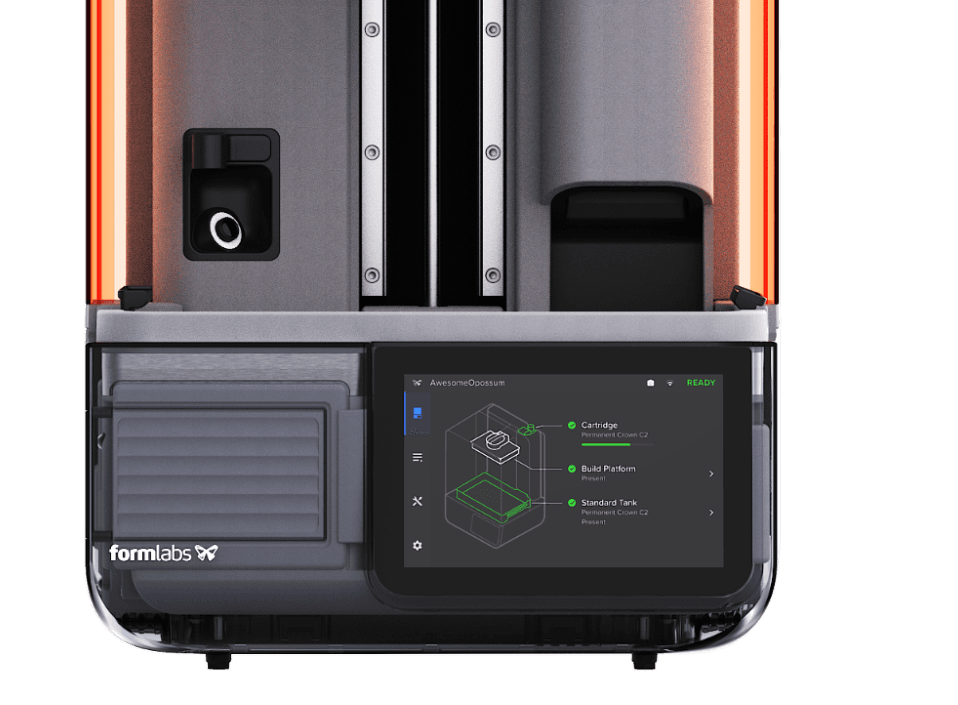
Form Studio 1 printers contain an integrated camera with a ring-shaped flash. The camera is located to the left of the Z-axis tower and points upwards towards the build platform.
Current camera features allow users to capture snapshots, watch a live stream of an ongoing print, take video timelapses of the printing process, and take an end-of-print photo when the print is finished successfully. Choose your preferred camera privacy settings during onboarding or adjust the camera privacy settings, enable or disable the camera, and control access to post-print photos once onboarding is complete.
Data privacy settings
Formlabs collects printer analytics to improve product performance. If the printer’s camera is enabled, it captures a photo at the end of every print. You can control whether Formlabs receives this image for analytics by adjusting the settings.
Formlabs is committed to protecting your privacy. For specific details on privacy, data sharing, and access, please visit formlabs.com/privacy.
Enabling and disabling the camera
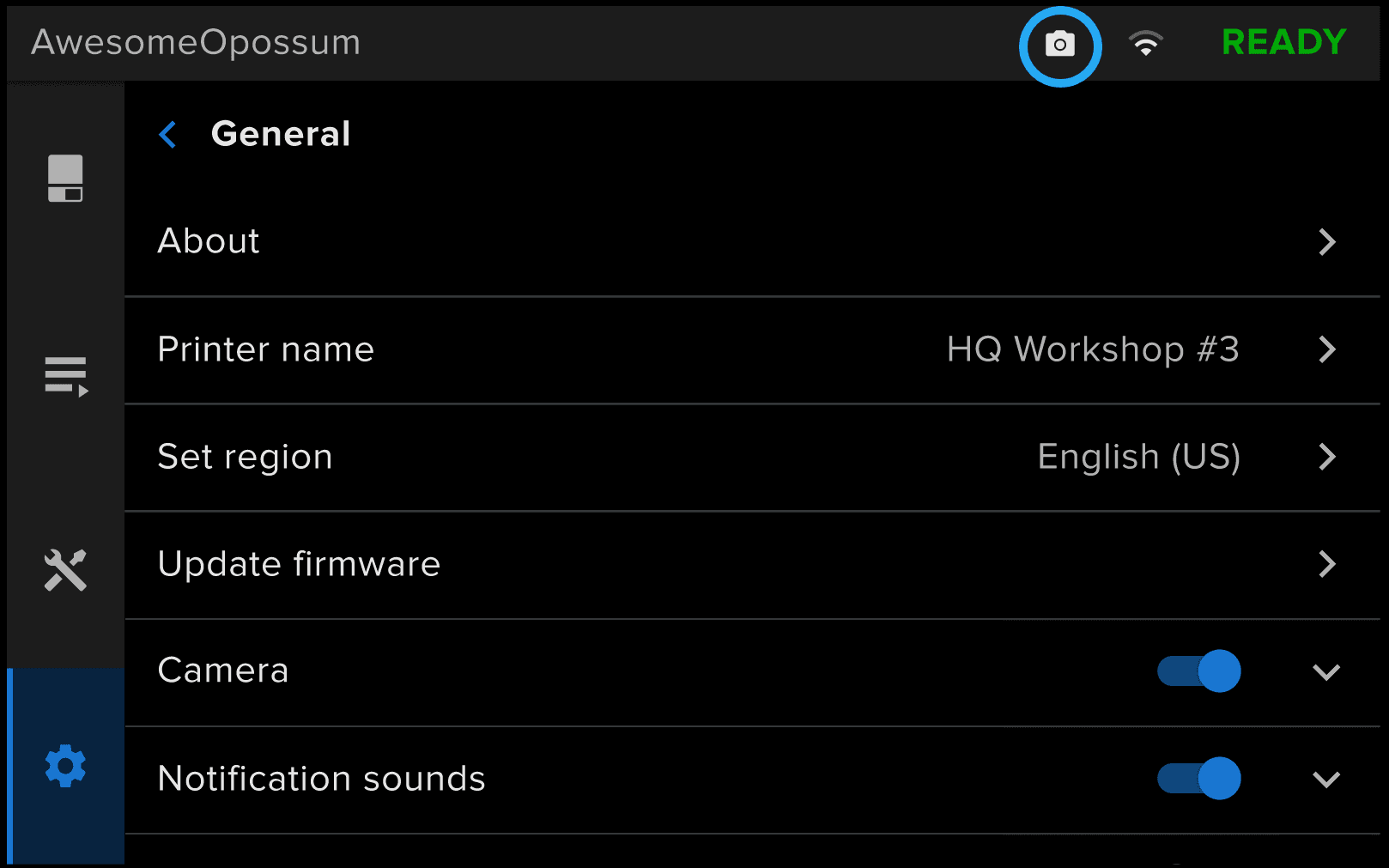
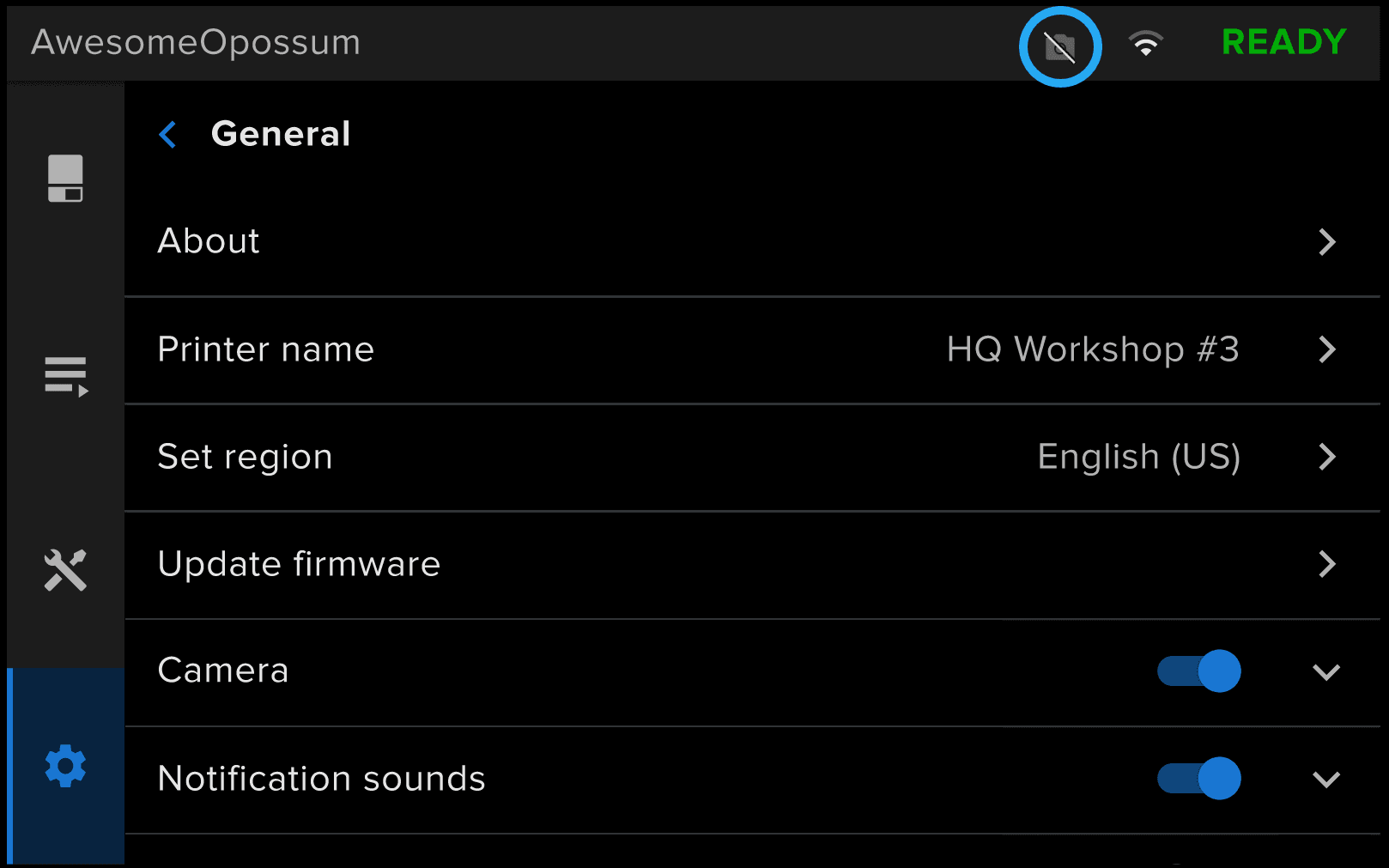
Adjust the camera privacy settings to enable or disable the camera. The camera icon on the upper right corner of the touchscreen indicates the camera is enabled. If the camera is disabled, the icon is crossed out. When the camera is in operation, the camera light will turn on.
To adjust the camera privacy settings:
- On the printer’s touchscreen, tap the gear icon. The Settings menu appears.
- Tap Configuration.
- To enable the camera: Toggle Camera to ON. The toggle turns blue and the camera icon in the upper right corner of the touchscreen turns white and is not crossed out.
- To disable the camera: Toggle Camera to OFF. The toggle turns gray and the camera icon in the upper right corner of the touchscreen turns gray and is crossed out.
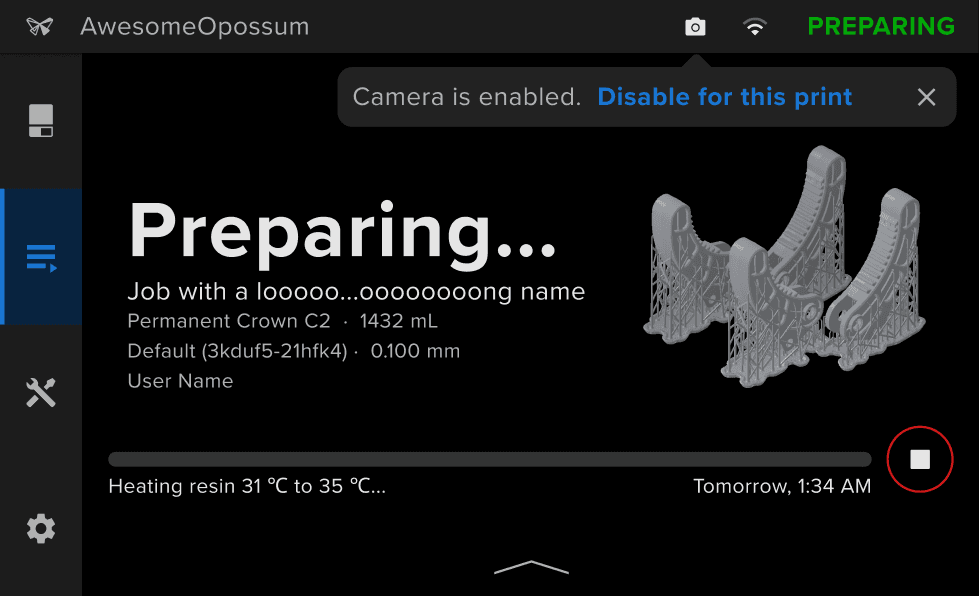
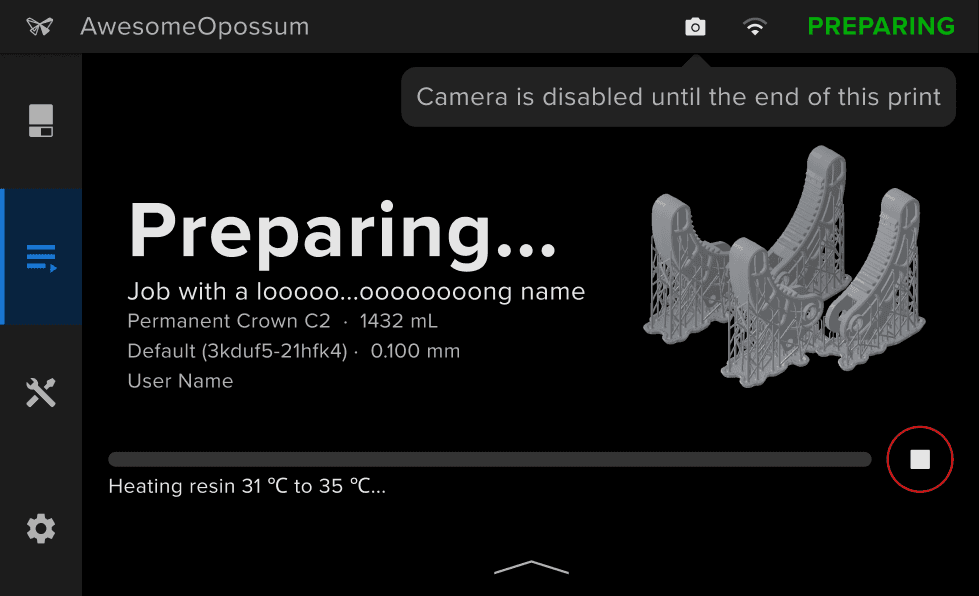
You can also disable the camera for a single print from the Queue screen. When a print starts, if the camera is enabled, the printer shows a prompt allowing you to temporarily disable the camera. The prompt disappears after 10 seconds or if you navigate away from the Queue screen.
Enabling and disabling camera analytics
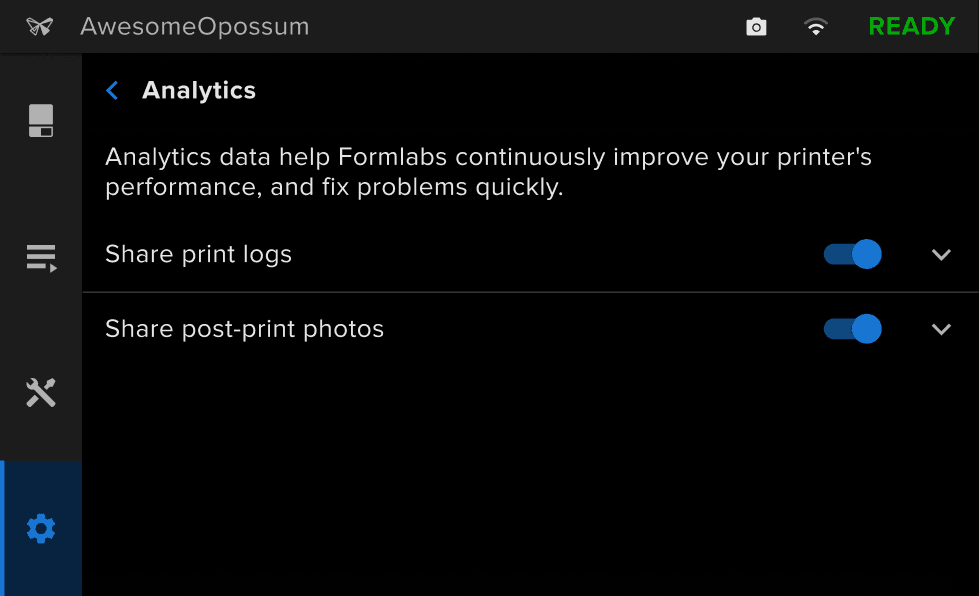
Formlabs uses analytics data to improve printer performance and fix problems quickly.
If only the camera is enabled, the Form Studio 1 automatically saves a photo of the print without uploading the photo to Formlabs servers. If both the camera and post-print photo analytics are enabled, the Form Studio 1 will save a photo of the print as well as upload the photo to Formlabs servers if the printer is connected to the internet.
To adjust the camera analytics settings:
- On the printer’s touchscreen, tap the gear icon. The Settings menu appears.
- Tap General > Analytics. The Analytics menu appears.
- To enable post-print photos: Toggle Share post-print photos to ON. The toggle turns blue.
- To disable post-print photos: Toggle Share post-print photos to OFF. The toggle turns gray.