Formlabs Logo

Cleaning the Fuse X1 build sheet and troughs between prints

Cleaning the Fuse X1 build sheet and troughs between prints

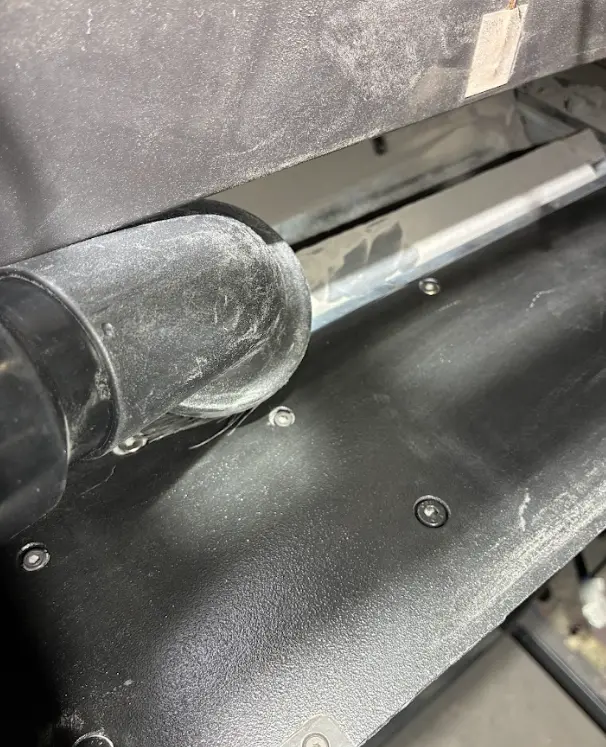
After a print has completed and sufficiently cooled to move the build unit, clean the build sheet and troughs, located around the edge of the print chamber. Clean the build sheet and troughs after every print.

For more information about recommended maintenance, see the printer's manual.

Caution:

  • Do not use compressed air or an air gun to clean the print chamber, build unit, or any other component. Mobilizing loose powder increases the risk of unintentional inhalation or ingestion.

  • If a print was recently completed, the surfaces inside the print chamber will be hot. Take care while cleaning the build sheet, troughs, and recoater roller to avoid burns.
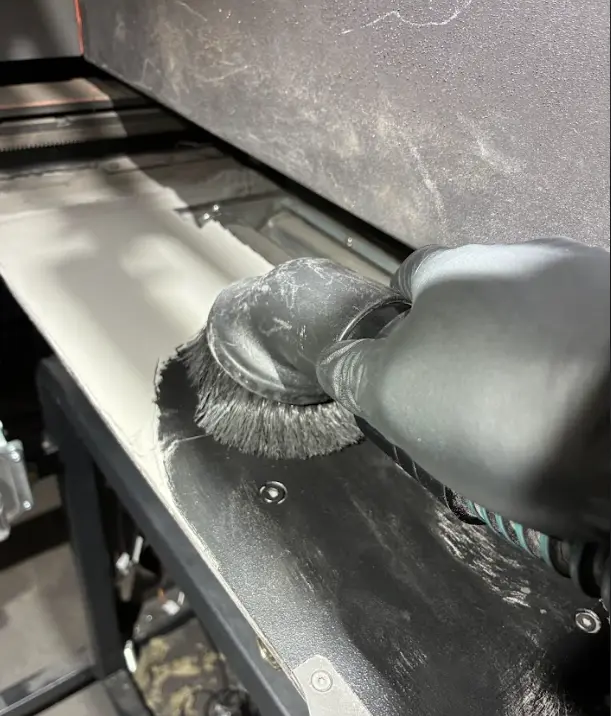
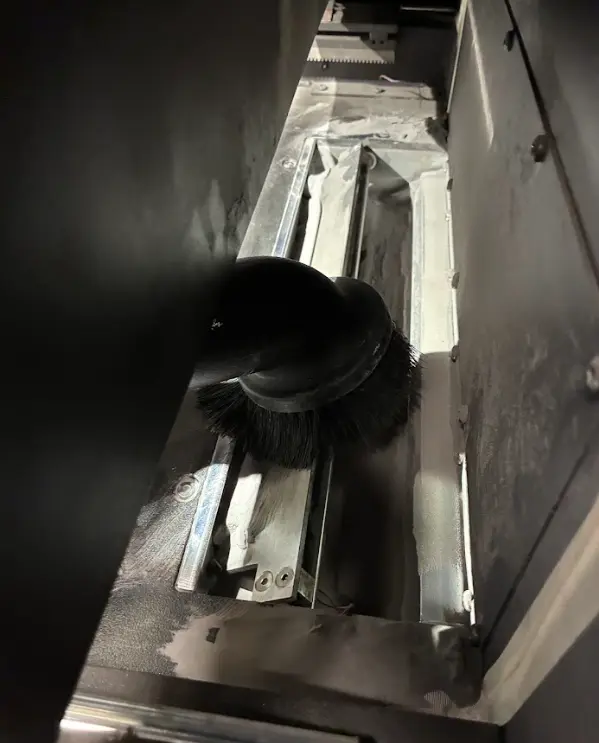
Cleaning the build sheet and troughs

  1. Open the print chamber door.

  2. Optional: Brush or squeegee the excess powder on the build sheet onto the top of the build unit. This will allow you to recover that powder in the Fuse Sift X1, along with the unsintered powder in the powder cake.

  3. Remove the build unit from the printer.

  4. Use a vacuum with a brush attachment to clean all visible powder and debris from the build sheet.

  5. Tap Maintenance > Motor Moves. The Motor Moves menu appears. Use the UI buttons to move the flippers such that the inside of the troughs are accessible.

  6. Use a vacuum with a crevice attachment to clean all powder and debris from within the troughs.