Cover clicks when opening (Form Studio 1)
Cover clicks when opening (Form Studio 1)
In some cases, the Form Studio 1 cover can deform during shipping. If this happens, the cover can catch on the upper halo panel when you open it, making a noticeable clicking noise.
To adjust the cover and prevent it from catching on the printer:
- Fully open the printer cover.
- Retrieve the 2.5 mm hex driver from the Form Studio 1 tool caddy.

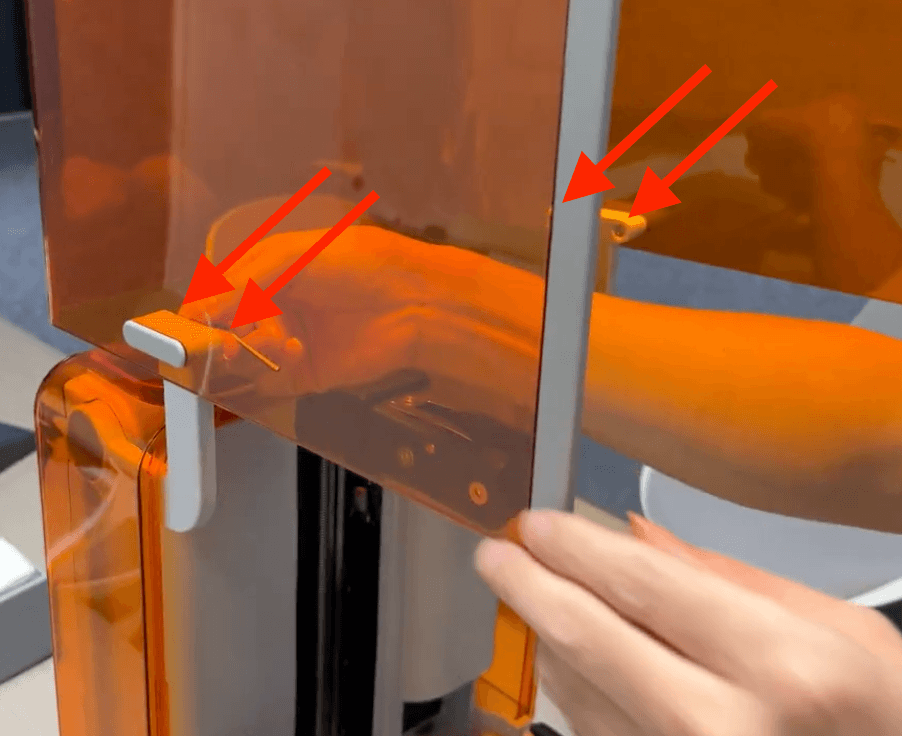
- From inside the printer cover, slightly loosen the two screws on the left cover arm and the two screws on the right cover arm. Loosen them only enough so that the cover position can be adjusted, roughly one half turn. Do not remove the screws.
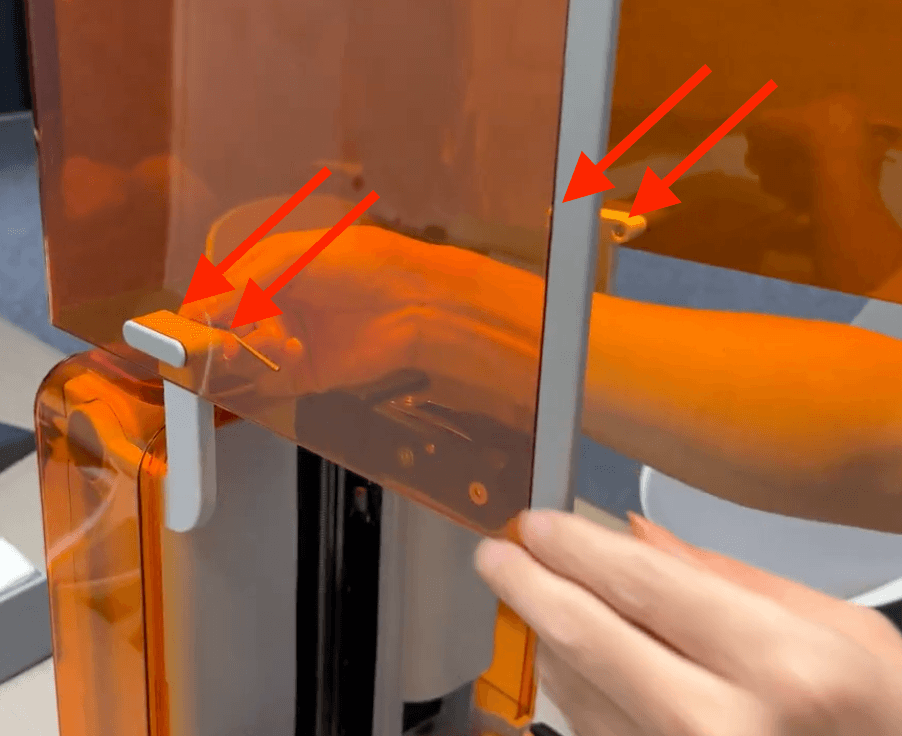
- Reposition the cover. First, hold the right cover arm and gently tilt the cover forward. Then hold the left cover arm and gently tilt the cover forward in the same way.

- While keeping the cover in the adjusted position, retighten all four screws until snug.
- Slowly open and close the cover and confirm that it moves smoothly without catching or clicking.