
備考:
モデルをグループ化した後、3Dシーンでグループ化されたモデルをクリックすると、グループ全体が選択されます。もう一度クリックして個々のモデルを選択します。

SLSプリンタ用のPreFormバージョン3.43.0およびSLAプリンタ用のPreFormバージョン3.53.0以降、モデルのグループ化機能を使用して複数のモデルをより効率的に管理できるようになりました。グループ化されたモデルに対しては、コピー、削除、可視性の変更など、モデルの複数選択と同じ機能を実行することもできます。
PreFormバージョン3.62.0以降、Model List(モデルリスト)はProject(プロジェクト)パネルの一部として画面左側に移動しました。その他の機能に変更はありません。
モデルのグループ化は、トレーサビリティが要件となる複数モデルの設定や、受託メーカーからの注文や歯科用プリントなど、個別に管理する必要がある場合に特に便利な機能です。
備考:
モデルをグループ化した後、3Dシーンでグループ化されたモデルをクリックすると、グループ全体が選択されます。もう一度クリックして個々のモデルを選択します。
モデルグループを作成する
複数のモデルをインポートする
モデルのフォルダをインポートすると、ファイルは自動的にグループ化され、Model List(モデルリスト)またはProject(プロジェクト)パネルに整理されます。グループ名には、インポートしたフォルダと同じ名前が付けられます。
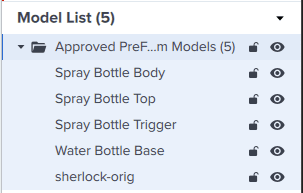
モデルリストでグループ化されたインポート済みモデル(PreForm 3.60.4以前)
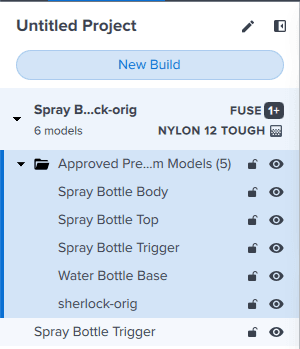
Projectsパネルでグループ化されたインポート済みモデル(PreForm 3.62.0以降)
複数ボディモデルの分割
複数のパーツやボディを含むモデルをインポートした場合、PreFormでそれらのボディを個別のモデルに分割することができます。分離したモデルはモデルグループに追加されます。
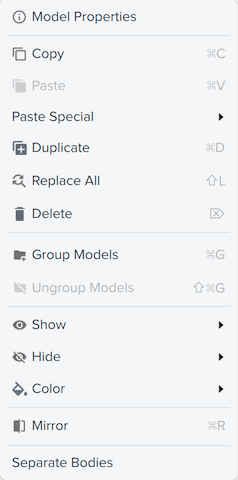
モデルの選択
モデルのリストから選択してグループ化することもできます。
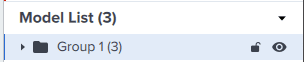
モデルのグループ解除
マイグループの中に、グループ化されたモデルとグループ化されていないモデルを混在させることができます。モデルを分離するには、グループ名またはグループ内の任意のモデルを右クリックし、Ungroup Models(モデルのグループ化解除)を選択します。モデルがフォルダから分離され、個別にリスト表示されます。