WHITE PAPER
Fuse Blast does not turn on
Fuse Blast does not turn on
Damaged or malfunctioning components may cause your Fuse Blast to fail to power on, freeze, not initialize, shut down unexpectedly, or experience display issues. Although these symptoms might seem similar, they usually result from different underlying causes, most often related to the display, or motherboard.
Symptoms
- Touchscreen is unresponsive
- Display is backlit but otherwise blank
- Display gets stuck on Formlabs logo while powering on
- Display does not turn on
- Unit does not turn on
Causes
- Damage to the display assembly
- Malfunctioning motherboard
- Unseated display cable
- Malfunctioning power supply unit
Troubleshooting steps
- Check the wall outlet to ensure it is delivering power. Test it with another device if needed.
- Try a different power cable, if one is available.
- Inspect the LED on the Fuse Blast power supply unit. The power supply is located behind the lower sidecar panel.
- Disconnect the Fuse Blast from power.
- Remove the lower sidecar panel, following the instructions in the guide Fuse Blast - Replacing the Pneumatic Cassette.
- Locate the power supply, positioned inside the machine near the power port.
- Reconnect the Fuse Blast to power. Do not interact with any internal components of the Fuse Blast while it is powered on.
- Check the power supply for a lit LED.
- Disconnect the Fuse Blast from power and reinstall the lower sidecar panel before continuing with troubleshooting.
- If the LED is not illuminated, the power supply should be replaced. Fuse Blast power supplies are available for purchase on the Formlabs Store. Contact Formlabs Support or your certified service provider for more information about replacing the power supply.
- Connect the Fuse Blast to a computer with PreForm via a USB cable. Open PreForm, click File > Accessories, and search for your Fuse Blast. You can also check for other signs of power on the machine: lit LEDs, spinning fans, or functional foot pedals.
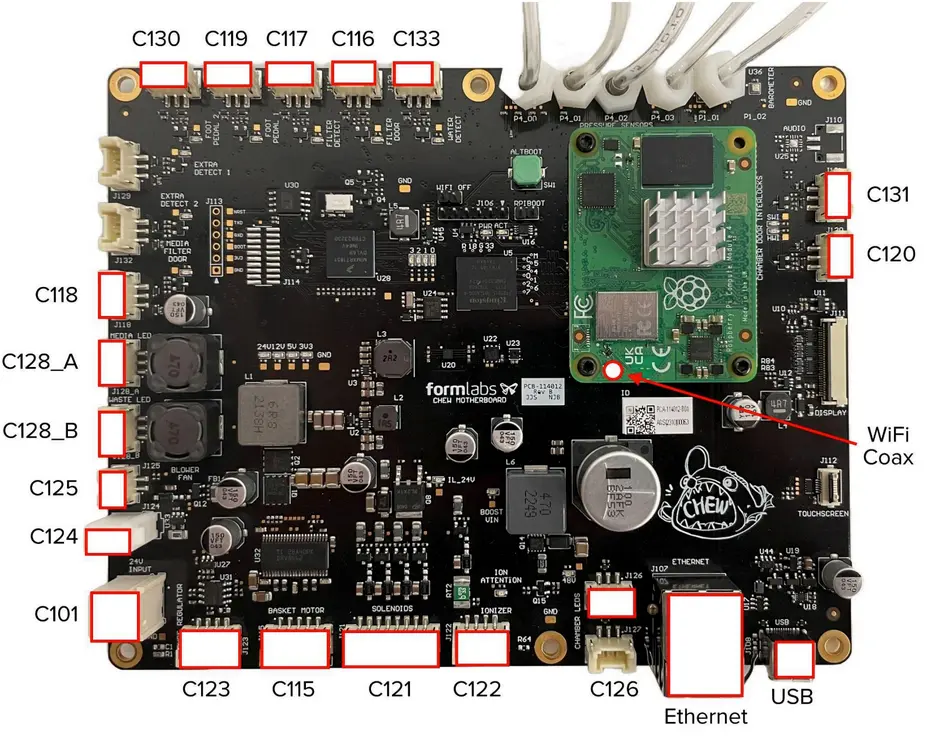
- If the machine appears in PreForm or appears to be receiving power, reseat the display cable. Follow the instructions in the guide Fuse Blast - Replacing the Motherboard and Display Assembly. The display ribbon cable connector is located on the right side of the motherboard, labeled DISPLAY. The display ribbon cable is secured in the connector with a latch. Lift the latch away from the motherboard to free the cable. Once the latch is in the upright unlocked position, the ribbon can be easily removed. Fully reseat the cable and close the latch.
- If the issue persists after reseating the display cable, the display may need to be replaced. The display and motherboard come as a single assembly, which is available for purchase on the Formlabs Store. To replace the component, follow the instructions in the guide Fuse Blast - Replacing the Motherboard and Display Assembly.