Note:
Material usage is only tracked for printers registered to a user’s Formlabs account.

Note:
Material usage is only tracked for printers registered to a user’s Formlabs account.
Updating the library
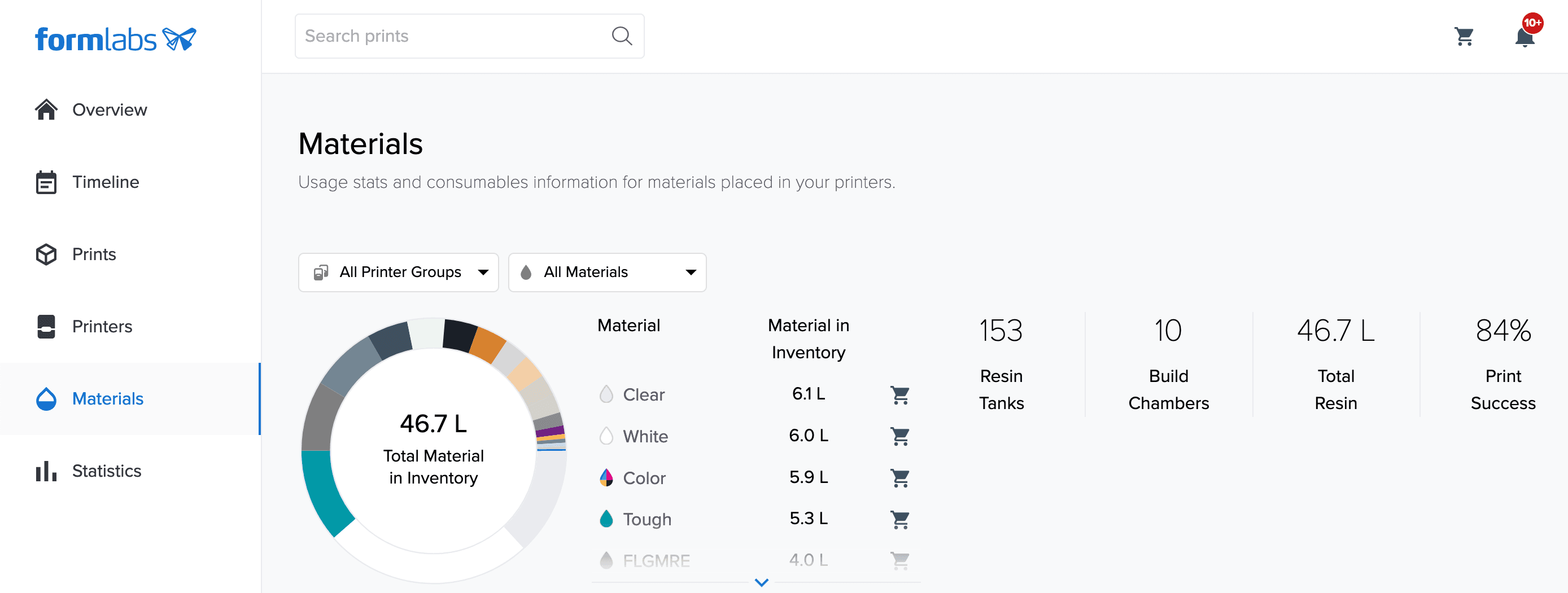
The Materials management tools in Dashboard allow users to individually name resin tanks, resin cartridges, and build chambers as well as remove inactive tanks and cartridges from the library.
Note:
By default, tanks, cartridges, and build chambers are named using the resin or powder formulation number.
Rename a tank, cartridge, or build chamber in the library
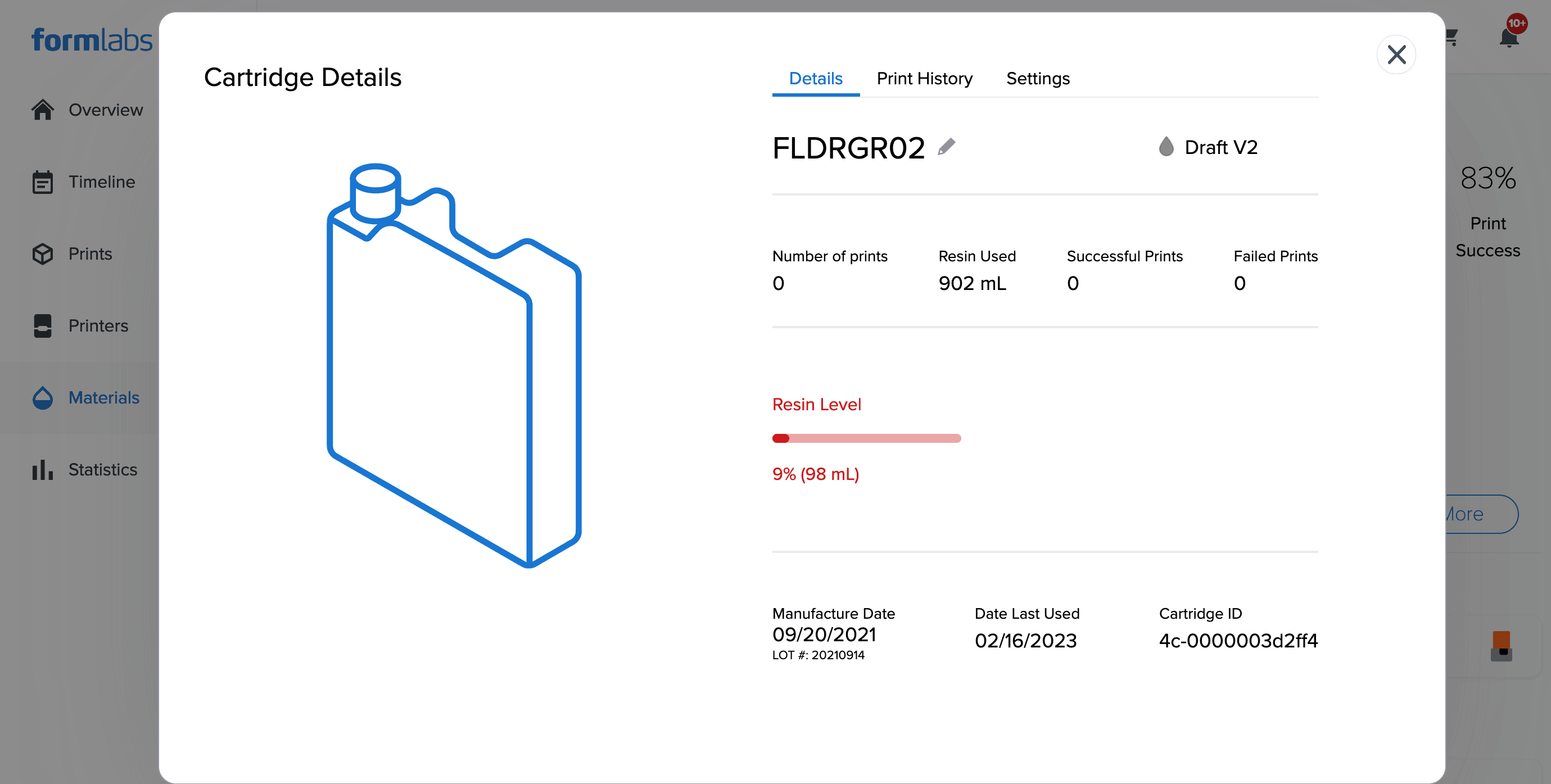
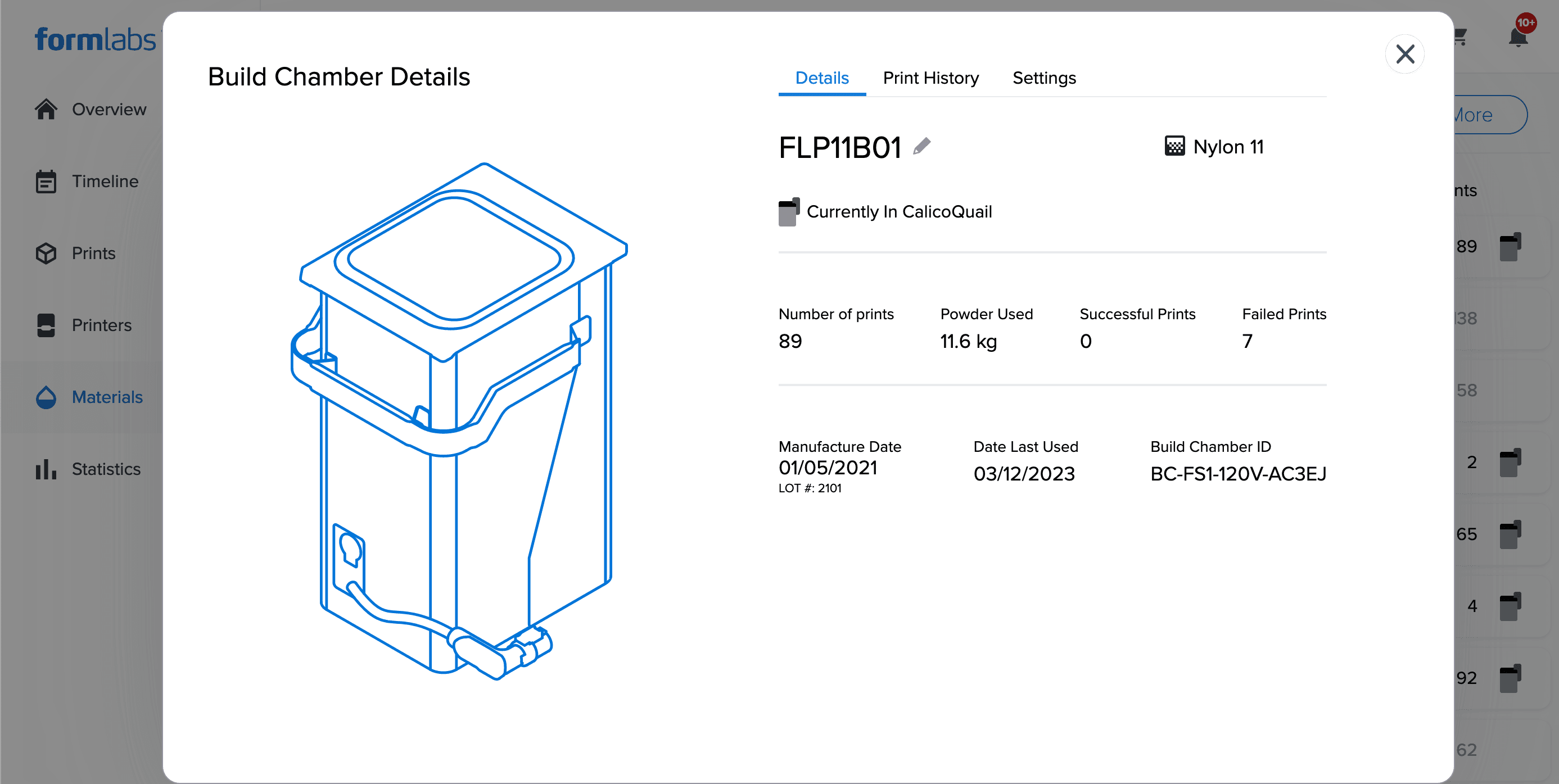
For each resin or powder type, Dashboard displays cartridges, tanks, and build chambers as separate lists. Organize and track your consumption by assigning each accessory a unique name, or stay ahead of expired materials by using the date of purchase as a name.
Note:
Consumables that are currently inserted in a printer are marked with a printer icon in the library.
Remove a tank, cartridge, or build chamber from the library
To keep a well-organized materials library, delete empty or inactive consumables from Dashboard.
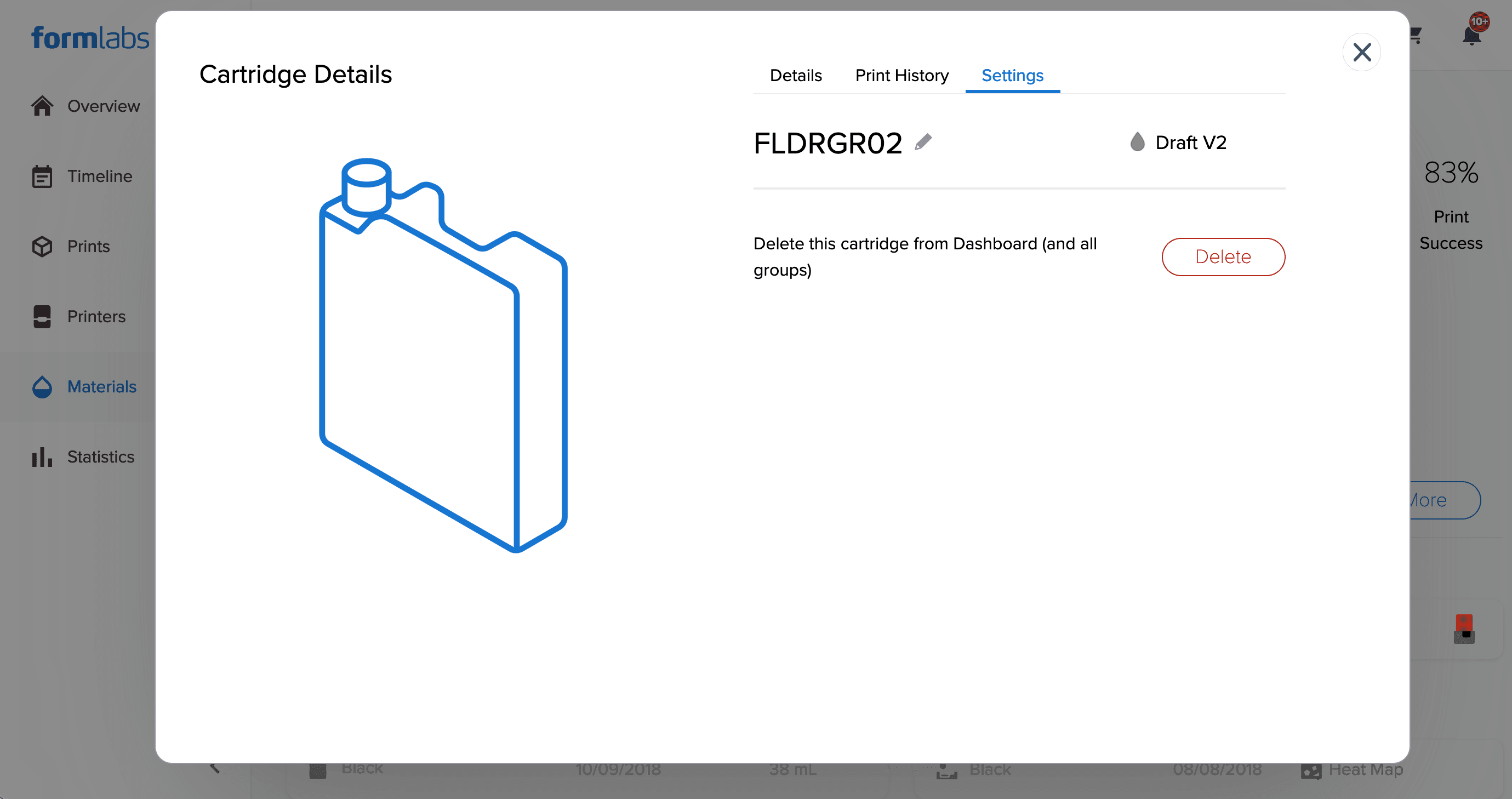
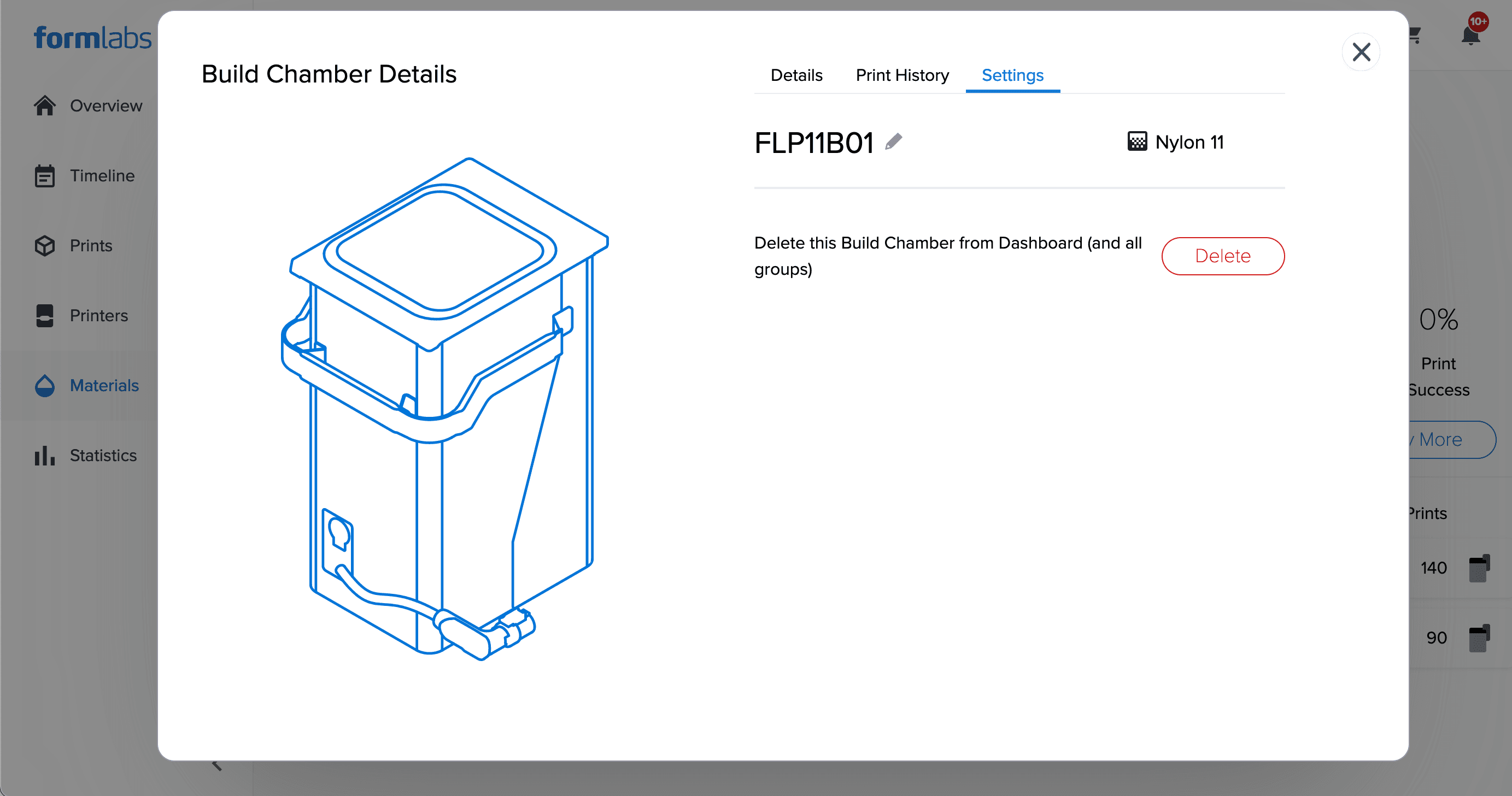
Note:
Insert a previously deleted tank, cartridge, or build chamber into a registered printer to add it back to the Materials library in Dashboard.
Analyzing resin tank heat maps (Form 2)
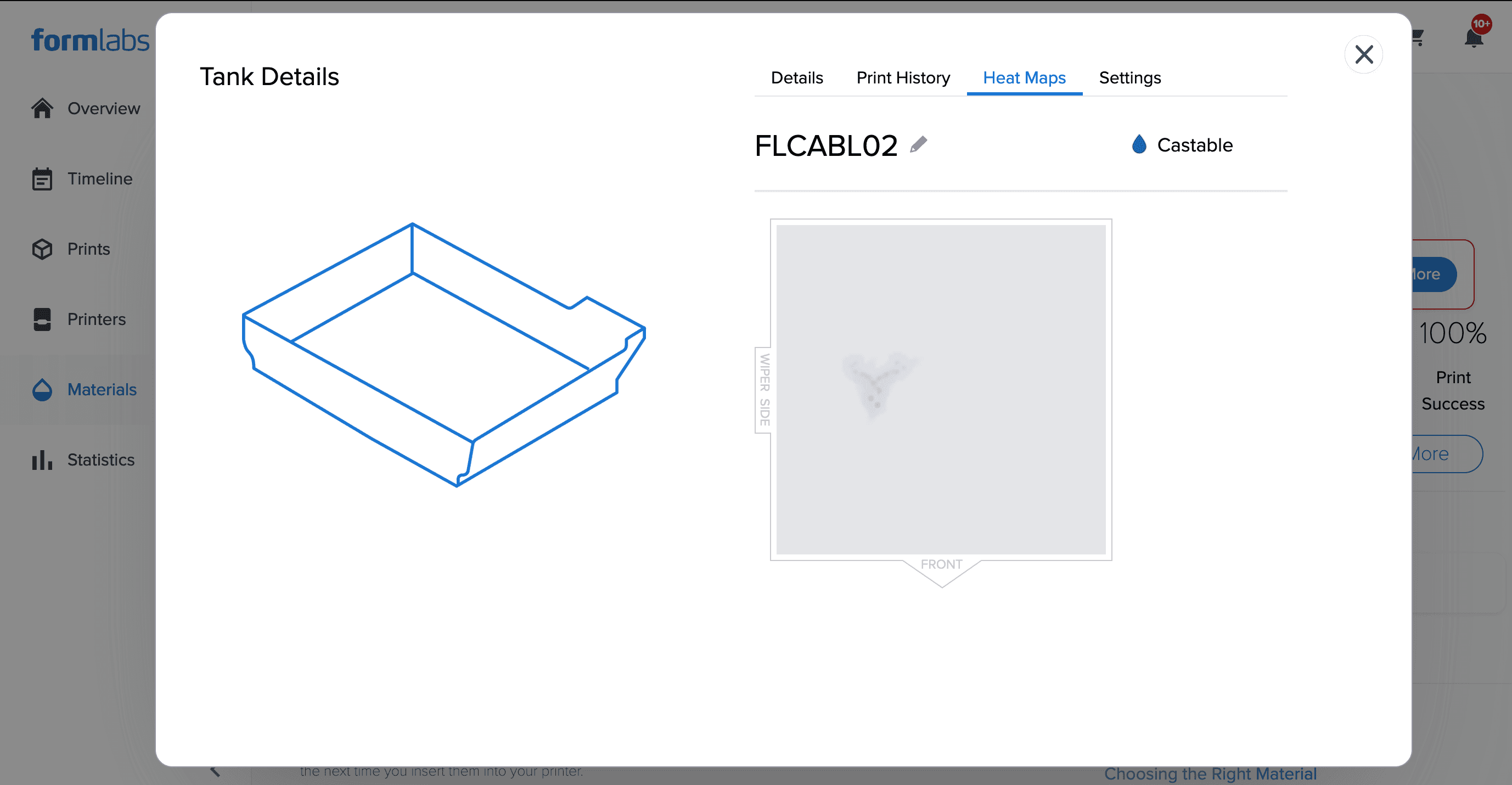
Dashboard shows a heat map for each resin tank associated with a registered Form 2 printer. The resin tank’s heat map visually represents the areas of the tank and their levels of laser exposure. Darker shading on the heat map means relatively more print layers for parts printed at that point than other places on the tank. The shading is not an absolute scale.
Resin tanks for the Form 2 are consumables that typically last for 1–2 L of resin, depending on the material type and print settings. Certain areas of the tank’s silicone can wear down more quickly than others, depending on part orientation and laser exposure. Printing in less frequently used areas of the tank can extend its lifetime.
Note:
Heatmaps are only available for Form 2 resin tanks.
View a resin tank heat map
A tank’s heat map is updated after every print. To see the heat map for a resin tank:
Viewing material usage for printers
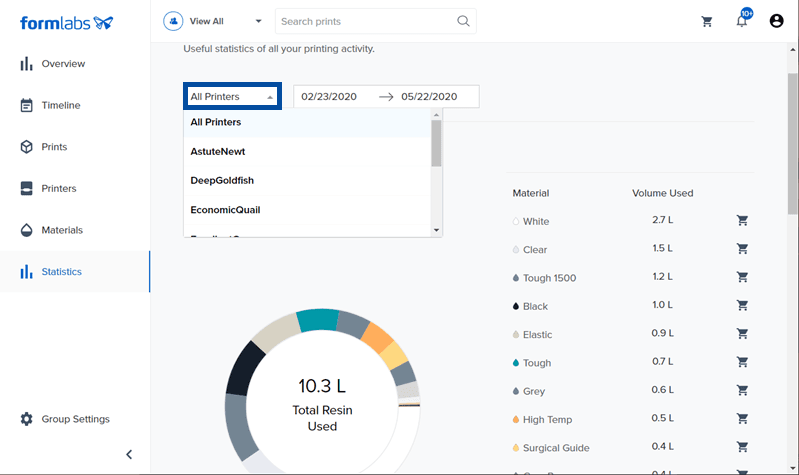
Once registered, Dashboard shows how much of each material is used on a printer. Click Statistics to find a breakdown of how much material is used across all printers, or just one printer in particular, over a select period of time.