
Formlabs Logo

Form Studio 1 error messages

Form Studio 1 error messages

If the Form Studio 1 encounters any abnormalities, the touchscreen displays error messages and displays more details about the error. This article outlines initial troubleshooting steps to resolve common error codes seen on Form Studio 1 printers or that are expected during normal operation. If you encounter an error code not found in this article, refer to the general troubleshooting steps below.

Form Studio 1 error codes have the format X.YY.ZZ, where X is the machine code, YY is the subsystem, and ZZ is the unique error code which signifies the relevant warning. The machine code for Form Studio 1 printers is 8, so the full error code for all such printer errors starts with 8. The error group number describes the type of error, while the subcode designates a specific subsystem or failure mode. For example, all subcodes of Form Studio 1 Error Group 3 relate to the heater and resin temperature, while Error 8.3.1 in particular relates to the resin failing to reach the target temperature.

General troubleshooting steps

The following steps are recommended for most issues seen on Form Studio 1 printers:

  1. Ensure that your printer's firmware is up to date.
  2. Update PreForm, then regenerate and reupload your print job.
  3. Power cycle the printer using the switch on the rear of the machine. 
  4. Leave the unit powered off for at least 30 seconds before powering back on.
  5. If an issue persists and the printer’s firmware is already up to date, manually reinstall the latest firmware package.
  6. If an issue began immediately after updating the printer’s firmware, roll back the firmware package to the previous version.

Best practices for opening a support case with Formlabs Support:

  • Provide photos of the specific error code and any other symptoms you are seeing.
  • Note the context of the issue (e.g., did the issue occur immediately after installation, after a software update, etc.).
  • Note the frequency of this issue and whether it is persistent or intermittent.
  • Note the resin and print settings you are printing with. 
  • Provide diagnostic logs from your printer.
  • Note all troubleshooting steps already attempted.

Diagnostic logs

Form Studio 1 printers maintain diagnostic logs to provide detailed information about the machine’s functionality. Include these diagnostic logs with other relevant observations and details when contacting Formlabs Support to speed up resolution.

For machines connected to the internet over an active Wi-Fi or Ethernet connection:

  1. Tap the gear icon on the bottom left of the printer’s Home screen. The Settings menu appears.
  2. Tap Support. The Support menu appears.
  3. Tap Send diagnostic information. A confirmation message to upload diagnostic information appears.
  4. Tap Upload to start the upload. A confirmation message appears when the upload is complete.

For printers not connected to the internet:

  1. Open PreForm.
  2. Click Edit Job Setup. The Job Setup window opens.
  3. Select the printer’s serial name.
  4. Click Download Logs. A confirmation window appears.
  5. Click Browse to download the diagnostic logs to a preferred location on your computer.
  6. Click OK. The diagnostic logs save and appear in the encrypted FORMLOGS format.
  7. Attach the file when contacting Formlabs Support.
  8. If PreForm displays the message ERROR_BAD_STATE, there may not be enough storage space on the printer for the upload. Delete print jobs from the Queue to clear enough storage space to upload the logs.
  9. Restart the printer and try again.

Learn more about options for network and non-network connections.

Enabling Remote Assistance for troubleshooting

During troubleshooting, Formlabs Support may need additional information from or access to your printer. You may be asked to enable Remote Assistance on your machine.

To prepare your printer for remote assistance:

  1. Ensure that your printer's firmware is up to date.
  2. Tap the gear icon to access the Settings screen. The Settings screen appears.
  3. Tap Support. The Support screen appears.
  4. Tap Remote Assistance. The toggle turns blue when it is enabled.

Enabling analytics for troubleshooting

During troubleshooting, Formlabs Support may need additional information from or access to your printer. You may be asked to enable Analytics sharing options on your machine.

To enable analytics sharing on your printer:

  1. Ensure that your printer's firmware is up to date.
  2. Tap the gear icon to access the Settings > General  screen. The General settings screen appears.
  3. Tap Analytics. The Analytics screen appears.
  4. Tap Share print logs and Share post-print photos. The toggles turn blue when enabled.

Factory reset instructions

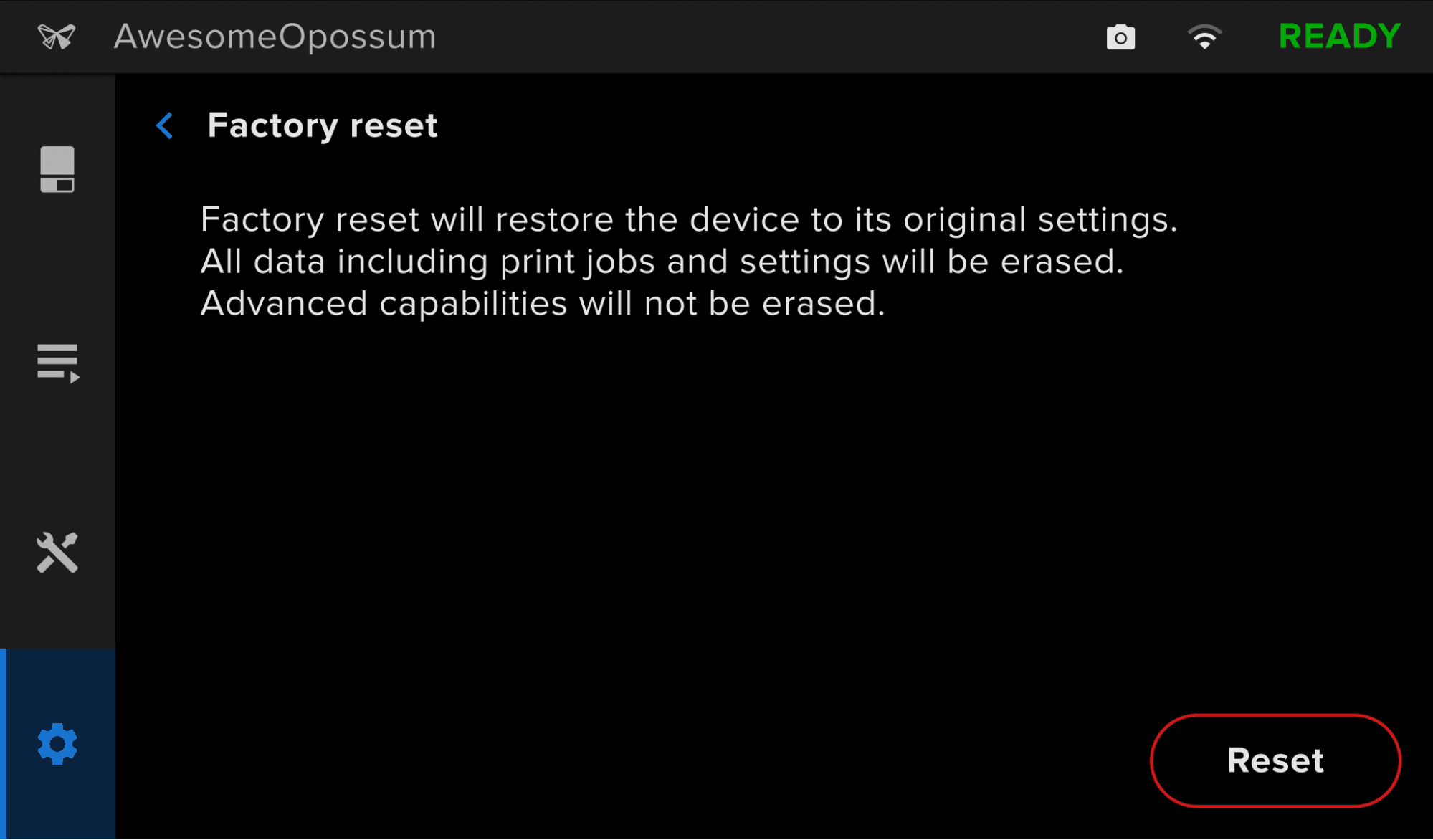
On some occasions, a factory reset may correct unusual printer behavior. Unusual behavior may include unknown error messages, incomplete firmware updates, an unresponsive touchscreen, or trouble connecting to PreForm. A factory reset erases custom settings, including prints saved in the Queue and network connections.

Notice:

A factory reset erases all print job information, custom settings, and diagnostic logs. Upload diagnostic logs before performing a factory reset.

To perform a factory reset:

  1. Tap Settings > General > Factory reset. The Factory reset screen appears.
  2. Tap Reset. A confirmation screen appears.
  3. Tap Reset. The printer is restored to its original settings.

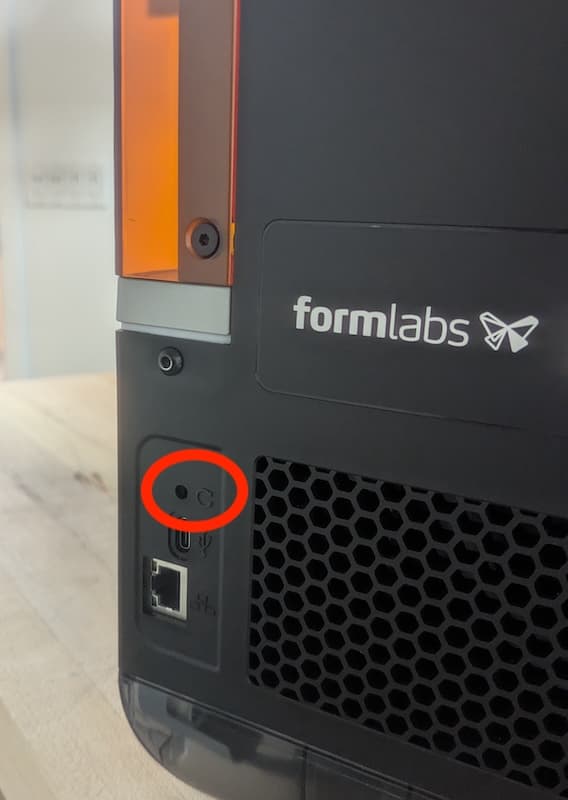
If you cannot perform a factory reset using the touchscreen, use the physical button on the back of the machine:
  1. Turn the printer off using the power switch at the back of the machine.
  2. Turn the printer back on.
  3. When the Formlabs logo appears, push and hold the reset button located above the USB port in the rear of the printer. If you press the button too early, the printer will not boot and the touchscreen will flash until you power cycle the printer. Hold the button for at least 10 seconds, until Resetting to factory defaults appears on the touchscreen. You may need to use a paperclip or other small tool to push the reset button. 
  4. Release the button. If you release the button too early, power cycle the machine and try again.
  5. The touchscreen displays Factory reset complete before initializing the printer.
Performing a factory reset on a Form Studio 1 printer

To confirm a successful factory reset, tap Queue on the printer’s touchscreen. After a successful reset, the print queue is empty. If the reset does not resolve the behavior, contact Formlabs Support.