

Using the camera on Form Studio 1 printers
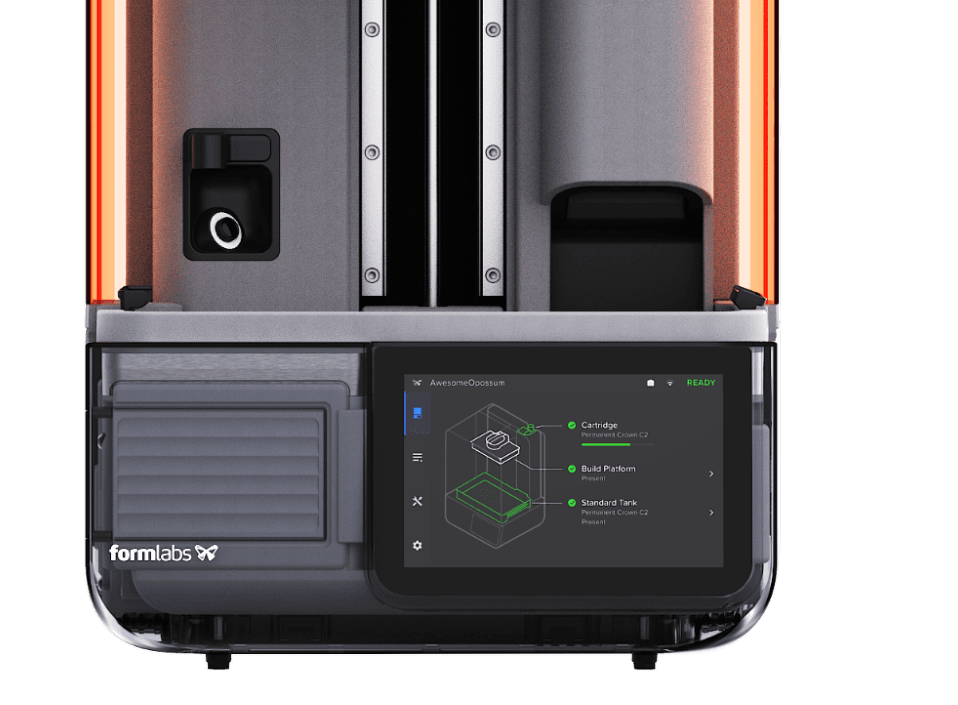
Form Studio 1 printers contain an integrated camera with a ring-shaped flash. The camera is located to the left of the Z-axis tower and points upwards towards the build platform.
Current camera features allow users to capture snapshots, watch a live stream of an ongoing print, take video timelapses of the printing process, and take an end-of-print photo when the print is finished successfully. Ensure PreForm, the printer’s firmware, and the Formlabs Mobile app are up to date to take advantage of the latest camera features.
Data privacy settings
Formlabs collects printer analytics to improve product performance. If the printer camera is enabled, it captures a photo at the end of every print. You can control whether Formlabs receives this image for analytics by adjusting the privacy settings. Follow the instructions in the support article Adjusting the camera privacy settings (Form Studio 1) to control whether Formlabs receives the image.
The Form Studio 1 also comes with a camera lens cap. You can use the cap to temporarily cover the camera rather than disabling it via the touchscreen.
Formlabs is committed to protecting your privacy. For specific details on privacy, data sharing, and access, please visit formlabs.com/privacy.
Turning on the camera
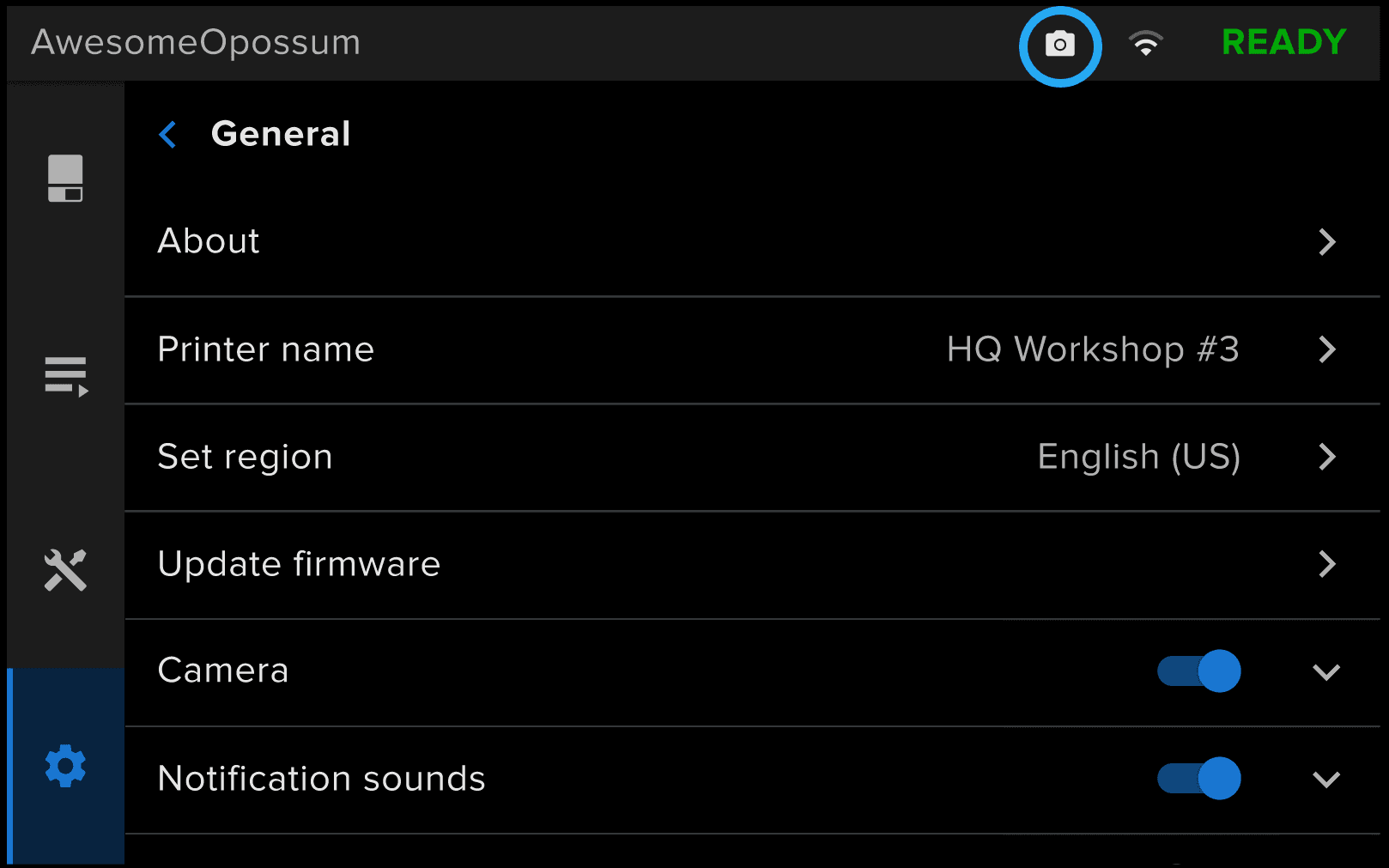
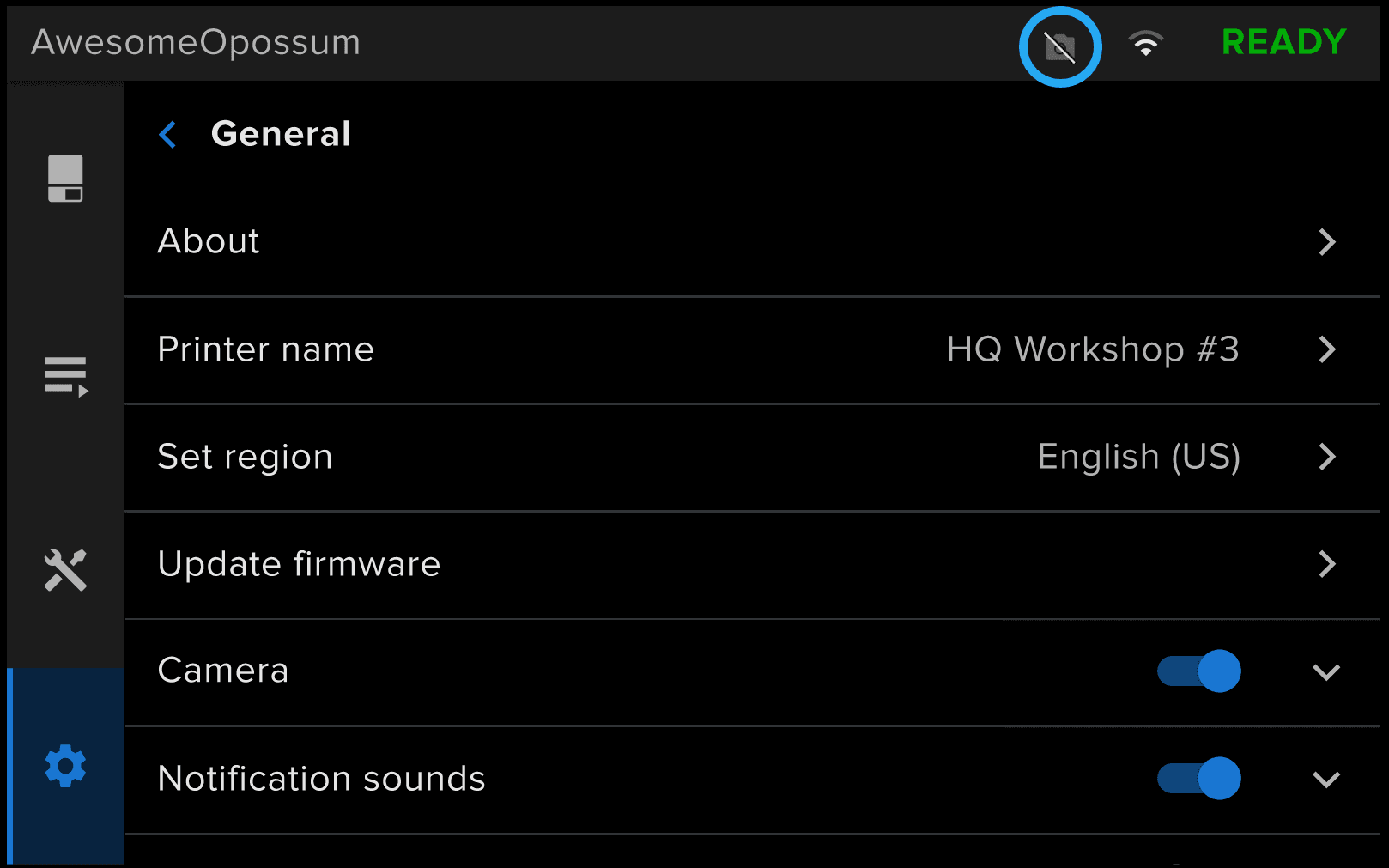
The camera is disabled before setup. You are prompted during onboarding to enable it, but can disable it at any time. The camera icon on the upper right corner of the touchscreen indicates the camera’s status. If the camera is enabled, the icon is white. If the camera is disabled, the icon is gray and crossed out.
To turn on the camera:
- On the printer’s touchscreen, tap the gear icon. The Settings menu appears.
- Tap Configuration > Camera.
- To enable the camera: Toggle Camera to ON. The toggle turns blue, and the camera icon in the upper right corner of the touchscreen turns white and is not crossed out.
- To disable the camera: Toggle Camera to OFF. The toggle turns gray, and the camera icon in the upper right corner of the touchscreen turns gray and is crossed out.
Taking a video timelapse
Form Studio 1 printers allow users to take a video timelapse of the printing process. The video is available in Formlabs Form Mobile app and Dashboard once the print job is completed.
To take a video timelapse, ensure that:
- The printer’s camera is on
- Camera analytics are enabled
- The printer is registered to Dashboard or the Formlabs Form Mobile app
- The printer is connected to the internet
- The Timelapse option is enabled under Settings > Configuration > Timelapse
To view a video timelapse:
- Open the Formlabs Form Mobile app or Dashboard.
- Log into a Dashboard account that has access to the Form Studio 1 printer whose timelapse you wish to view.
- For the Form Mobile app:
- Tap your profile icon in the top-right corner.
- Tap Timelapses.
- For Dashboard:
- Click Prints. The Active Prints page appears.
- Click Print History. The view switches to show past print jobs.
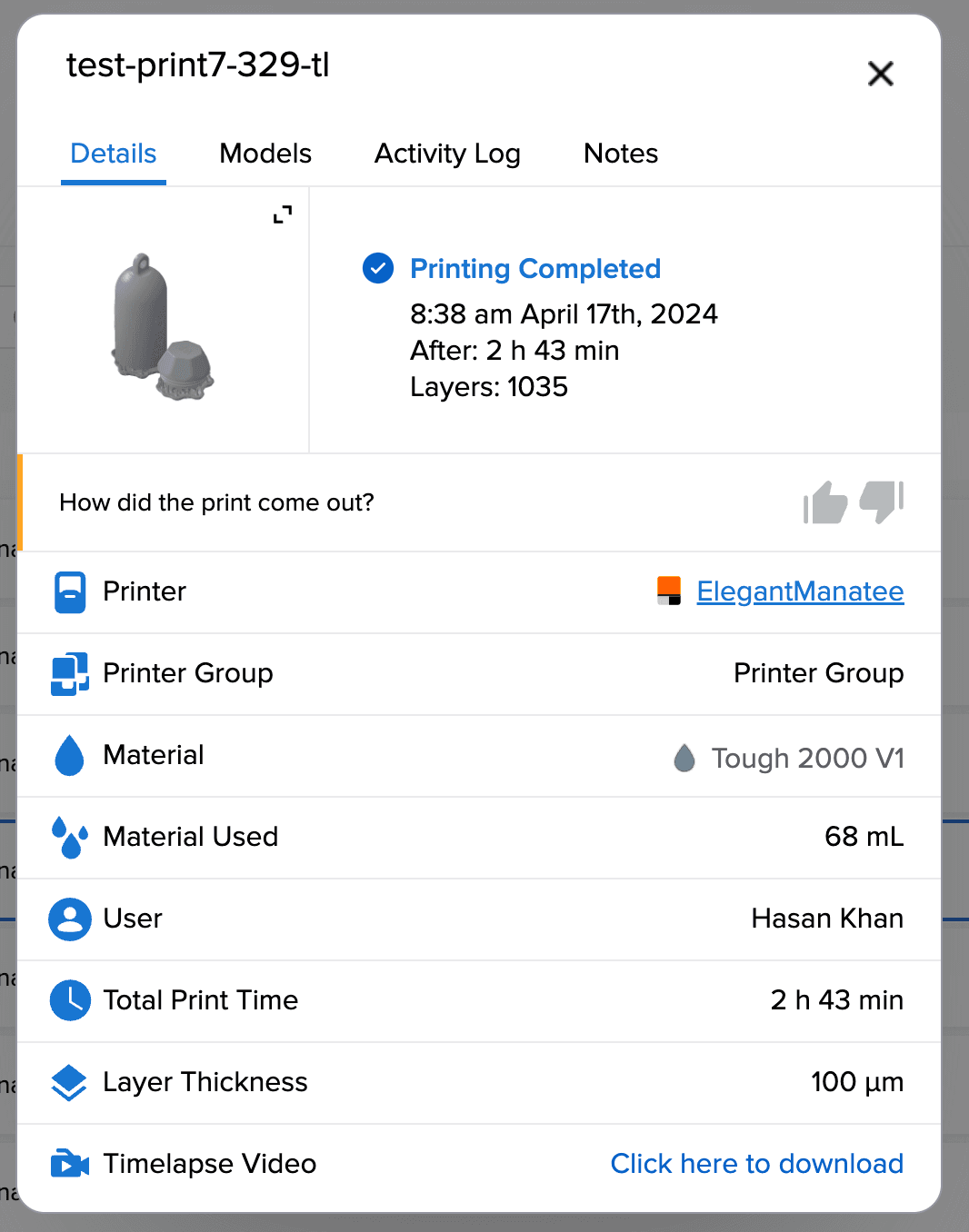
- Select a print from the list for which the timelapse option was enabled. A window with details about the selected print appears.
- Select Click here to download, located next to Timelapse Video at the bottom of the window, to download the video timelapse as an MP4 file.
Taking an end-of-print photo
Form Studio 1 printers allow users to take an end of print photo of a finished print job. The photo is available in the Formlabs Mobile app once the print job is completed.
To take an end of print photo, ensure that:
- The printer’s camera is on
- Camera analytics are enabled
- The printer is connected to the internet
To view an end-of-print photo:
- Open the Formlabs Mobile app.
- Log into an account that has access to the Form Studio 1 printer.
- Select the Form Studio 1 printer.
- Tap the Timelapse icon in the upper-right corner.
- Select the print job whose end-of-print photo you want to view.
- Tap Snapshot. The end-of-print photo appears.
- Tap on the image to enlarge the window.
- Tap the Download or Share icon to download or share the image, respectively.
Viewing the live feed
Form Studio 1 printers allow users to view the live camera feed in the Formlabs Form Mobile app. To watch the live cam, ensure that:
- The printer’s camera is on
- The printer is connected to the internet
- The printer is registered to the mobile app
To view the live camera feed:
- Open the Form Mobile app.
- Log into an account that has access to the Form Studio 1 printer whose live feed you want to view.
- Select the Form Studio 1 printer.
- Tap Live Cam. The live stream window appears. Tap on the video to enlarge the live cam window.
Taking a camera snapshot
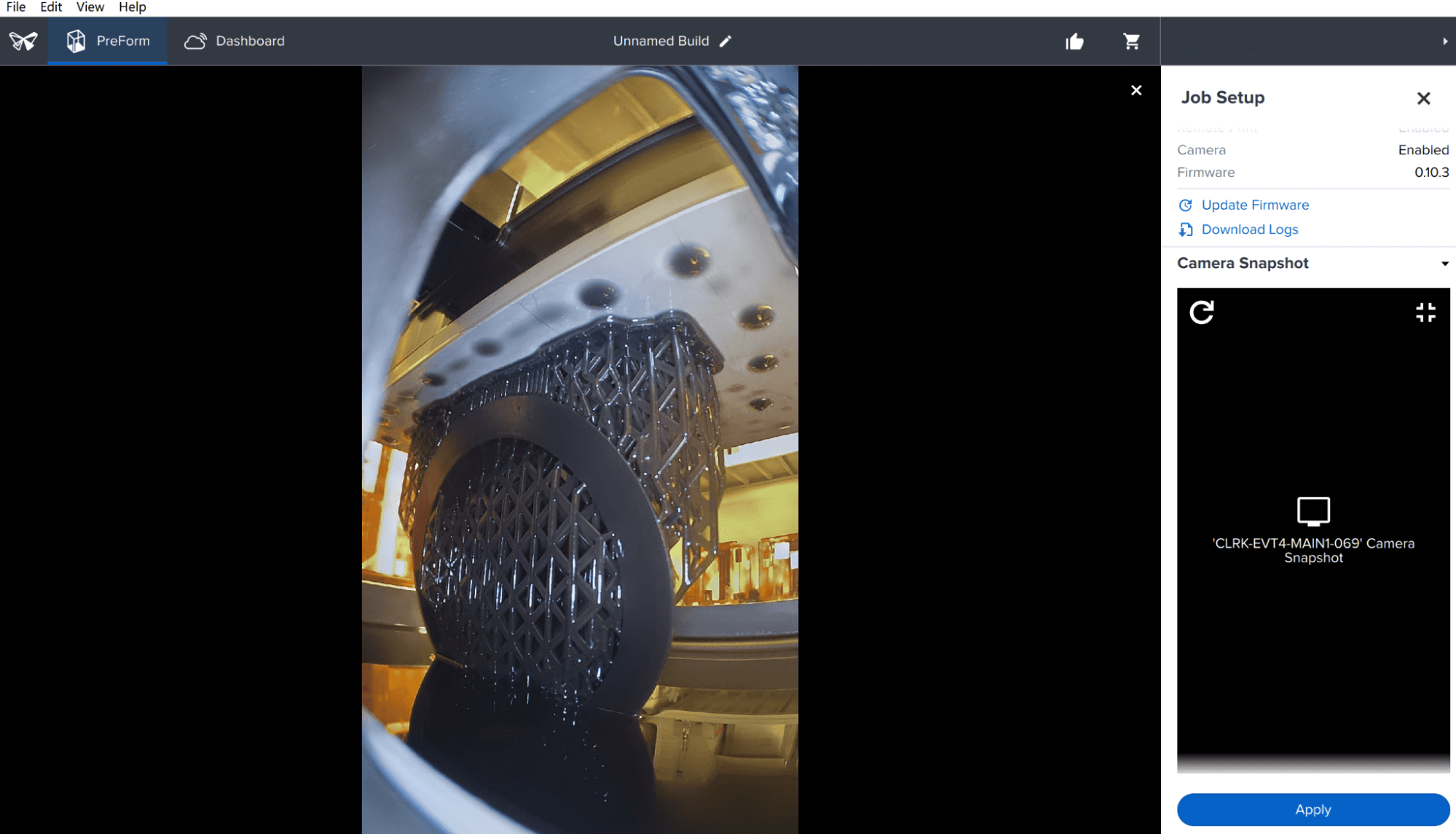
Form Studio 1 printers allow users to take a photo snapshot from the live camera feed. The camera snapshot is available in both the Formlabs Form Mobile app and Preform.
To take a camera snapshot, ensure that:
- The printer’s camera is on
- The printer is connected to the internet
- The printer is connected to the Form Mobile app or Dashboard
In Preform:
- Open Preform.
- Click Job Setup. The Job Setup screen appears.
- Select the Form Studio 1 printer you want to take a snapshot from.
- Click Camera Snapshot. The Camera Snapshot panel opens.
- Click the arrow in the upper-left corner of the image to refresh the image.
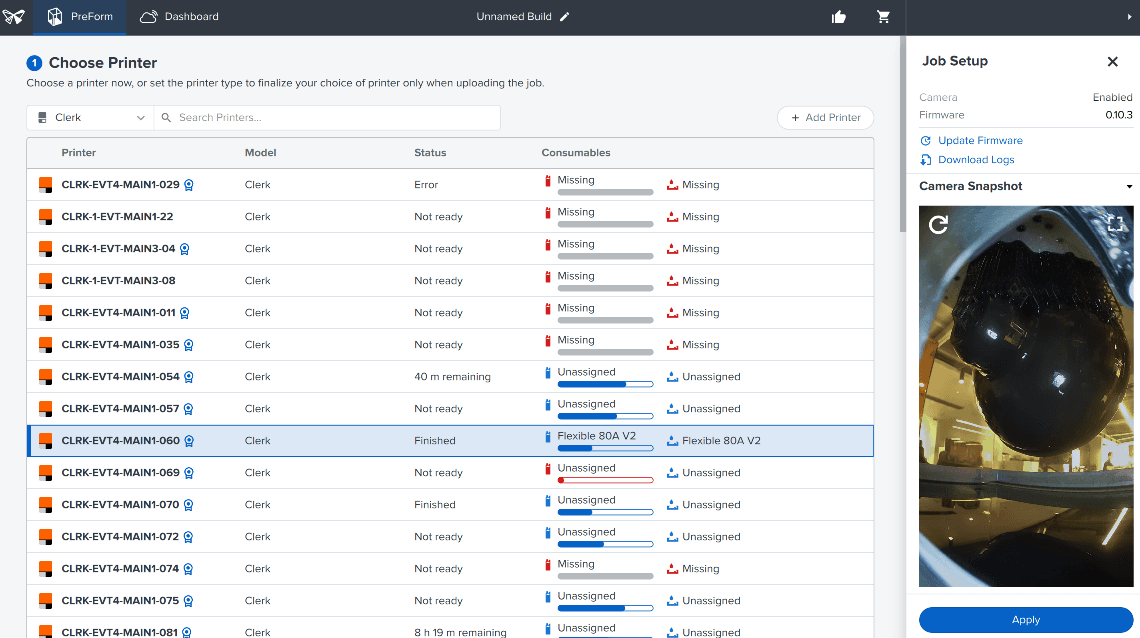
- Click the icon in the upper-right corner of the image to enlarge the camera snapshot window.
In the Formlabs Form Mobile app:
- Open the Form Mobile app.
- Log into an account that has access to the Form Studio 1 printer you want to take a snapshot from.
- Select the Form Studio 1 printer.
- Tap Live Cam. The live stream window appears. Tap Snapshot under the video window to take a snapshot.
- Tap the Delete or Download icon to delete or download the snapshot image, respectively.