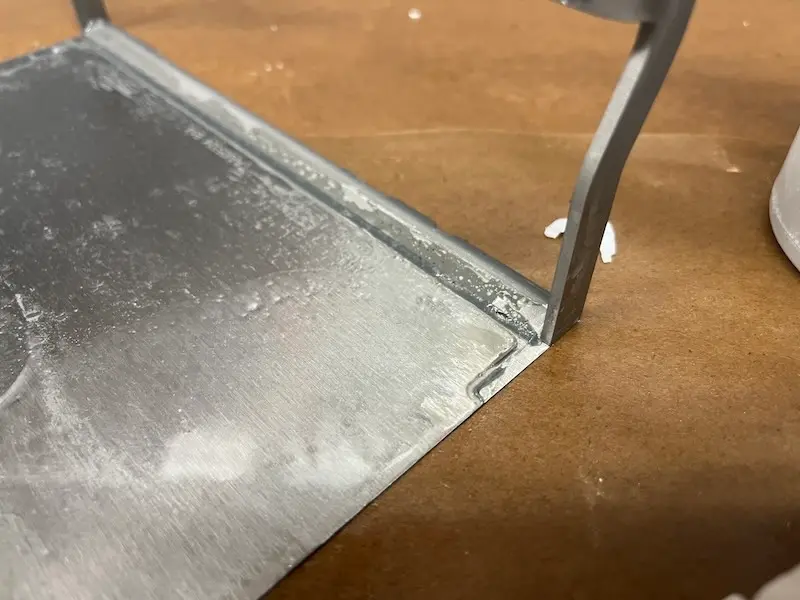
Notice:
Printing with an improperly assembled Flex Build Platform can damage the build platform, your resin tank, or your printer.

The Form 4 Flex Build Platform enables a quick and controlled release of printed parts from the build platform, allowing for an easier and more reliable post-processing workflow.
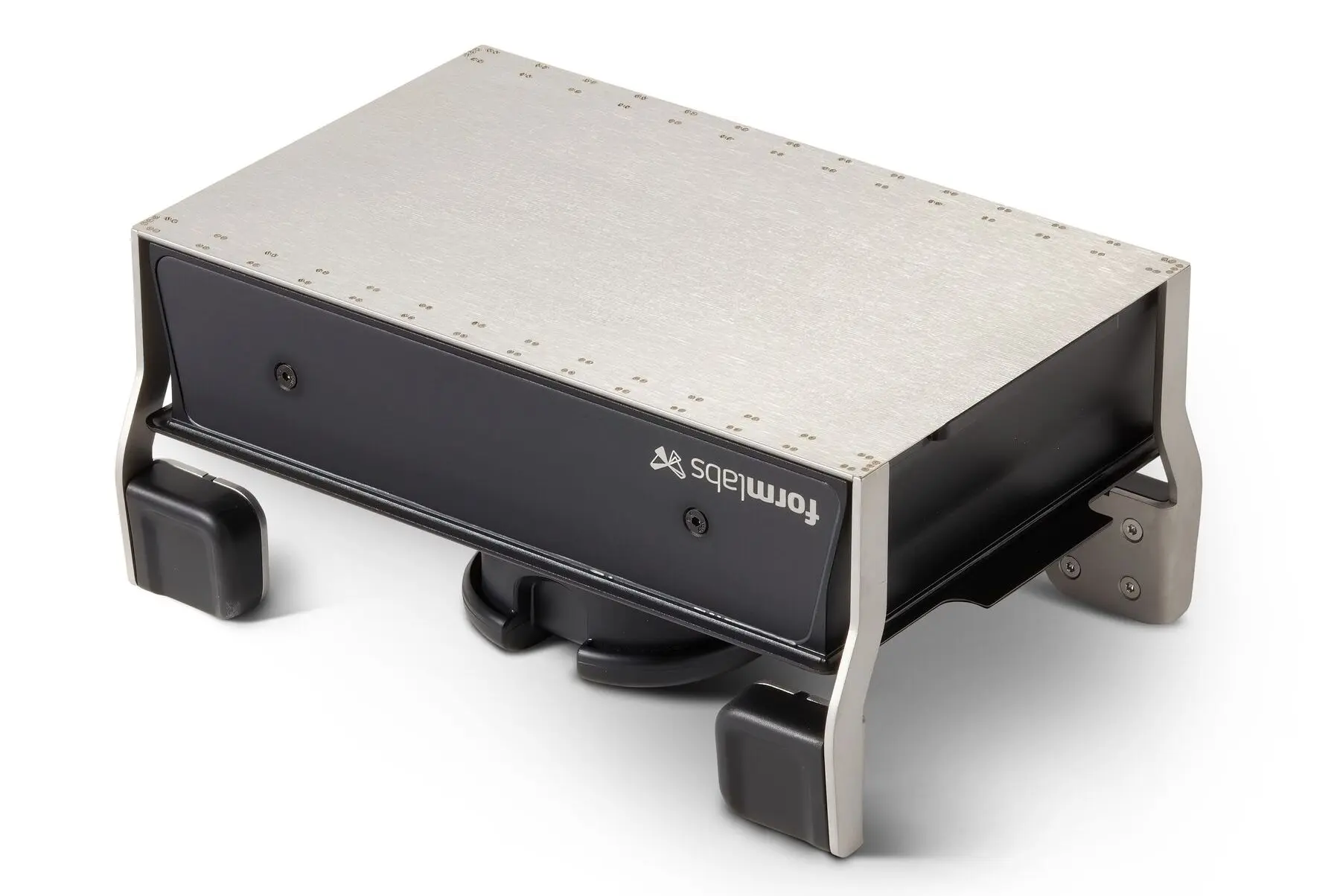
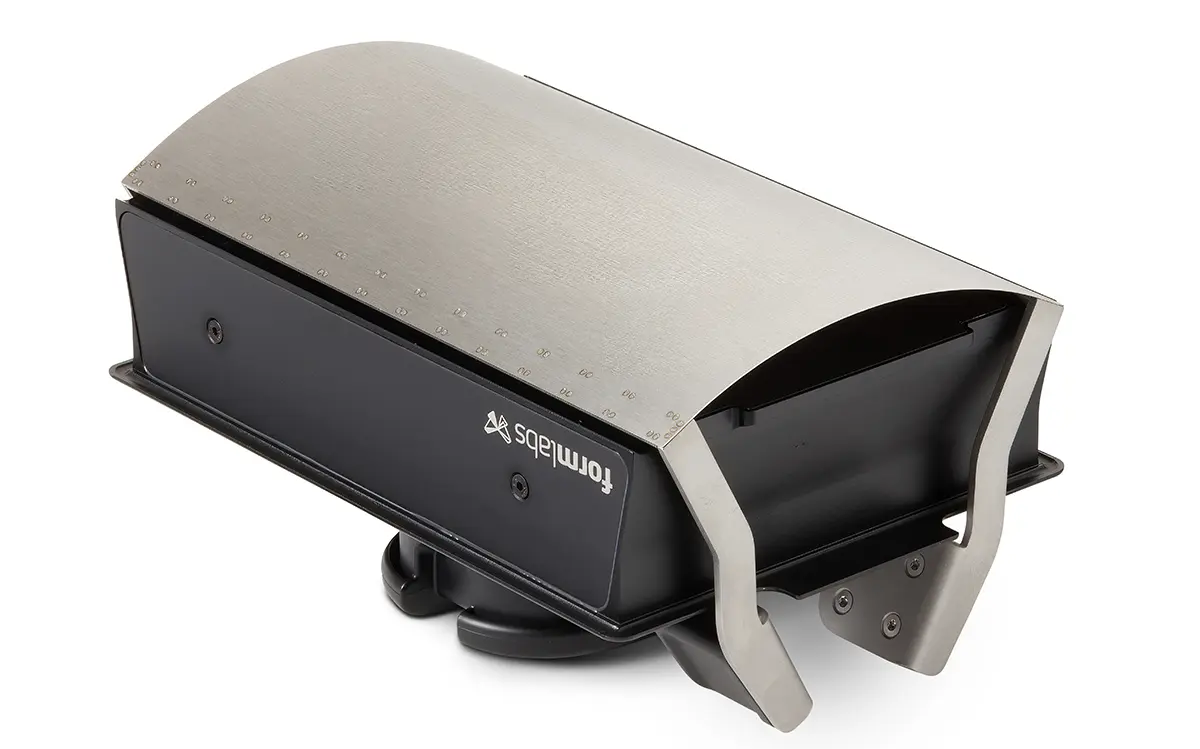
The Form 4 Flex Build Platform is made of two components: the build platform body and the print surface. The print surface is attached to the build platform body with magnets positioned within the alignment channels and throughout the top surface of the build platform body. The print surface bends when you push the part release tabs inwards, causing printed parts to release for easier post-processing.
When using the Flex Build Platform, make sure that both the build platform and your models are properly prepared before printing. Ensure that the build platform is clean and properly assembled. Certain part orientations and support options release more easily from the build platform than others, so set up your print with this in mind.
For the best print results:
Printing with Formlabs resins
Inspecting the print surface
Before printing with the Flex Build Platform:
Notice:
Printing with an improperly assembled Flex Build Platform can damage the build platform, your resin tank, or your printer.
Preparing your models in PreForm
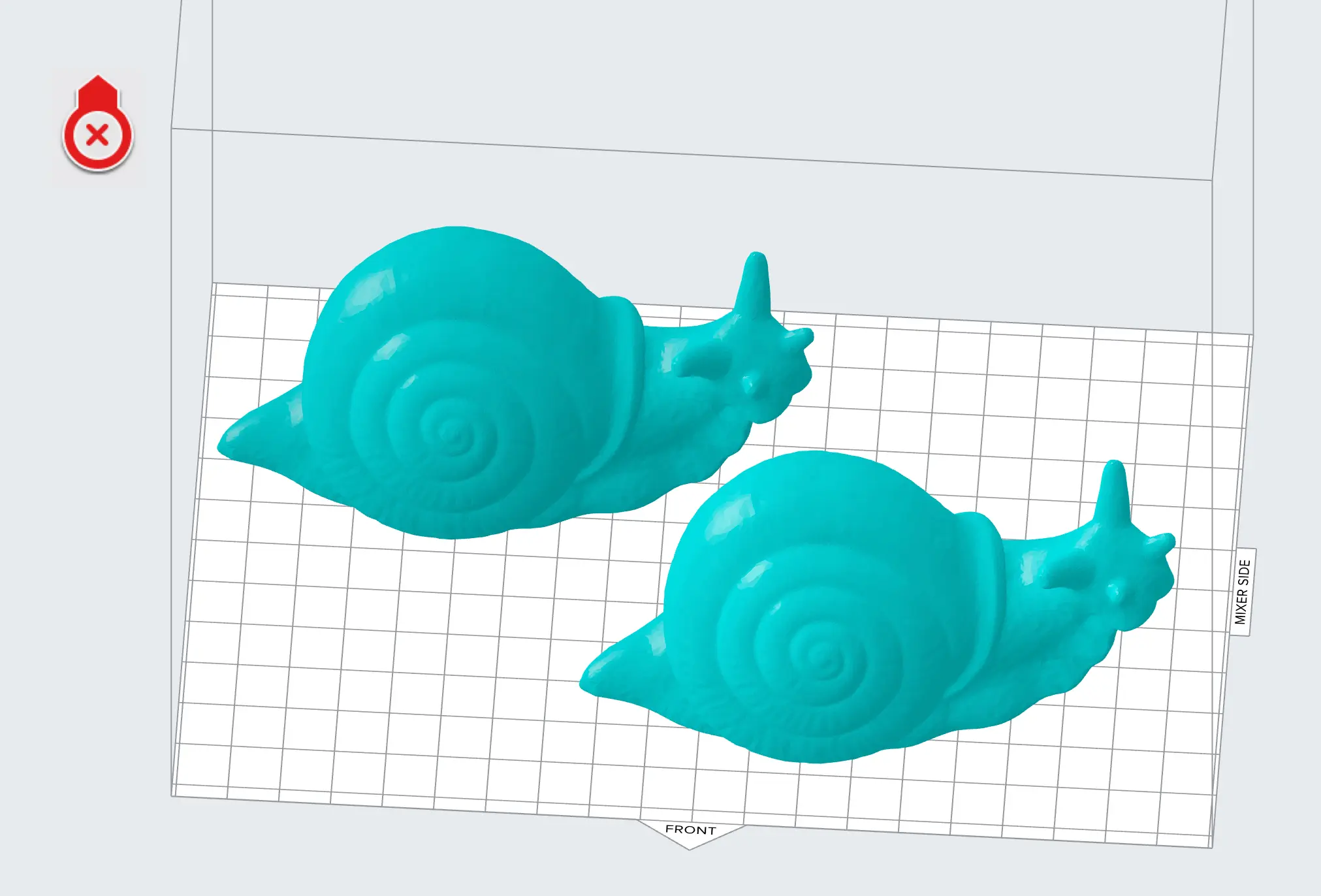
Orient models perpendicular to the front of the build platform
Align the long edge of the models perpendicular to the bend axis of the build platform so that parts are more likely to release. Place models perpendicular to the front of the build scene for easy part removal as the surface flexes.
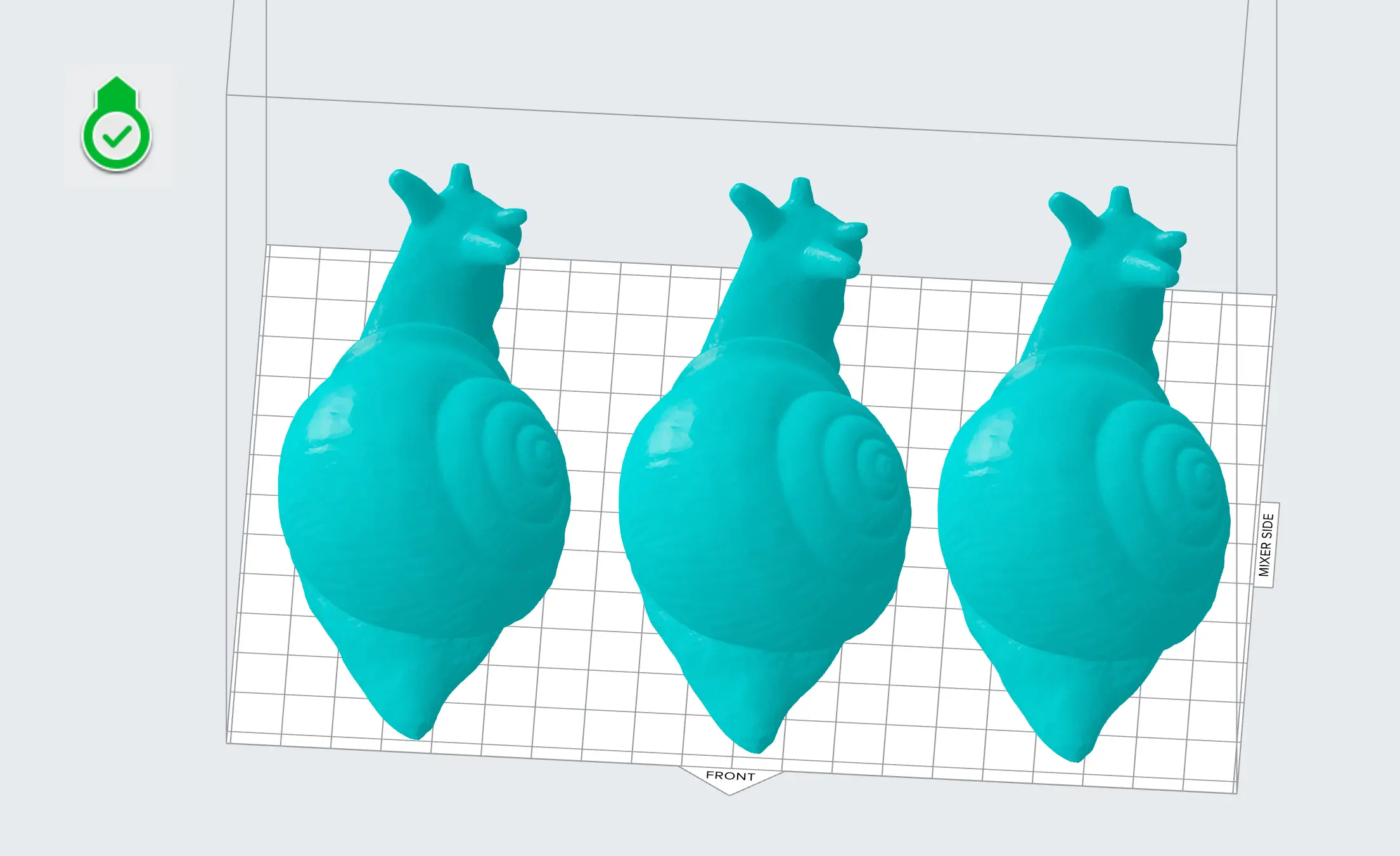
Overlap support rafts on smaller parts
Parts that are three centimeters or less at their longest point may be too small to completely release from the build platform when the surface flexes. Place these models close together in PreForm so that their rafts overlap and create a larger surface area. If you are using the automatic layout tools in PreForm, check the Overlap Rafts box in the Layout window.
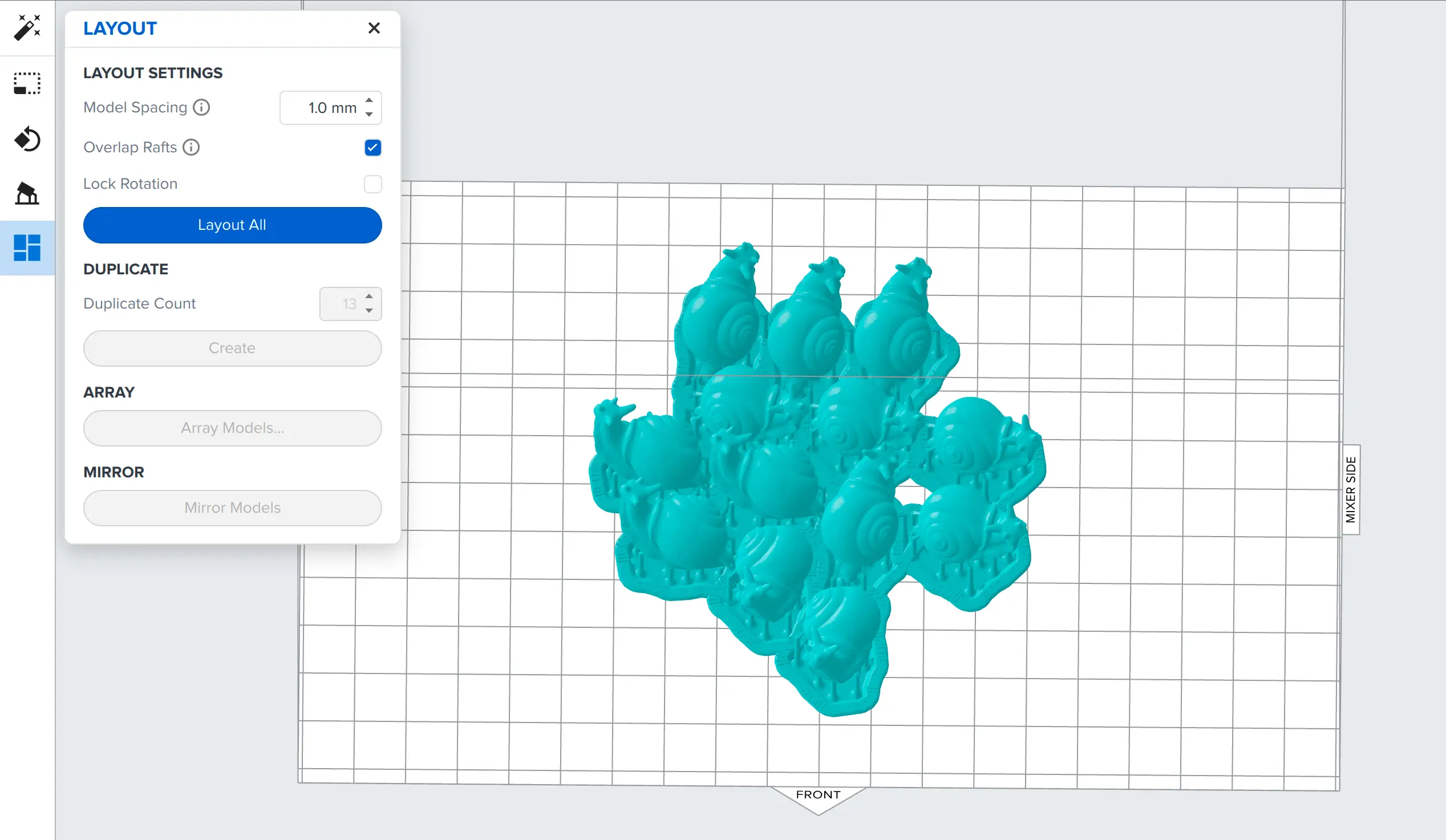
Note:
Avoid using mini-rafts with the Flex Build Platform. The surface area on mini-rafts is too small to release from the print surface when it bends.
Print parts with large flat surfaces directly on the build platform
Printing parts directly on the build platform can reduce print time and resin consumption, as well as simplifying post-processing steps.
Removing parts from the Flex Build Platform
Warning:
Wear gloves when handling printed parts and surfaces that are contaminated with solvent or liquid resin to prevent skin contact.
Caution:
Do not point the print surface of the Flex Build Platform toward your face. Flying parts or debris may lead to injury.
The Flex Build Platform’s print surface bends, releasing printed parts for post-processing. Released parts may separate entirely from the build platform or remain partially adhered due to liquid resin, allowing them to be removed by hand.
Remove the build platform from the printer and wash the attached parts using your solvent of choice.
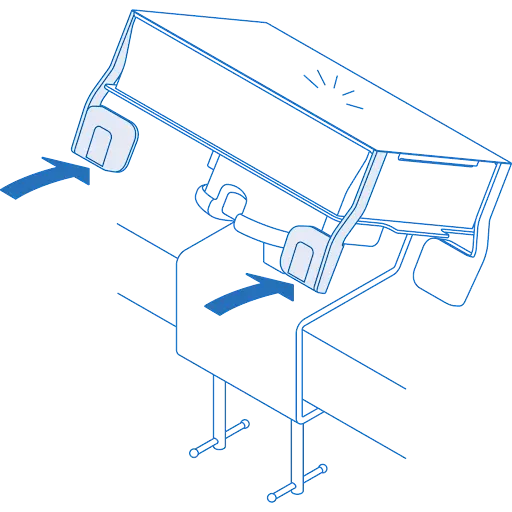
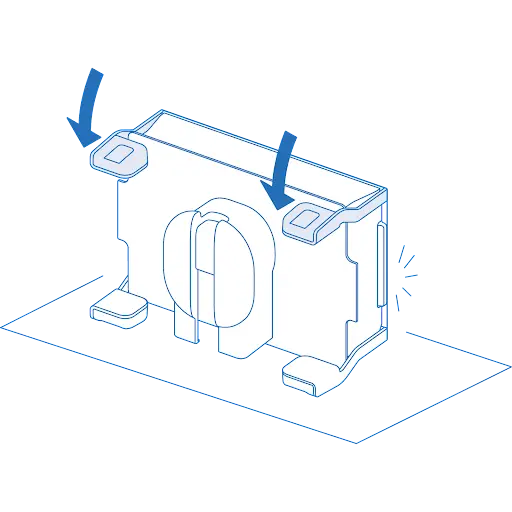
For large or fragile parts:
Troubleshooting with the Flex Build Platform
Non-adherence
When printing solid rectangular parts, the print surface may flex or decouple due to the internal stresses of the printing process. If this occurs, do not print the part directly on the build platform. Add support rafts to prevent the part from decoupling from the Flex Build Platform during the printing process.
Warped parts
Printing large parts directly on the build platform surface near the short edges may cause warping. If this occurs, do not print the part directly on the build platform. Add support rafts and reorient the part to prevent warping.
False debris detection errors (Form 4 generation Error Group 7)
Resin underneath the print surface can prevent the print surface from sitting flat against the build platform body, especially if the resin cures. This bowing of the print surface can be interpreted by the printer as debris on the build platform, triggering a false debris detection error (e.g., Error 1.7.2). If this occurs, check both sides of the print surface for resin or other debris and clean as necessary. Make sure the print surface is flat when installed on the build platform body before starting another print.