
Tip:
You need to create an account and register a printer to that account in order to track print events on Dashboard.

Dashboard tracks printer activity and displays it in real time. Log in to check on a print in progress or customize your notification settings.
Tip:
You need to create an account and register a printer to that account in order to track print events on Dashboard.
Accessing your print data
A printer syncs with Dashboard after you register the printer to an account. Log in to see what layer you are currently printing, if you are low on resin, and when your print is due to complete.
To view a printer’s status and check on a print’s progress:
Tip:
If you are having trouble detecting a printer, try testing your Dashboard connection.
To check on a print’s progress:
If you have access to a group of printers using Fleet Control, their print queue appears as well.
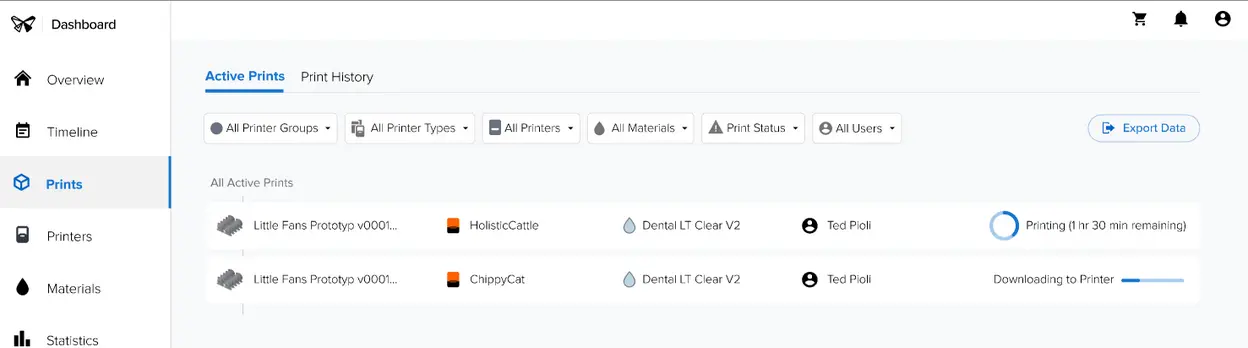
Tracking print progress with Timeline
You can also view information about ongoing and upcoming prints using Timeline. To reach Timeline when logged in to Dashboard, select Timeline from the left navigation. The Timeline page shows all printer groups and print statuses by default.
Tip:
Printers are organized by status. A printer with the Printing status is currently in use, while a printer that is not currently printing has the Idle status.
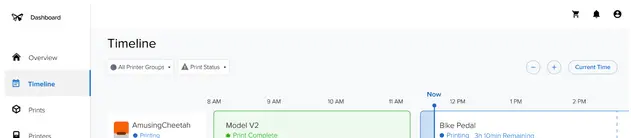
Timeline shows active print jobs and when they are expected to finish, as well as idle printers that are available for printing.
Viewing and filtering current jobs
To see if a printer is open or if a job is currently printing:
Changing time scales
A Timeline can be viewed in different time increments. Click the + and - buttons to zoom in and out on the timeline, respectively. Click Current Time to recenter the timeline on the current date and time.