
WHITE PAPER
Vertical lines (Form 4 generation)
Vertical lines (Form 4 generation)
Vertical lines in the part are usually caused by a scratch in the resin tank or dust and debris on the Light Processing Unit (LPU).
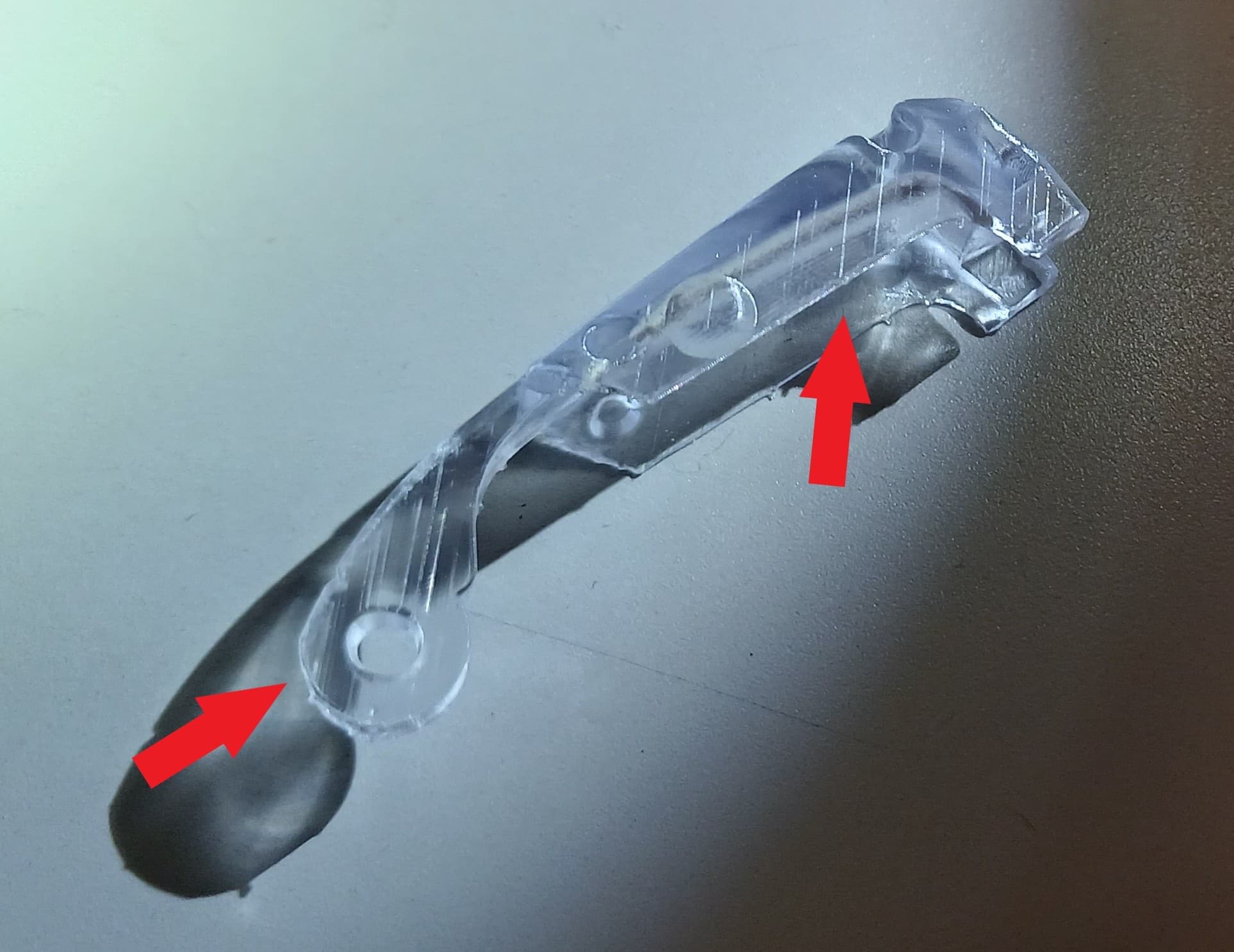
Visual symptoms
- Vertical lines along the Z-axis of parts
Common causes
- Scratch in the resin tank
- Dust or debris on the LPU
Troubleshooting steps
- Confirm that the lines on the model are along the Z-axis.
- Inspect the resin tank and the underside of the resin tank for scratches or dust.
- If the resin tank is undamaged, inspect the LPU for dust or debris.
- If the LPU release texture is contaminated, clean it.
- Run a test print and confirm whether the print defect is resolved.
Contact Formlabs Support
If the troubleshooting steps above do not resolve the print failure, contact Formlabs Support or your authorized reseller.
To help us provide the fastest and most effective response to your issue, please include the following information:
- Diagnostic logs
- Serial name of the printer
- The serial name is on the back panel of the printer in the format AdjectiveAnimal or Device-AdjectiveAnimal, where “Device” is the type of device (i.e. Form Wash)
- You can also tap the printer icon on the Home screen to find the serial name.
- Troubleshooting steps attempted
- Example: “I reoriented the model in PreForm. I inspected the resin tank and did not notice any damage, clouding, or debris.”
- Resin formulation and lot number
- The lot number is inside the skirt of the resin cartridge.
- Layer thickness
- Tap Queue on the Home screen. The Queue screen appears.
- Relevant FORM files
- If available, attach FORM files of the model to the support request.
- Previous attempts to print the part and any successful prints
- Example: “I printed the file part2.form three times previously. The first and second were successful. The third one failed.”