Formlabs Logo
Form Mobile overview and setup

Form Mobile overview and setup

Form Mobile allows you to remotely monitor and control your prints and printers via your mobile device. To get started, download the app from the Apple App Store or Google Play Store. Open the app, tap Get started, and enter your email address and password for your Formlabs account.
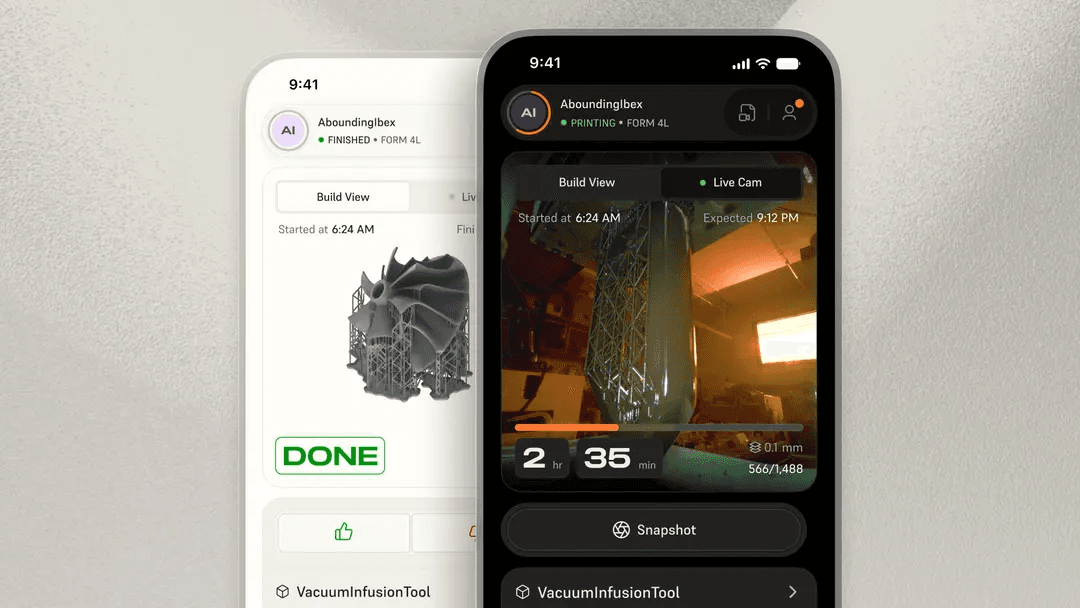
Form Mobile app

By registering your printer(s) to Form Mobile you can:

  • Remotely monitor print progress and printer availability
  • View photos and timelapse videos from your prints and printers
  • Control your prints and start prints remotely
  • Receive notifications for events like prints started or finished
  • Explore the Formlabs Store and view your past orders

Form Mobile is frequently updated with new features. Keep your device updated and log in regularly to see the latest.

Note:

At this time, the following printer types can be connected to Form Mobile:

  • Form Studio 1
  • Form 4 generation
  • Form 4L generation

Creating an account

Creating an account with Formlabs is the first step to ordering through our web store, receiving product updates, and checking in with Form Mobile. 

To create an account:

App

Web

  1. Open the Form Mobile app.
  2. Tap Get started.
  3. Tap Next until you reach the Log In with Formlabs screen.
  4. Tap I don’t have an account. Follow the on-screen instructions to create a new account.
  1. Go to www.formlabs.com.
  2. Click Sign In at the top of the page. A dialog box appears.
  3. Click Create an Account. The Your Dashboard page appears.
  4. Enter your information into the fields, read and agree to our Privacy Policy, and click Create Account.


Note:

In-app account creation was introduced in Form Mobile version 2.1.6. Earlier app versions required that you create an account via the Formlabs website.

Logging into your Formlabs account

After creating an account, log into the app:

  1. Open the Form Mobile app.
  2. Tap Get started.
  3. Tap Next until you reach the Log In with Formlabs screen.
  4. Enter the credentials for your Formlabs account.
  5. Tap Log in.

Providing feedback

User feedback helps Formlabs continuously improve its products. To provide feedback about Form Mobile:
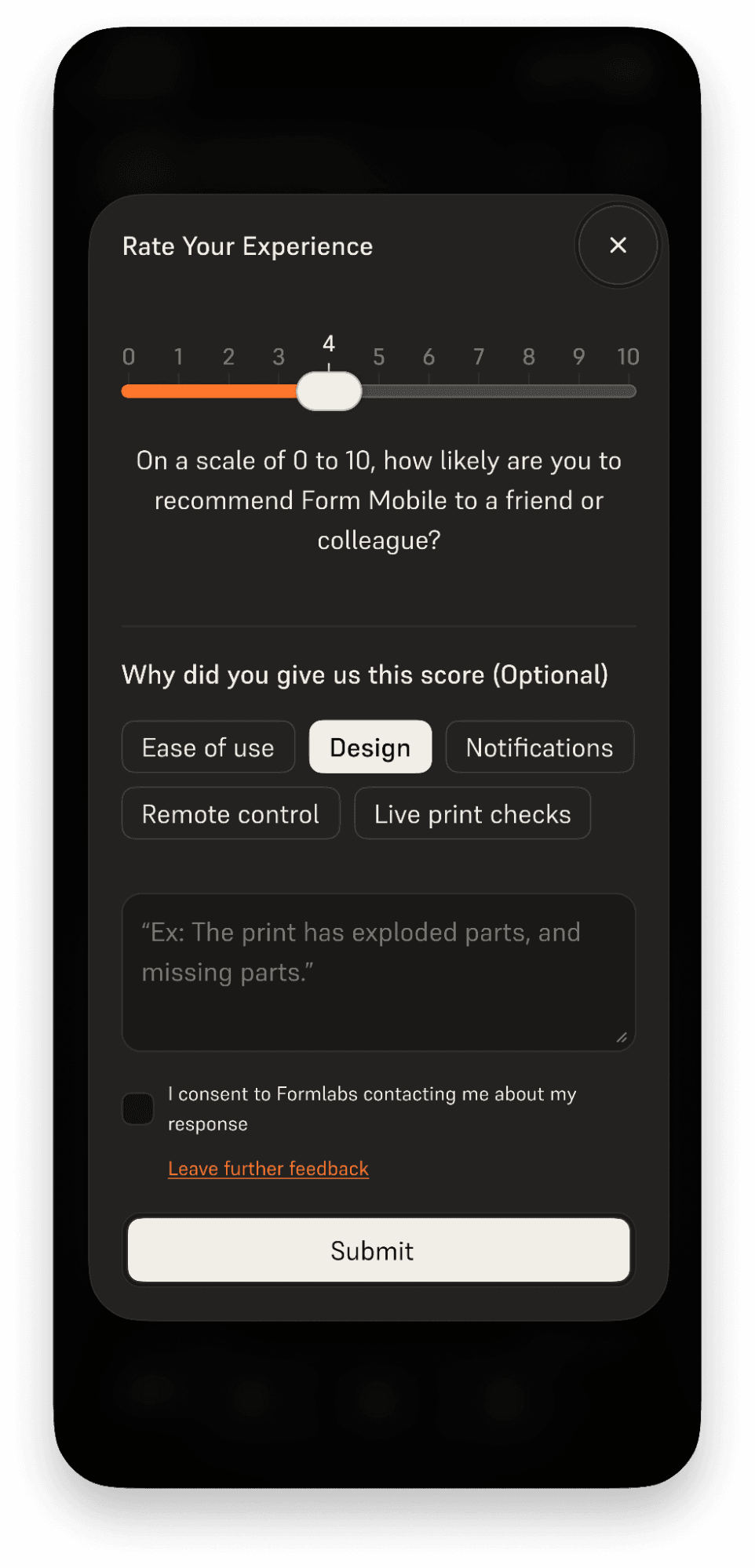
  1. Open the app.
  2. Tap the profile icon at the right of the status bar. The Account screen appears.
  3. Submit feedback in one of three ways:
    • Tap Rate the app. The Rate Your Experience screen appears, allowing you to submit feedback about the app and your use case. You can also opt into Formlabs contacting you for more information.
    • Tap Contact Us to open a blank email draft to submit more open-ended feedback.
    • Tap App Bug Report to submit feedback about a bug or other similar issue.
Providing feedback via Form Mobile

Next steps

To continue learning about Form Mobile, read the support article Adding and removing printers in Form Mobile.
