

Setting up Form Mobile notifications
Setting up Form Mobile notifications
Form Mobile can notify you about print events on your mobile device. You can customize notification options to monitor the prints for an entire printer group or just your own prints.
To customize your notification settings:
- Open the app.
- Tap the profile icon at the right of the status bar. The Account screen appears.
- To fully enable or disable push notifications, toggle the Push notifications option.
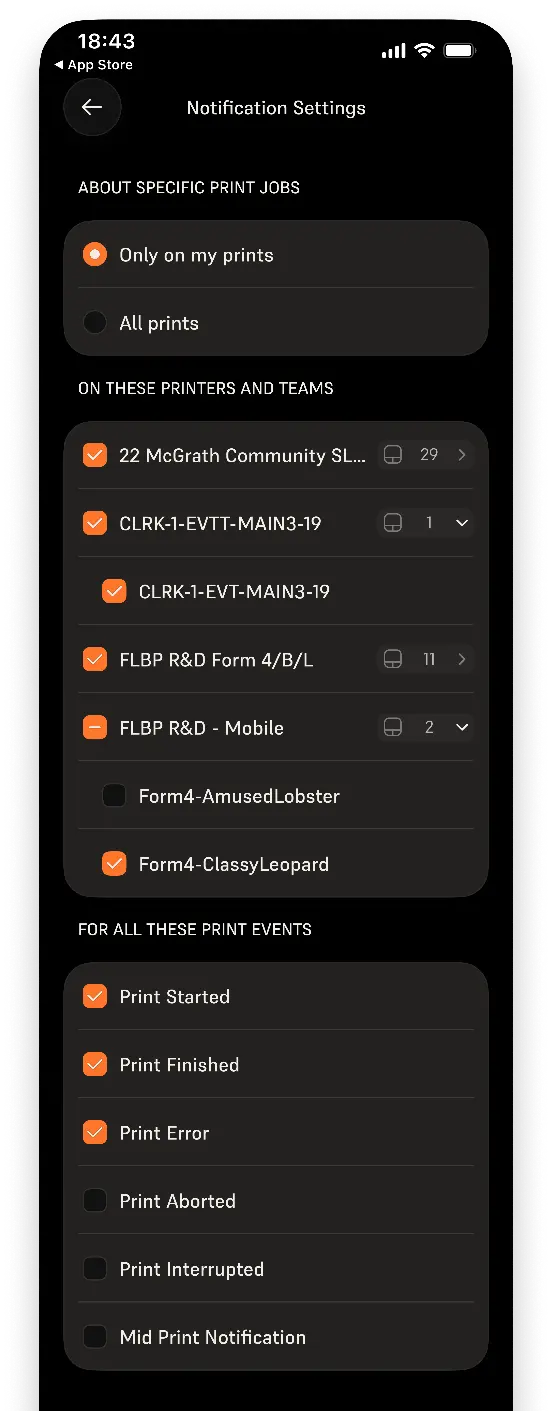
- To control notification preferences for individual printers, print groups, or notification types, tap Notification settings.
- To only be notified about events specific to your personal prints, select Only on my prints. To see notifications for all prints on all printers connected to your account, select All prints.
- Each printer and printer group has a checkbox next to it to enable or disable notifications. Uncheck a printer or printer group to disable notifications. Tap the right arrow next to a printer group to expand it and hide or show individual printers within the group.
- Form Mobile can show notifications for specific print events. Uncheck a print event to disable notifications for that event type.
- Print Started
- Print Finished
- Print Error
- Print Aborted
- Print Interrupted
- Mid Print Notification
Notifications are sent as push notifications (if enabled) or visible in the Notifications tab within the app.
Understanding print events
You can choose specific print events to be notified about. The range of print events include:
- Print Started: Sent as soon as a print is confirmed on the printer. After the Print Started notification, the printer preheats and dispenses resin before beginning to print.
- Print Finished: Sent when the last layer of a print is complete. After the Print Finished notification, the build platform can be removed.
- Print Error: Sent when the printer experiences an error. After the Print Error notification, the print automatically stops. Check the touchscreen for additional information and instructions. If the error persists, upload diagnostic logs and contact Formlabs Support with the specific error.
- Print Aborted: Sent when a print job is manually canceled after starting. After the Print Aborted notification, the printer is available for printing. Check for a partial print and, if necessary, remove cured resin from the build platform before starting the next print.
- Print Interruption: Sent when the printer pauses and needs attention to continue printing. Check the touchscreen for additional information and instructions to resume the current print.
- Mid Print Notification: Sent when the printer displays an informational message that does not yet pause the print, such as Cartridge is dispensing slowly.