Formlabs Logo
Tracking print progress and device status with Form Mobile

Tracking print progress and device status with Form Mobile

Form Mobile tracks printer activity and displays it in real time. Use the app to check on a print in progress or your printer’s status.

Tip:

You need to create an account and register a printer to that account in order to track print events in Form Mobile.

Tracking print progress

A printer syncs with Form Mobile after you register the printer to an account. Log in to see what layer you are currently printing, if you are low on resin, and when your print is due to complete.

To view a printer’s status, open the Form Mobile app. The app opens to the status page for the most recent printer you viewed. If you have registered multiple printers to your account, you can view the status of another printer by tapping the top status bar in the app. The My Printers drawer opens. Tap a different printer’s name to view its status.

Tip:

If you are having trouble detecting a printer, troubleshoot your connection to the app.

Print information

During a print, the printer status screen shows the following information:

  • Printer name
  • Printer type
  • Printer status
  • Print start time
  • Expected print end time
  • Print preview
  • Print progress (percentage and layer count)
  • Layer thickness
  • Print time remaining
  • Print name
  • Total material usage
  • Total job duration
  • Resin cartridge type
  • Resin cartridge fullness

You can also pause or abort the print job from this screen.
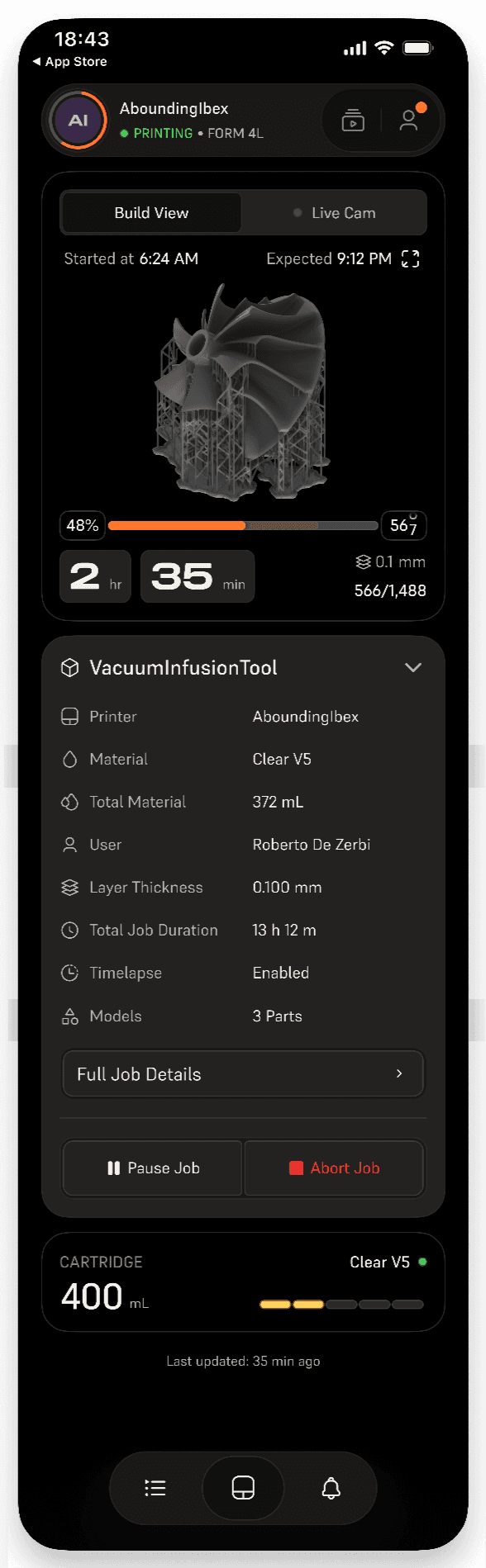
Form Mobile print details

Print details

If you tap the print name on the status screen, the Print Details screen appears, showing additional information about the current print job:

  • Print name
  • Printer name
  • Material type
  • Total material usage
  • User
  • Layer thickness
  • Total job duration
  • Timelapse status
  • Model count
  • Model list (with individual material usage)

Tracking device status

Your printer can show several different statuses on the status screen or in the My Printers drawer. These are similar to the statuses shown in PreForm:

  • Offline: The printer is registered to your account but cannot connect to Form Mobile. Check that your printer is powered on and is connected to the internet.
  • Finished: The most recent print is complete but has not been removed from the printer.
  • Printing: A print is in progress and has not encountered an error.
  • Ready to print: The printer has a matching resin tank and resin cartridge and a clean build platform. You can start a print from the printer’s queue or print history via Form Mobile.
  • Not ready: The printer is not currently printing but not ready to start a new print. It may be missing one or more consumables, have mismatched consumables, or you may need to confirm that the consumables are ready for use. Tap the printer name in the My Printers drawer to see more information about what is preventing the next print from starting.
  • Check printer: The printer has encountered an error during the current print that needs to be resolved. Tap the printer name in the My Printers drawer to see more information about the error. This status is similar to the Error status in PreForm.
  • Pausing: A user has chosen to pause the ongoing print but the print is not yet fully paused.
  • Paused: The current print has been paused.
  • Aborting: A user has chosen to abort the ongoing print but the print is not yet fully ended.