

Fuse 1 generation error messages: Error 258, Error 261, Error 374
Fuse 1 generation error messages: Error 258, Error 261, Error 374
Explanation
The touchscreen on Fuse 1 generation printers displays the error message Error 258, Error 261, or Error 374 when there is an issue with the temperature reading that is likely caused by a sensor malfunction.
There are three RTD (Resistance Temperature Detector) sensors in the printer and three RTD sensors in the build chamber. If there is a temperature sensing issue, either the print is terminated, or the associated heater turns off to prevent damage to the printer or build chamber, but the print continues.
With firmware version 1.16.12 or later, Fuse 1 generation printers terminate a print with Error 258 or Error 261 if there is an issue with the temperature reading from a critical heater like the air heater or upper wall heater.
If there is an issue with the temperature reading from a non-critical heater, the relevant heater is turned off and the printer’s touchscreen displays Error 374, but the print continues. This may result in printed parts with poorer surface quality and degraded mechanical properties.
Fuse 1 generation printer site requirements
Every Fuse 1 generation printer requires its own dedicated circuit. These circuits must be separate from other devices, including fans, vacuums, power tools, space heaters, or any large appliances or power tools. Electrical noise from other sources on the circuit may interfere with the printer's ability to collect readings from RTD sensors, resulting in terminated or low quality prints.
- Intermittent RTD error messages are often associated with electrical noise.
- If electrical noise is suspected or if the printer cannot be given its own dedicated circuit, Formlabs recommends installing a line conditioner.
- Unreliable power utilities may require greater filtering. Formlabs recommends installing a double conversion UPS, particularly if the printer is connected to a ring circuit as is commonly found in the United Kingdom.
Symptoms
- Error 258, Error 261, or Error 374 error message
- Error 258: PR_ERROR_SENSOR_READ
- Error 261: PR_ERROR_SENSOR_TEMPERATURE_ABOVE_LIMIT
- Error 374: PR_ERROR_NOT_CRITICAL_SENSOR_FAULT
Common causes
- Faulty temperature sensor
- Insufficient electrical contact between build chamber and printer
- Electrical noise interfering with the temperature sensor
Troubleshooting steps
- Update the printer’s firmware to version 1.16.12 or later.
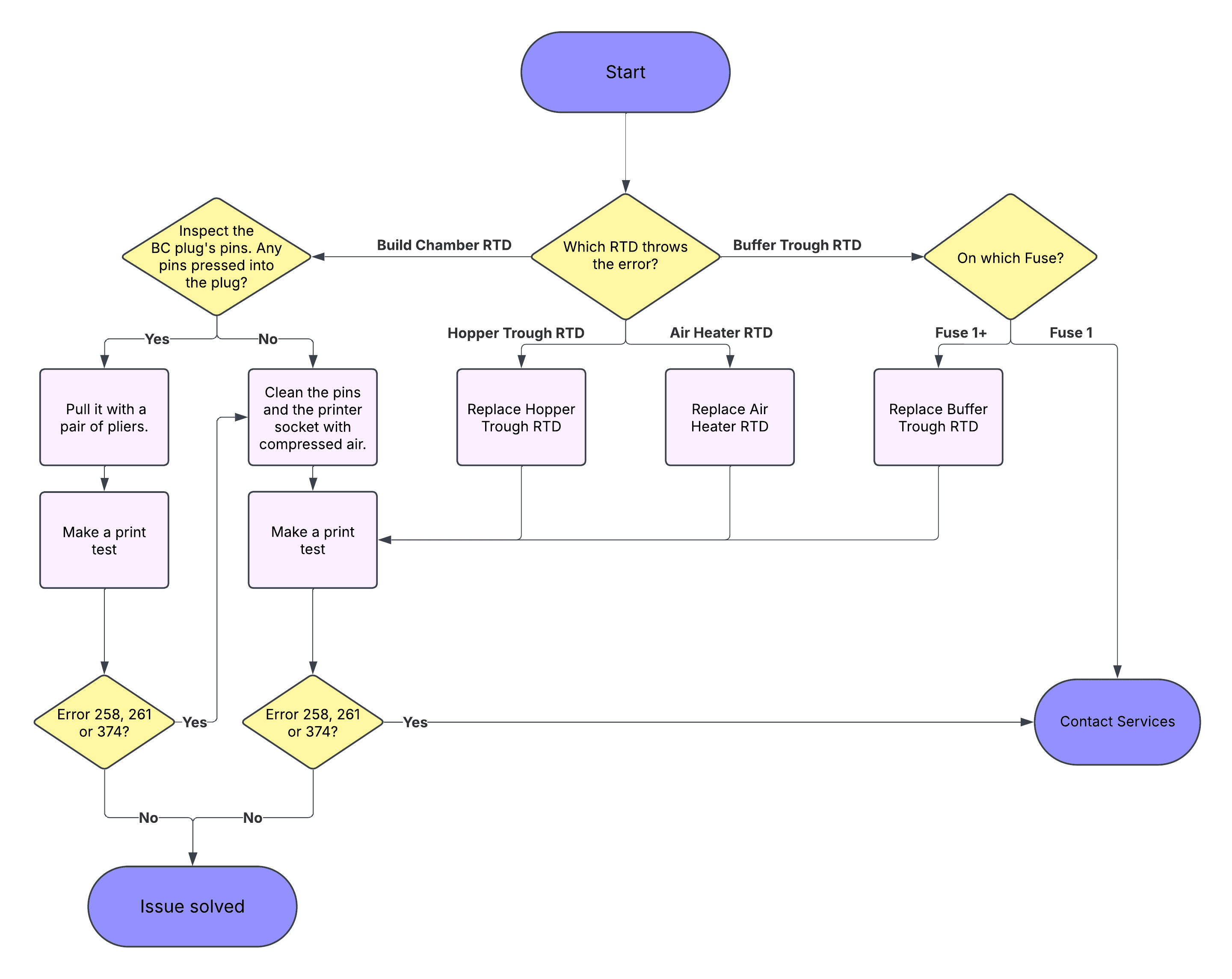
- The temperature sensor error message subcode specifies which sensor is malfunctioning. You can also download your printer’s error history via PreForm.
| Error 258 Error 261 | Error 374 |
|---|---|
|
|
- Power cycle the printer and try printing again.
- If the error is intermittent, please confirm that your Fuse 1 generation printer is in compliance with the site requirements.
- If the error is persistent, continue.
- If the error message indicates an issue with the air heater, buffer trough, or hopper trough, contact Formlabs Support or your authorized reseller for assistance with repairing or replacing the affected part.
- If the error message indicates an issue with the build chamber, press the black plastic plate on the build chamber plug to reveal all of the plug pins.
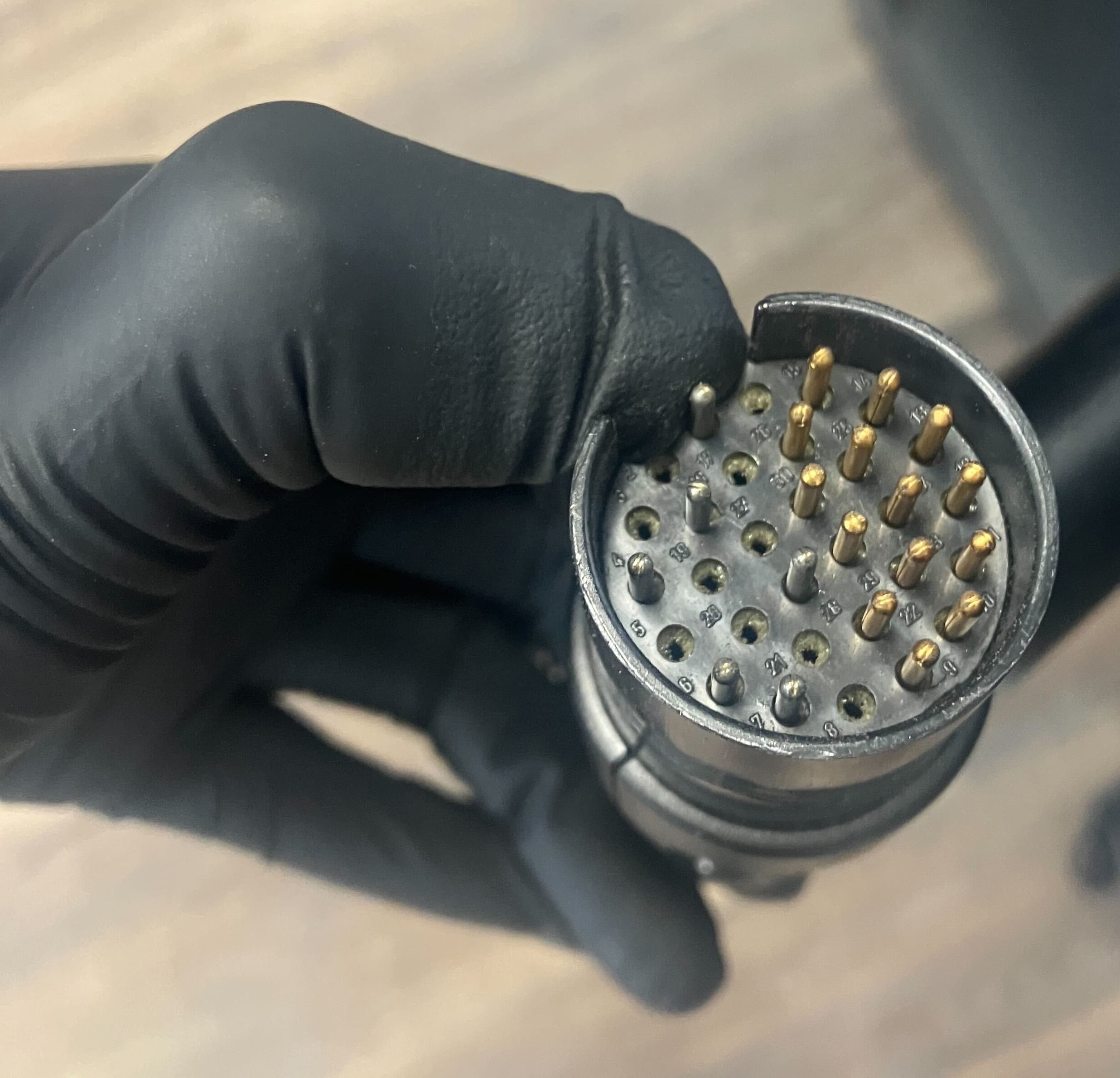
- If a pin sinks into the plug, gently pull it with a pair of pliers.
- Clean the build chamber plug’s pins and the printer socket with contact cleaner or compressed air. Ensure the plug is being inserted until there is an audible ‘click’ and the plug handle sits flush with the printer enclosure.
- If the pin does not remain in place, or is bent or broken, forward a picture of the pins to Formlabs Support or your authorized reseller for assistance in replacing the affected build chamber.
- If multiple build chambers trigger the error, and the troubleshooting steps above do not resolve the error, please contact Formlabs Support or your authorized reseller for assistance.