

Printing with Open Material Mode (SLS)
Printing with Open Material Mode (SLS)
With Open Material Mode, you can print with any type of 1064 nm powder on Formlabs SLS printers. Open Material Mode is available for a one-time lifetime fee per printer.
Follow the steps in this article to print with Open Material Mode on your Formlabs SLS printer.
Requirements
- A printer with Open Material Mode activated
- The latest version of firmware installed
- Fuse 1: version 1.20.0 and later
- Fuse 1+ 30W: version 1.20.0 and later
- Fuse X1: version 1.0.0 and later
- The latest version of PreForm installed
- Fuse 1: version 3.41.0 and later
- Fuse 1+ 30W: version 3.41.0 and later
- Fuse X1: version 3.60.0 and later
Creating a print setting to use with Open Material Mode
To print with Open Material Mode, you first need to create a print setting using the PreForm Print Settings Editor:
- Open PreForm.
- Click Edit > Print Settings Editor. The Print Settings Editor window appears, showing a list of the existing custom print settings.
- Click New Print Setting. A list of Formlabs print settings appears.
- Select your printer type in the printer type filter dropdown.
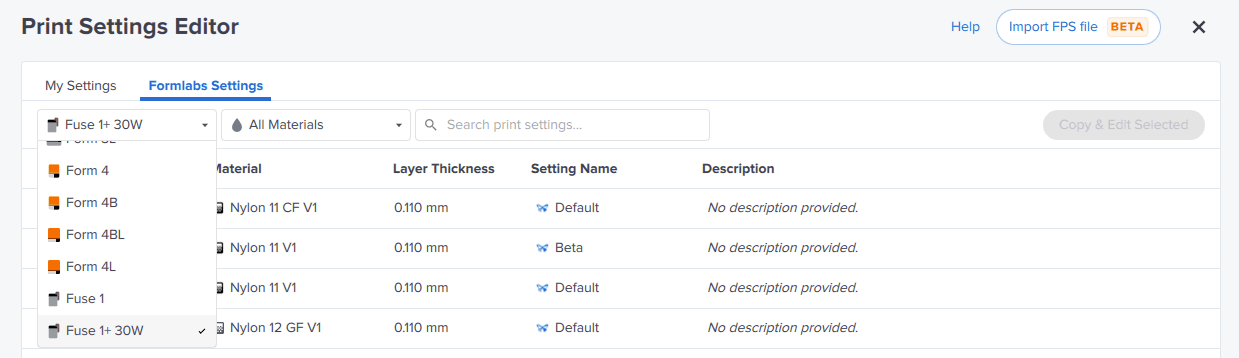
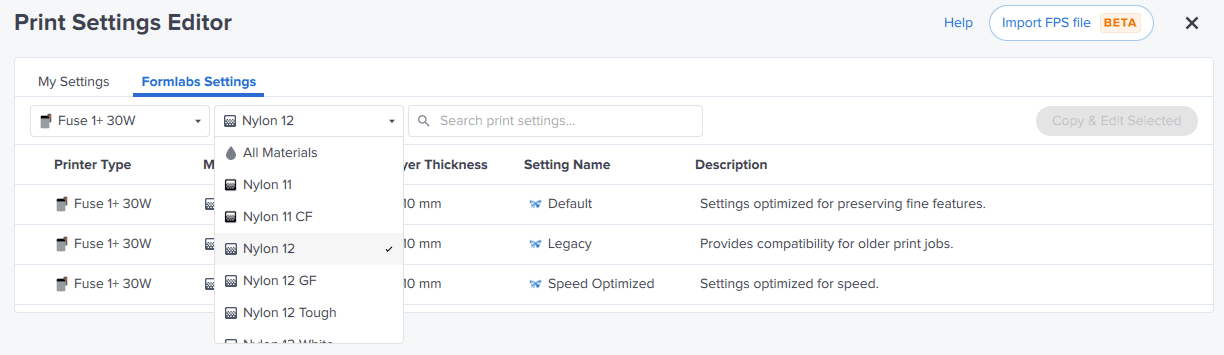
- Pick a Formlabs material that has the closest properties to the powder you want to print with. A list of validated print settings for that Formlabs material appears.
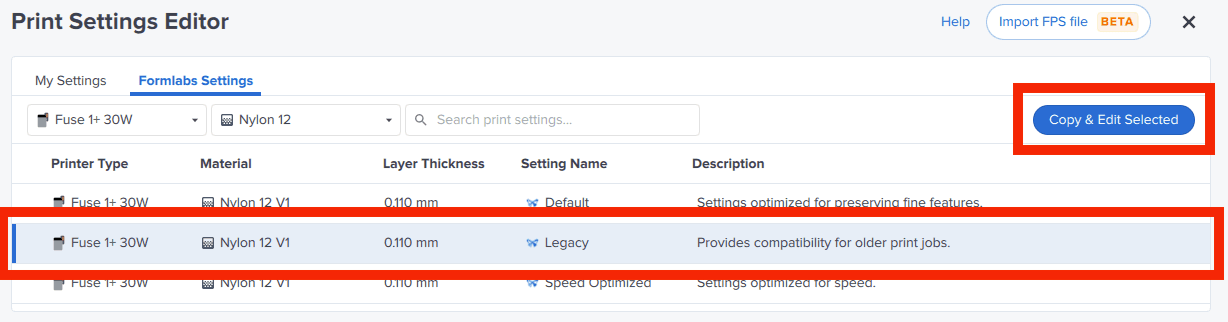
- Select a print setting. Click Copy & Edit Selected. A screen appears with the new print setting.
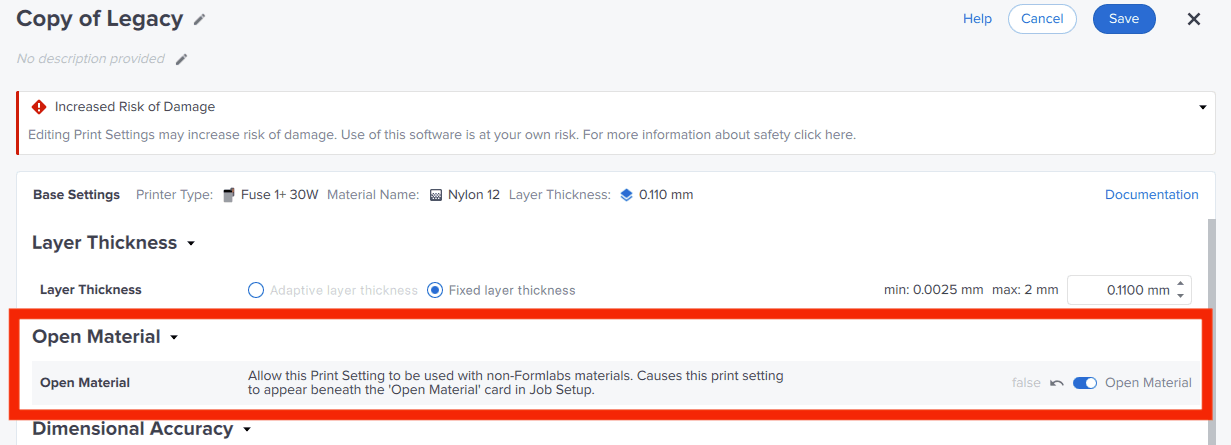
- Toggle Open Material to ON. The toggle turns blue.
- Edit any other parameters you want to modify.
- Give the setting a custom name, edit print parameters, and then click Save. Your custom print setting is saved and the My Settings list appears.
The print setting is now available to set up jobs using any 1064 nm powder.
Setting up a print with a custom print setting
After you have created a custom Open Material print setting, you can use it to slice and send jobs to a printer with Open Material Mode activated.
- If the Print Settings Editor window is still open, click X to close it. The main PreForm workspace appears.
- In the Job Setup panel, click Edit Job Setup. The Job Setup screen appears.
- Select or add a printer that has Open Material Mode activated. A blue ribbon next to the printer serial name indicates that the capability has been activated.

- Scroll down to the Choose Material section. Select Open Material.
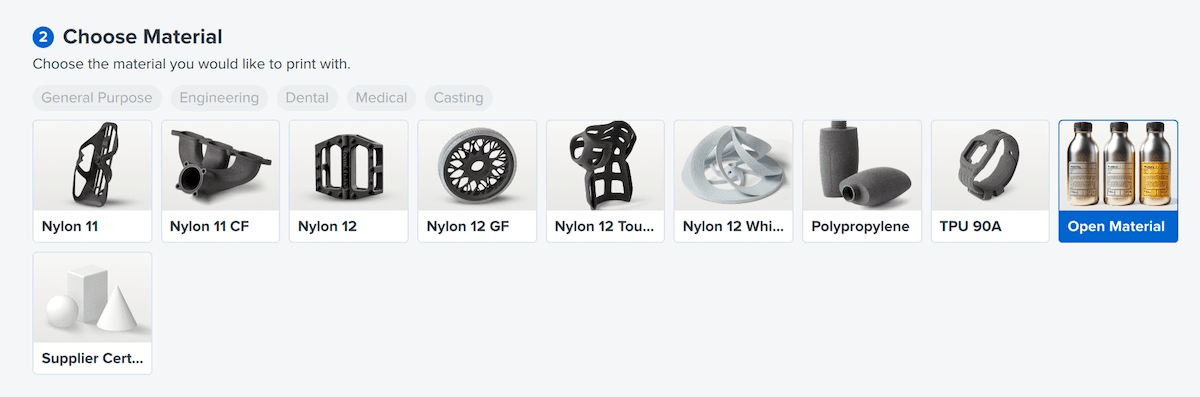
- Scroll down to the Choose Print Settings section. Select the print setting you created earlier.
- Click Apply. The main PreForm workspace reappears.
- In the Job Setup card, confirm that the material has been set to Open Material V1 and your custom print setting has been selected.
- Set up your job and upload it to your printer, as you would with a Formlabs print setting.
Tips for printing with Open Material Mode
Open Material Mode is intended for expert users of Formlabs SLS printers. Use of Open Material Mode or any third-party material comes with risks, including risk of damage to the printer. Please read the terms of service to understand the risks.
Use a dedicated build chamber for printing with Open Material Mode. The printer automatically programs the build chamber for use with open materials.
The powder sensors in Fuse 1 generation printers and the Fuse Sift are disabled when printing with Open Material Mode, as they are with certain Formlabs materials such as TPU 90A Powder.