WHITE PAPER
Formlabs Logo

Fuse 1 generation error messages: Pressure warnings (Intake Pressure Too Low and Error 195, 196, and 197)

Fuse 1 generation error messages: Pressure warnings (Intake Pressure Too Low and Error 195, 196, and 197)

Fuse 1 generation printers maintain certain pressure values inside the printer to move air or nitrogen and to filter out powders and byproducts of the sintering process. During preprint, Fuse 1 and Fuse 1+ 30W units check whether pressure is within expected levels. If these checks fail, an error appears on the printer touchscreen.

Unexpected pressure values do not result in errors or terminated prints, except for Fuse 1+ 30W units printing with nitrogen. Fuse 1+ 30W units printing with nitrogen check pressure levels regularly, which can lead to one of these errors during a print.

The table below shows approximate expected pressure readings under normal conditions:

 Fuse 1Fuse 1+ 30W (air)Fuse 1+ 30W (nitrogen)
Intake128 Pa128 Pa120–135 Pa
Print enclosure-5 Pa180 Pa180 Pa
Nitrogen pressureN/AVaries234–827 kPa

Symptoms

  • Printer touchscreen displays Intake Pressure Too Low
  • Printer touchscreen displays error message Error 195: PRESSURE_CHECK_SENSING_FAULT
  • Printer touchscreen displays error message Error 196: PRESSURE_CHECK_INTAKE_PRESSURE_TOO_LOW
  • Printer touchscreen displays error message Error 197: PRESSURE_CHECK_CHAMBER_PRESSURE_TOO_HIGH

Causes

  • Intake Pressure Too Low
    • Dirty or occluded intake filter
    • Malfunctioning nitrogen ball valve (Fuse 1+ 30W only)
    • Print started immediately after turning unit on
    • Pneumatic pressure tap tube is disconnected from the pressure sensor
  • Error 195
    • Communication issues due to software bug
  • Error 196
    • Pneumatic pressure tap tube is disconnected from the pressure sensor
    • Nitrogen supply runs out during print
    • Damaged pressure sensors
  • Error 197
    • The recirculation (exhaust) fan is not running reliably at low speeds
    • Fuse 1 only: The exhaust fan has been reinstalled backwards after cleaning

Troubleshooting steps

Collect some basic information about the error message. This may help with your troubleshooting or when contacting Formlabs Support or a certified service provider.

  1. Check if any repair work has been done recently on the unit that required removal of the rear panel. If the ducting was not properly reinstalled, there may be a tear or leak in the ducting. Similarly, if recent maintenance involved disconnecting the pressure tap hoses that connect to the motor and temperature control board, check that they were reconnected to the correct barbed fittings.
  2. Check whether the issue occurs in air or nitrogen mode (Fuse 1+ 30W only).
  3. Check for any other issues, especially issues related to other sensors in the machine, that may have occurred recently.
  4. Confirm whether the unit is on a dedicated circuit, as recommended by Formlabs.
  5. Confirm whether the issue happened after significant use or on a new printer. It generally takes time for filters to become contaminated, so an out of the box issue may indicate a hardware or assembly failure.

If the error persists after troubleshooting, contact Formlabs Support or a certified service provider for additional assistance. If possible, provide the printer history or enable Dashboard Logging and recreate the issue so the printer logs can be reviewed.

  1. Update your printer’s firmware to the latest version.
  2. On the printer’s touchscreen, tap Settings > System > Remote Assistance. Toggle Remote Assistance to ON.
  3. On the printer’s touchscreen, tap Settings > Connectivity > Dashboard Logging. Toggle Dashboard Logging to ON.
  4. Connect the device to the internet and ensure it has access to port 9993.

Intake pressure too low

  1. If you started a print immediately after turning on the machine, the pressure readings may not have had time to stabilize. Pressure stabilization can take 3–6 minutes after initial boot, so early pressure readings may be below the minimum thresholds.
  2. Clean the intake and exhaust filters and the related ducting.
  3. If errors persist or the filters cannot be cleaned, replace the intake filter or the exhaust filter.
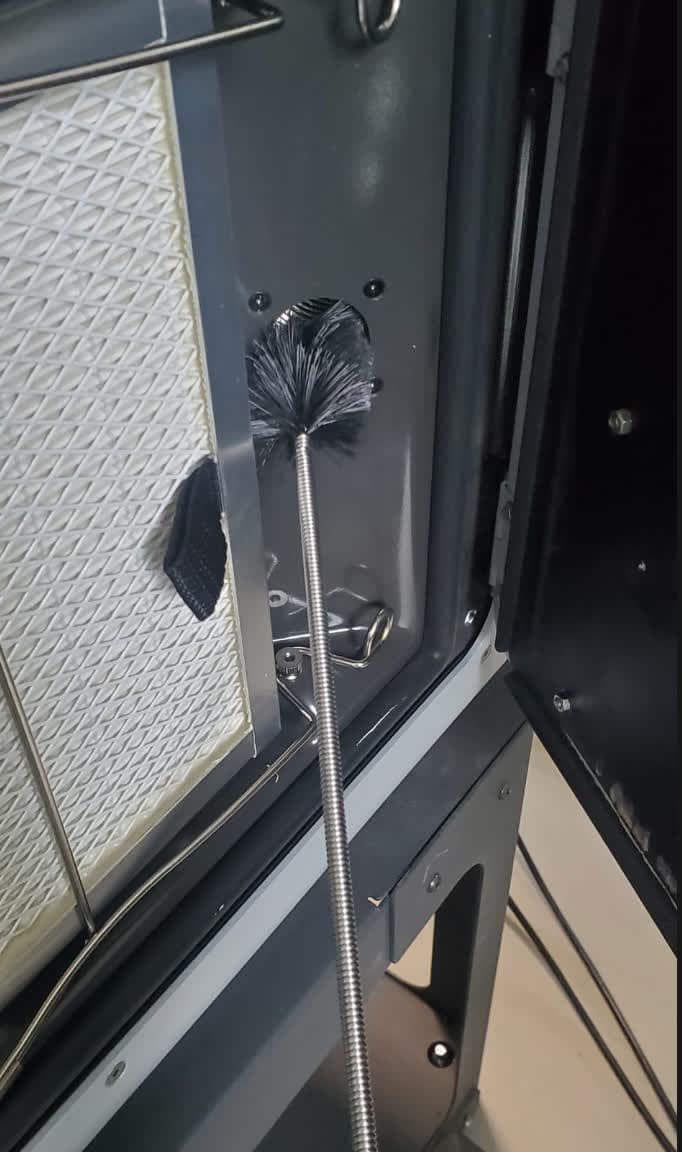
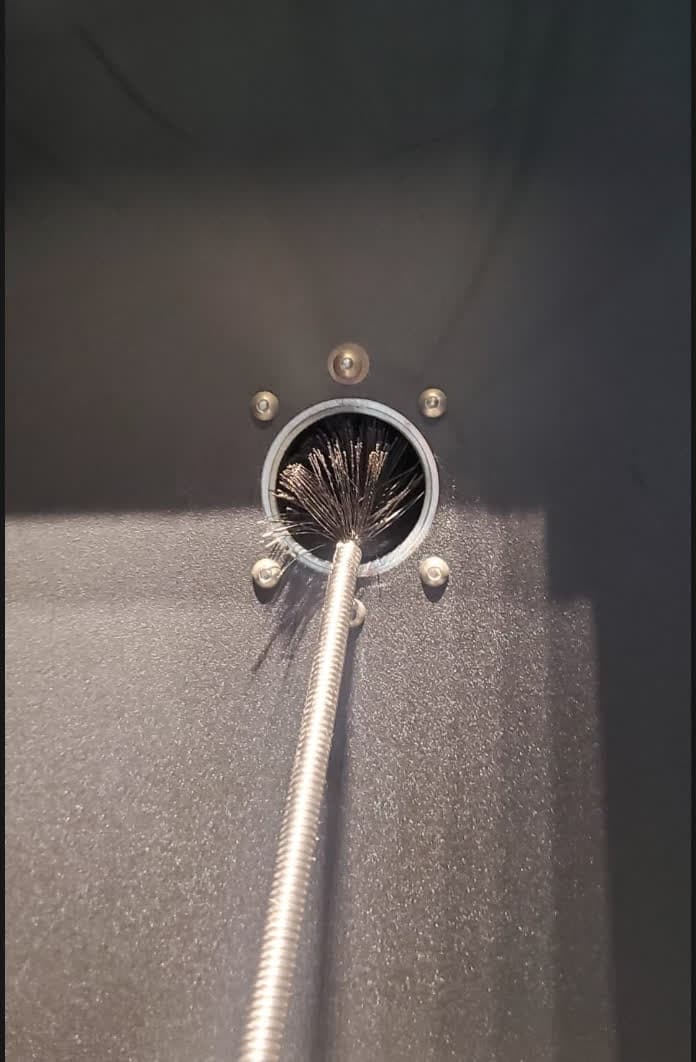
  4. If the error continues after replacing the filters, the exhaust tube might need a deeper cleaning with the long pipe cleaning brush included with the printer. Laurolactam can build up in the exhaust tube over time. Clean the tube from both ends—the filter cabinet and the print enclosure.
Cleaning the exhaust tube from the filter cabinet end
Cleaning the exhaust tube from the print enclosure end
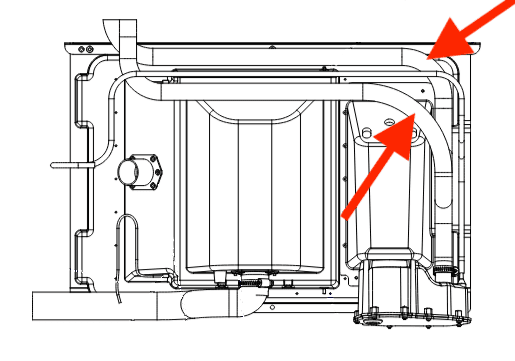
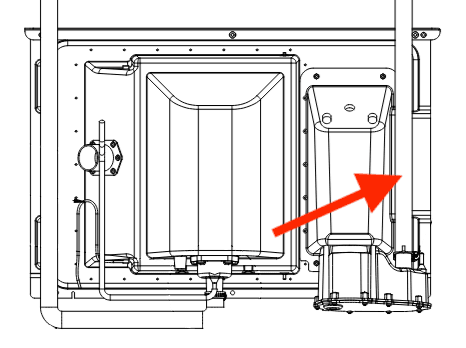
  1. If the error persists after cleaning the exhaust tube, clean the intake ducts using the long pipe cleaning brush. Refer to the instructions for cleaning the intake blower to access the ducts. Clean the aluminum ducts labeled 1 and 3 in the image here. These ducts go to the air heater and infrared sensor, respectively.
Intake ducts on a Fuse 1 generation printer

Note:

The intake fan runs whenever the printer is on, even when idle, so the filter can become clogged in between prints. When printing with nitrogen on a Fuse 1+ 30W printer, the intake fan is not used.

Replace the nitrogen ball valve (Fuse 1+ 30W only)

The Fuse 1+ 30W nitrogen ball valve determines which inlet source is in use. If this valve fails to open or close properly, the unit measures a pressure value near zero, as the flow is blocked.

  1. Confirm that the pressure value found previously is in the 0–30 Pa range. These steps only apply for pressures that are extremely low on Fuse 1+ 30W units.
  2. Turn the machine on and off, listening for a sound from the ball valve. If it doesn’t sound like it’s opening and closing, it’s probably malfunctioning.
  3. If the printer previously reported extremely low nitrogen pressures and the ball valve does not make an audible sound when the printer turns on, the ball valve may need to be replaced. Replacement nitrogen ball valves can be purchased from the Formlabs Store. Follow this guide to replace the component. Contact Formlabs Support or a certified service provider for additional assistance.

Error 195

Ensure the printer’s firmware is up to date. If the firmware is up to date, reflash the currently installed firmware.

Error 196

  1. If you are printing with nitrogen on a Fuse 1+ 30W printer, check that the source did not run out or stop functioning during the print. Replace or repair your nitrogen source as needed.
  2. Clean the intake and exhaust filters and the related ducting.
  3. If errors persist or the filters cannot be cleaned, replace the intake filter or the exhaust filter.
  4. A clogged intake fan is the most common cause for intake pressure issues. Steady pressure values close to 80–105 Pa are usually indicative of a clogged air filter, but badly clogged air filters may provide pressure readings as low as 50 Pa. High intake fan speed may also indicate a clog—the fan normally runs at approximately 10,000 RPM but will speed up if the intake pressure is too low. Check the intake pressure and intake fan speed for evidence of further blockages:
    • The touchscreen shows the intake pressure reading when the error occurs.
    • Go to the printer’s error history screen to find the intake pressure value when the error occurred. Tap Settings > System > Error History, then tap the entry for the relevant error.
    • Download your printer’s history through PreForm and check the ErrorHistory.csv log file for the relevant error.

Note:

The intake fan runs whenever the printer is on, even when idle, so the filter can become clogged in between prints. When printing with nitrogen on a Fuse 1+ 30W printer, the intake fan is not used.

Error 197

Error 197 appears in N2 Mode when the printer cannot keep the intake or chamber pressure within the expected range. This usually happens because the recirculation (exhaust) fan is not running reliably at low speeds. To resolve this error:

  1. Clean the filters, exhaust tube, and recirculation fan:
  2. If the issue continues, the problem may be with the fan controller on the motor and temperature control board or the nitrogen control board. Replace the motor and temperature control board. Replacement boards can be purchased from the Formlabs Store. Follow this guide to replace the component.
  3. If the issue persists after board replacement, contact Formlabs Support or a certified service provider for additional assistance.

Note:

If you need to print urgently, switching to Air Mode may allow you to continue. Note that Formlabs does not generally recommend printing certain powders without nitrogen.

On Fuse 1 printers, Error 197 may indicate that the exhaust fan was reinstalled backwards after cleaning. The Fuse 1 normally holds a slightly negative pressure in the print enclosure, but installing the exhaust fan backwards will pressurize the enclosure instead. Unmount the fan, turn it over, reinstall it, and try again.