

Dashboard overview and setup
Dashboard overview and setup
Dashboard allows you to remotely monitor your prints and printers, track material usage, and explore past and future Formlabs purchases. To log in, click Sign In at the top of formlabs.com then enter your email address and password. Go to formlabs.com/dashboard to see printer activity associated with your account.
Logging in to Dashboard within PreForm allows you to switch views between the current print job in PreForm and current printer activity in Dashboard.
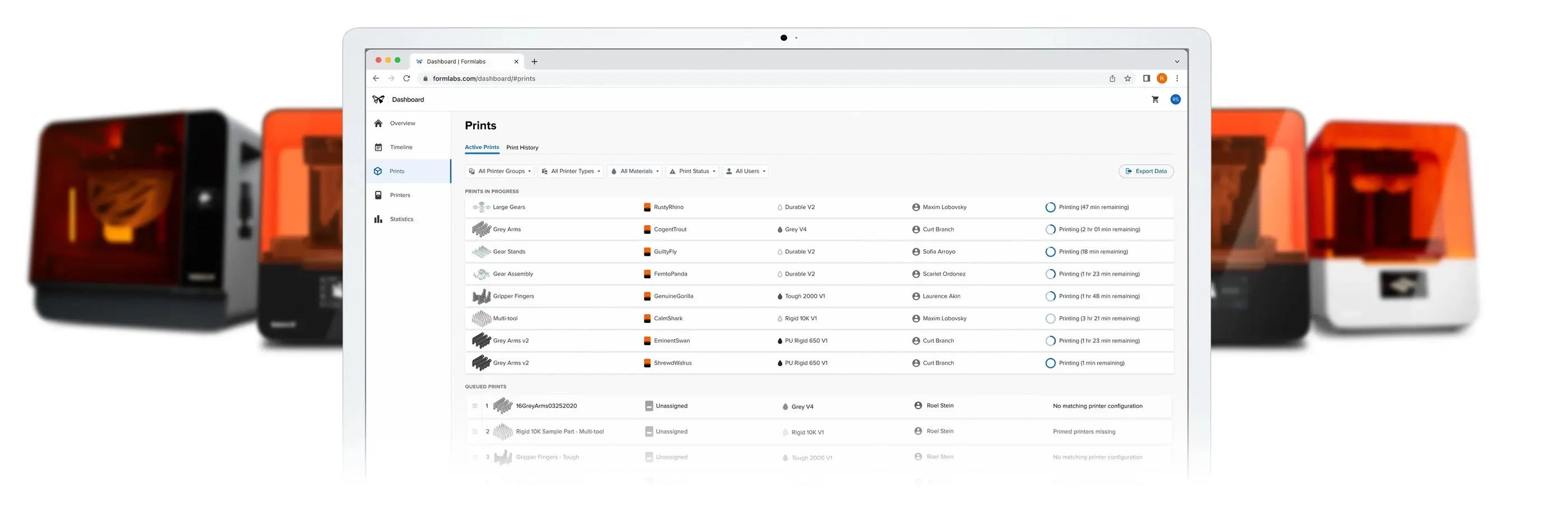
By registering your printer(s) to Dashboard you can:
- Explore prior purchases and store order statuses
- Remotely monitor print progress and printer availability
- Configure SMS or email notifications for events like prints started or finished
- Organize your printers into Printer Groups and invite others to collaborate
- Manage material usage, including resin tanks and resin cartridges
- Share data about printers, prints, and materials
- Review and download a record of previous print jobs
As a web-based tool, Dashboard is frequently updated with new features. Log in regularly to see updated access to printers and print data.
Creating an account
Creating an account with Formlabs is the first step to ordering through our web store, receiving product updates, and checking in with Dashboard.
To create an account:
- Go to formlabs.com.
- Click Sign In at the top of the page. A dialog box appears.
- Click Create an Account. The Your Dashboard page appears.
- Enter your information into the fields, read and agree to our Privacy Policy, and click Create Account.
- Go to formlabs.com/dashboard to get started with your Formlabs account.
Viewing order status and history
Dashboard provides access to each Formlabs store order associated with the current formlabs.com user. Orders are displayed to the original customer and cannot be shared across multiple users.
After placing an order, check Dashboard to see the latest status. The sequential statuses of each order are:
- Order Placed
- Awaiting Payment (for pending orders)
- Processing by Formlabs
- Out for Delivery
- Delivered
To see the delivery status, click your account icon > My Orders at the top of the page, or visit Contact Support with the order’s tracking number. To learn more about Formlabs policies for processing and shipping orders and receiving assistance, visit formlabs.com/support/shipping.
Next steps
To continue learning about Dashboard, read the support article Adding and removing printers on Dashboard.