Notice:
A factory reset erases all saved network connections and diagnostic logs. Upload diagnostic logs before performing a factory reset.

The Fuse Sift’s touchscreen displays error messages if the machine encounters any abnormalities and displays more details about the error. Configure Dashboard settings to receive SMS or email notifications for the errors listed in this article and for other print events.
Diagnostic logs
The Fuse Sift maintains diagnostic logs to provide detailed information about the machine’s functionality. Include these diagnostic logs with other relevant observations and details when contacting Formlabs Support or your authorized reseller to speed up resolution.
For machines connected to the internet over an active Wi-Fi or Ethernet connection:
To upload diagnostic logs via PreForm:
Cartridge drawer icon colored red
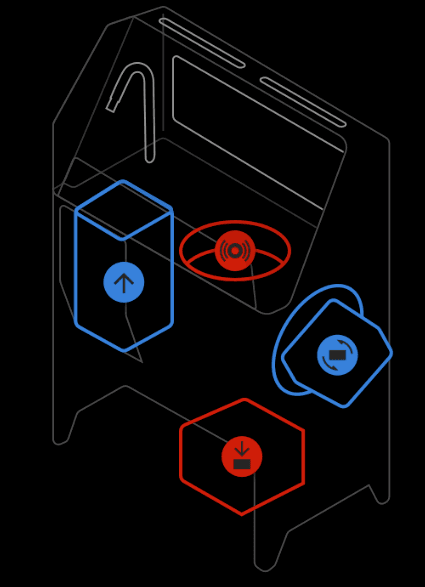
The Fuse Sift touchscreen shows the build chamber, sifter, mixer, or cartridge drawer in red to indicate an issue with the component or an associated action. A variety of issues may cause the cartridge drawer to persistently be shown in red and may or may not prevent you from filling a powder cartridge. To resolve the issue, check the specific message on the Fuse Sift touchscreen when you try to fill a powder cartridge:
Vent filter not seated
The Vent Filter Not Seated error indicates that the vent blower could not be turned on because the filter interlock did not detect a filter. Ensure that the filter and grate are both properly installed and all thumb screws are in place.
Chamber error
The Chamber Error message indicates that an error occurred when trying to move the build chamber motor or that the motor stopped moving because it detected an obstruction. To resolve this issue:
Mixer error
The Mixer Error message indicates that an error occurred when trying to move the mixer motor or that the motor stopped moving because it detected an obstruction. To resolve this issue:
Mixer stalls
If the mixer encounters an issue while in motion, such as the powder cartridge disengaging from the mixer, the Fuse Sift displays Error 279 or PR_ERROR_SIFT_MIXING_DEVIATION. This issue generally occurs with a full powder cartridge as opposed to a partially-full or empty powder cartridge. To resolve this issue:
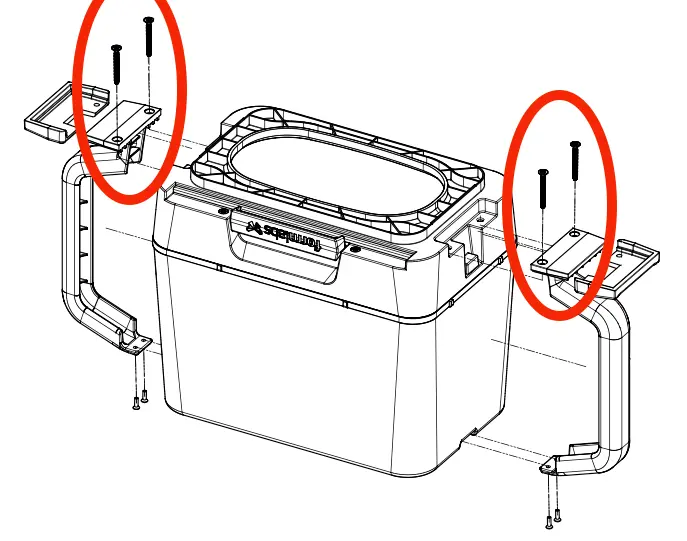
If the problem persists, contact Formlabs Support or a certified service provider.
Doser stalls
During operation, powder dispensed from either hopper accumulates around the doser assembly and settles in between the gear teeth. Over time, the doser and motor gears compact the powder, eventually causing slipping and doser stalls. The Fuse Sift may display Error 284 PR_ERROR_SIFT_FILLING_VALVE_DEVIATION or Error 285 PR_ERROR_SIFT_FILLING_VALVE_DEVIATION_OPEN, as well as spilling powder during the filling process. To resolve this issue:
If the problem persists, contact Formlabs Support or a certified service provider.
Fill error
The Fill Error message indicates that one of the following occurred while filling a cartridge:
Check that the valve above the cartridge drawer is not blocked, that the valve has closed, and that the Fuse Sift is not currently dispensing powder. If directed by a message on the touchscreen, empty the cartridge back into the Fuse Sift and restart the powder dispensing process. If you see this error message repeatedly, contact Formlabs Support or a certified service provider.
Hood light error
This message indicates that an error occurred when turning the Fuse Sift’s light on or off. This might indicate a software bug or hardware failure. If you see this error message repeatedly, contact Formlabs Support or a certified service provider.
Vacuum error
This message indicates that an error occurred when turning the vacuum on or off. This might indicate a software bug or hardware failure. If you see this error message repeatedly, contact Formlabs Support or a certified service provider.
Sifter error
This message indicates that an error occurred when turning the sifter on or off. This might indicate a software bug or hardware failure. If you see this error message repeatedly, contact Formlabs Support or a certified service provider.
Vent fan error
This message indicates that an error occurred when turning the vent blower on or off. This might indicate a software bug or hardware failure. If you see this error message repeatedly, contact Formlabs Support or a certified service provider.
Error 93/4
Error 93/4 indicates that one of the motors in the Fuse Sift or build chamber could not move properly. This is most commonly caused by the bevel gear in the back of the build chamber not meshing properly with the corresponding gear in the Fuse Sift. Remove and reinsert the build chamber. If you see this error message repeatedly, manually rotate the bevel gear at the back of the build chamber before reinserting it into the Fuse Sift.
Bevel gears not meshing properly
Bevel gears meshing properly. Note that the build chamber inserts further into the machine than when the gears do not mesh properly.
Cartridge not present
The Cartridge Not Present message indicates that an error occurred when detecting the powder cartridge. The Fuse Sift uses a Hall effect sensor to detect a magnet embedded in the powder cartridge. As a result, this error is most commonly caused by an improperly seated powder cartridge, but can also be caused by a firmware issue, a missing powder cartridge magnet, or a faulty sensor. To resolve this issue:
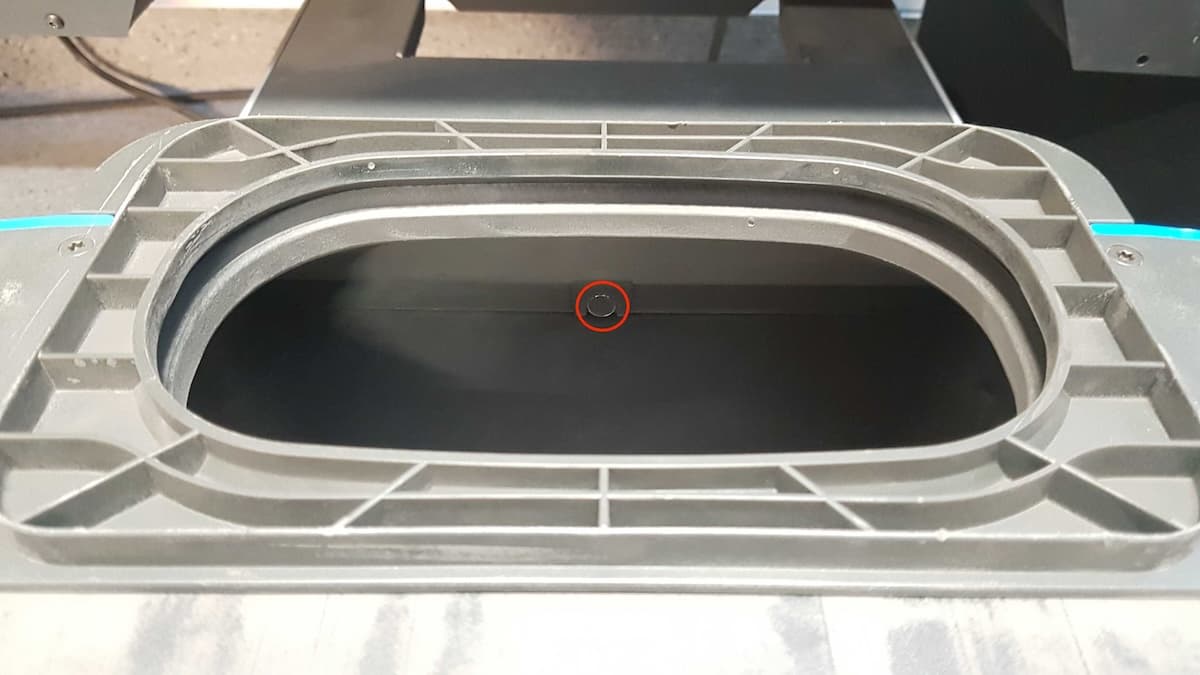
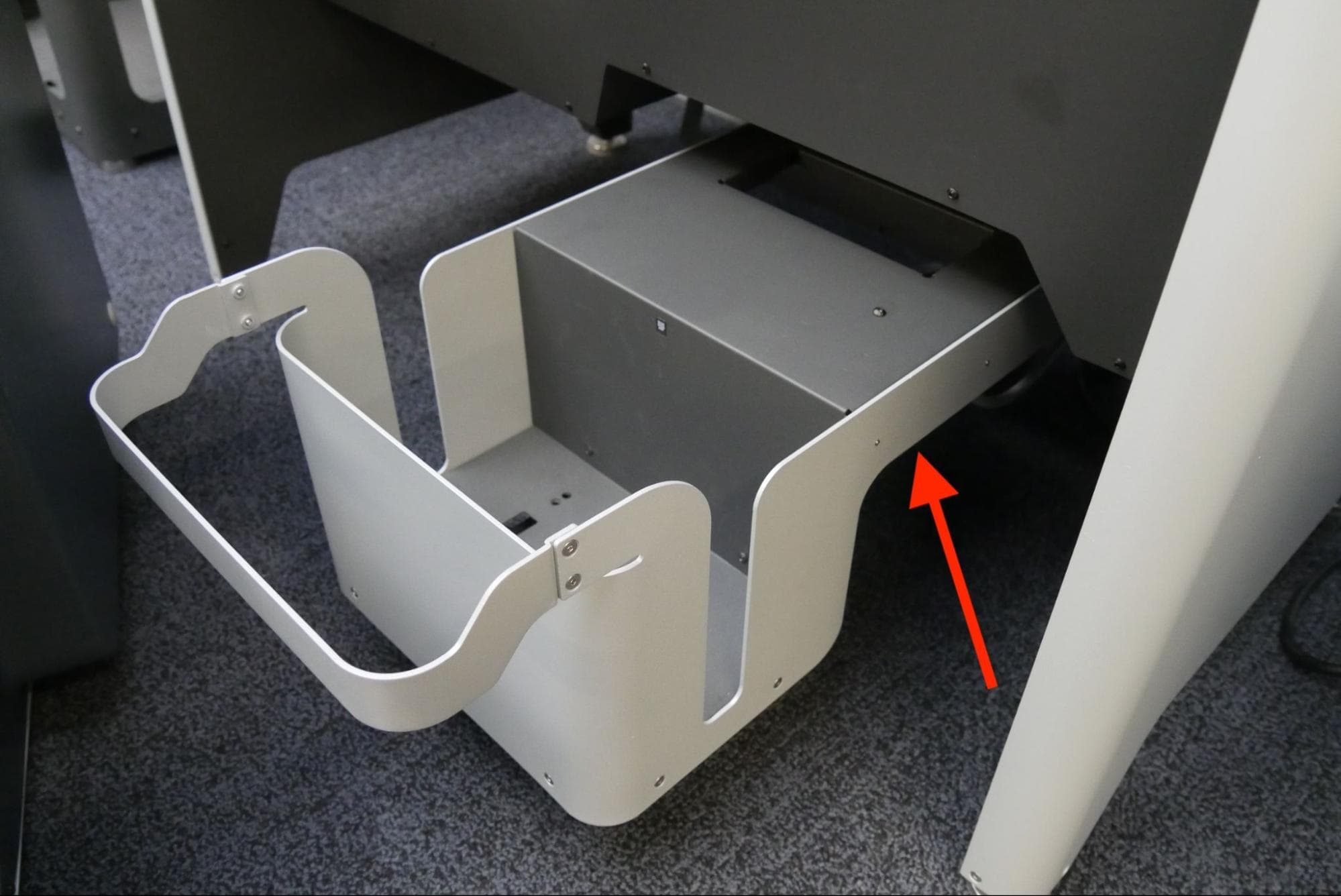
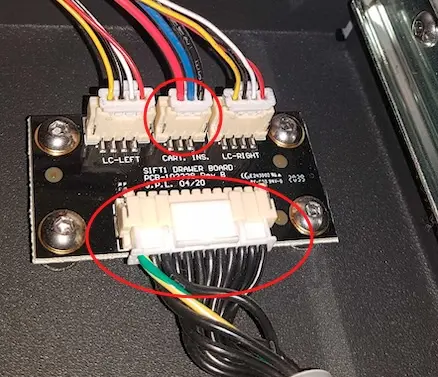
If the issue persists, contact Formlabs Support or a certified service provider.
Cartridge weight error
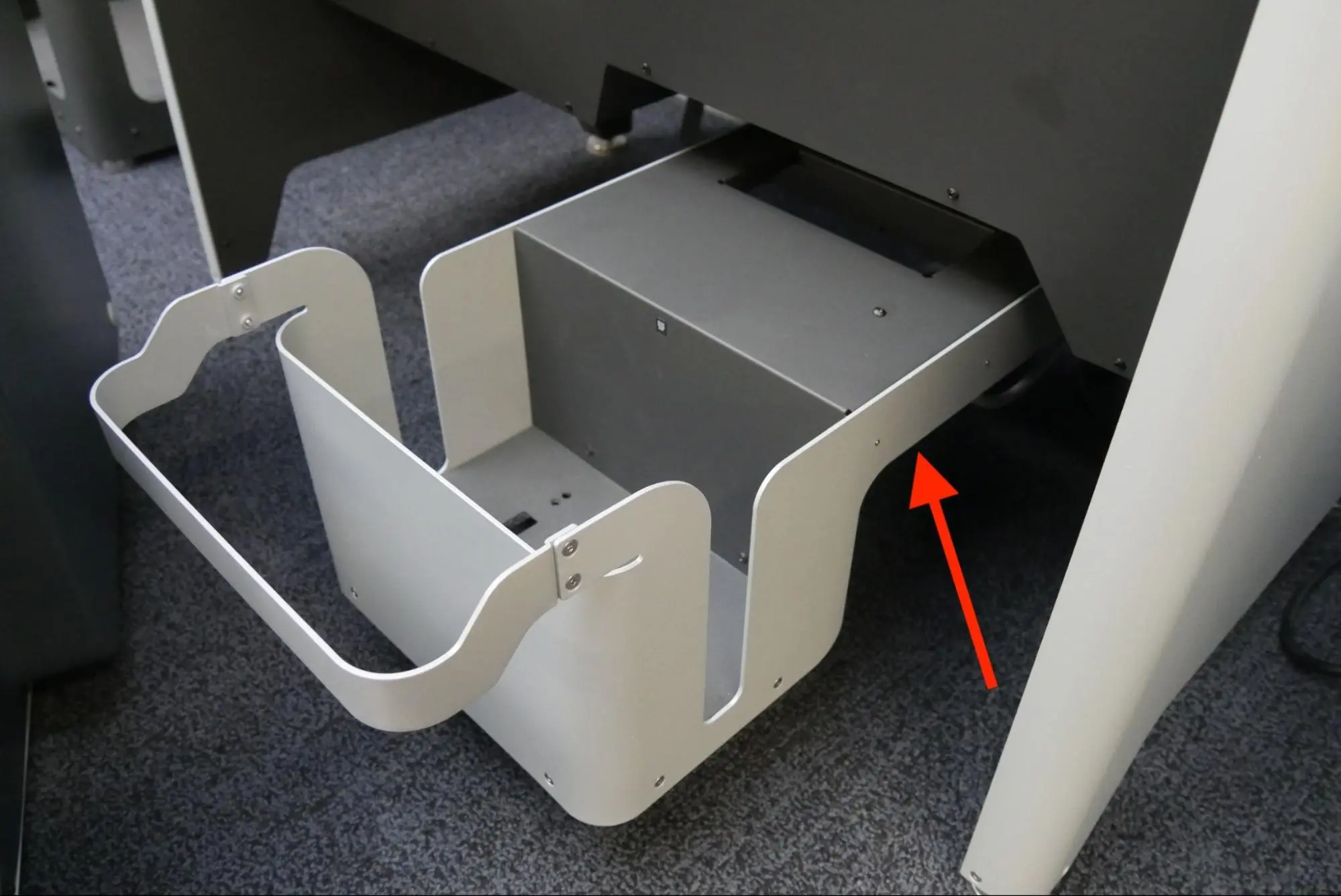
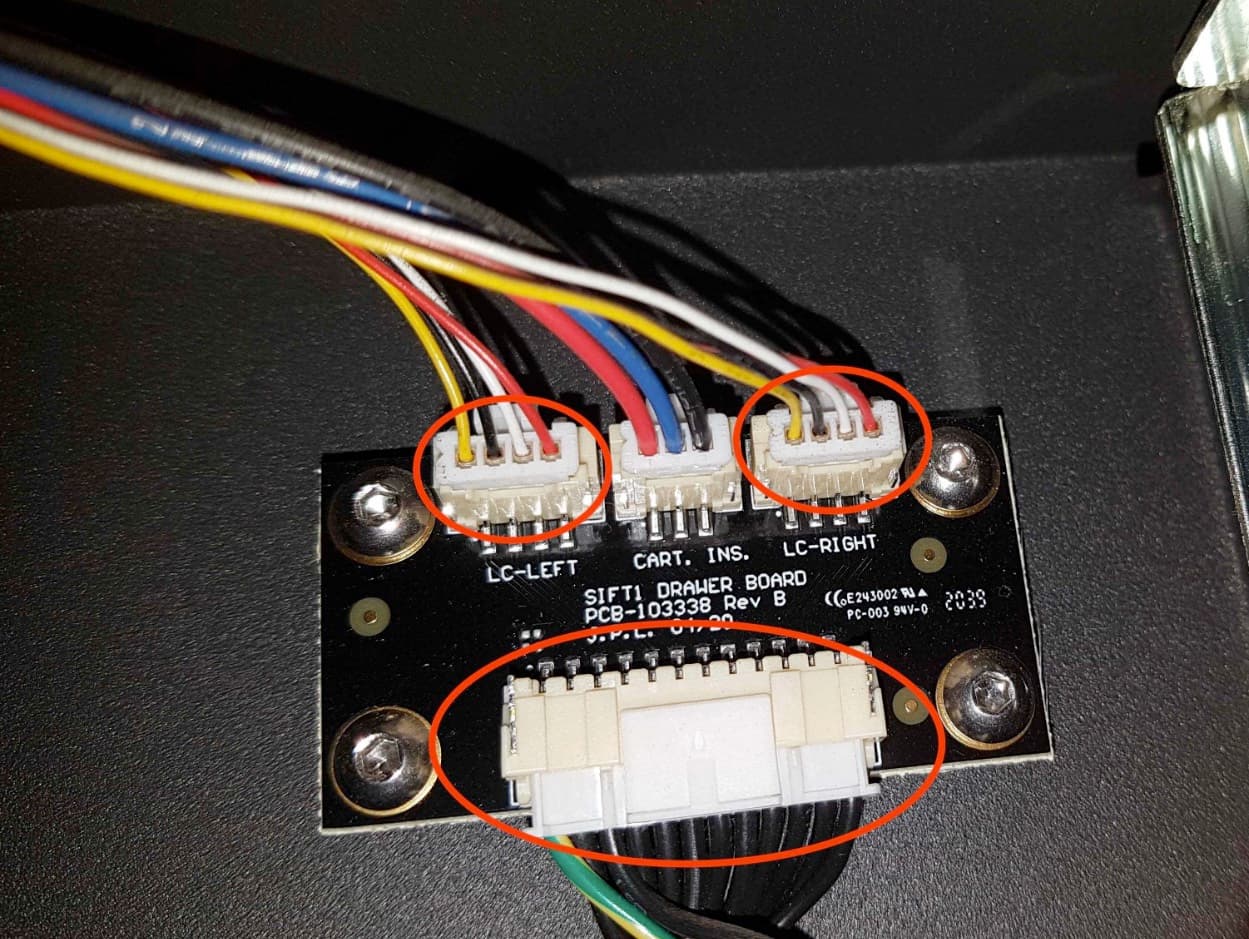
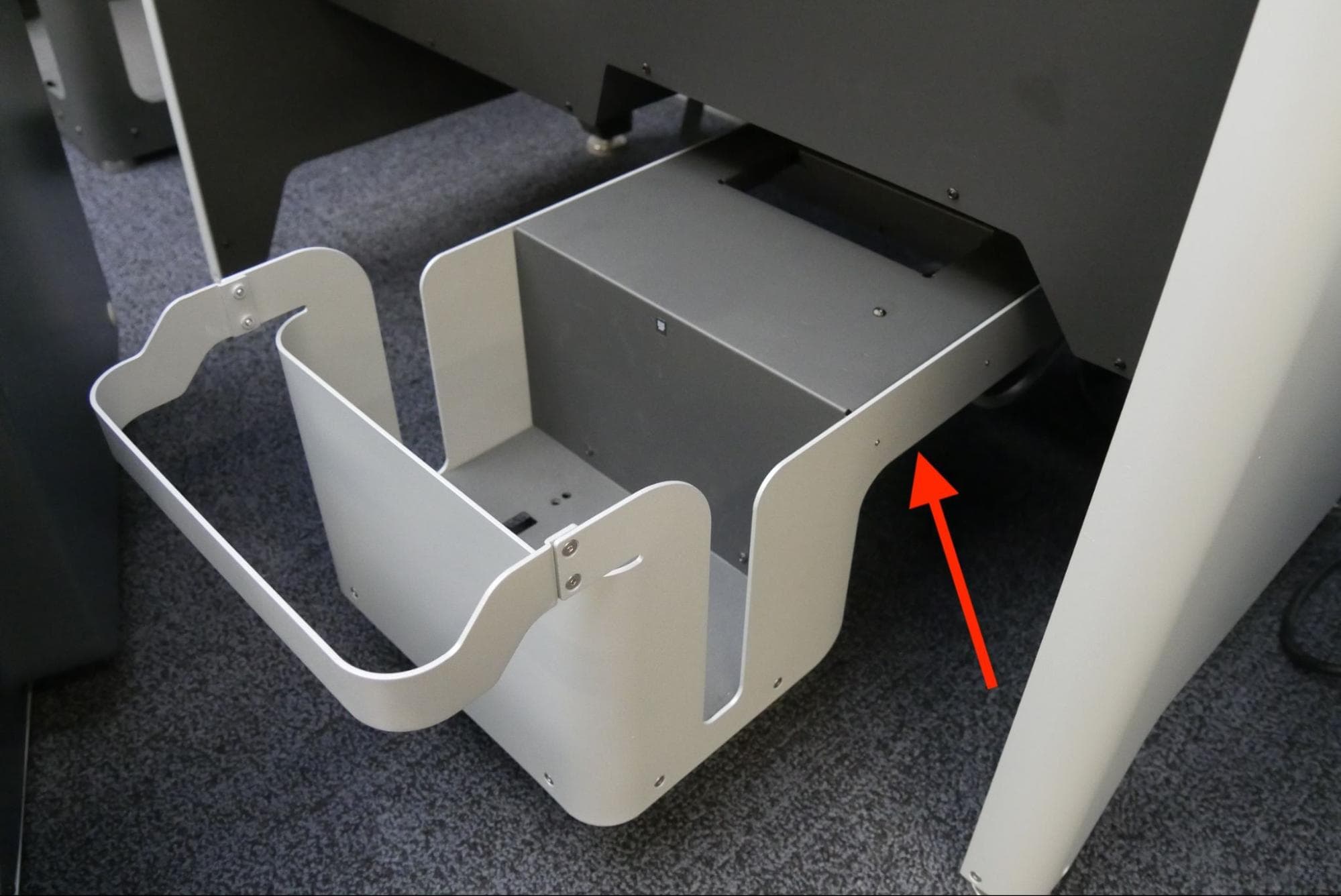
The Fuse Sift weighs the powder cartridge before filling it using two scales in the drawer. If the scales are not tared properly or are faulty, the Fuse Sift shows a Cartridge Weight Error.
If you see this error message repeatedly, power cycle the unit, update the firmware, and upload diagnostic logs before performing a factory reset.
Fresh Hopper Empty/Sifted Hopper Empty
The Fresh Hopper Empty and Sifted Hopper Empty error messages indicate that an error occurred when filling the powder cartridge. This can be caused by an empty hopper, sensor issues, a malfunctioning doser, or firmware. To resolve this issue:
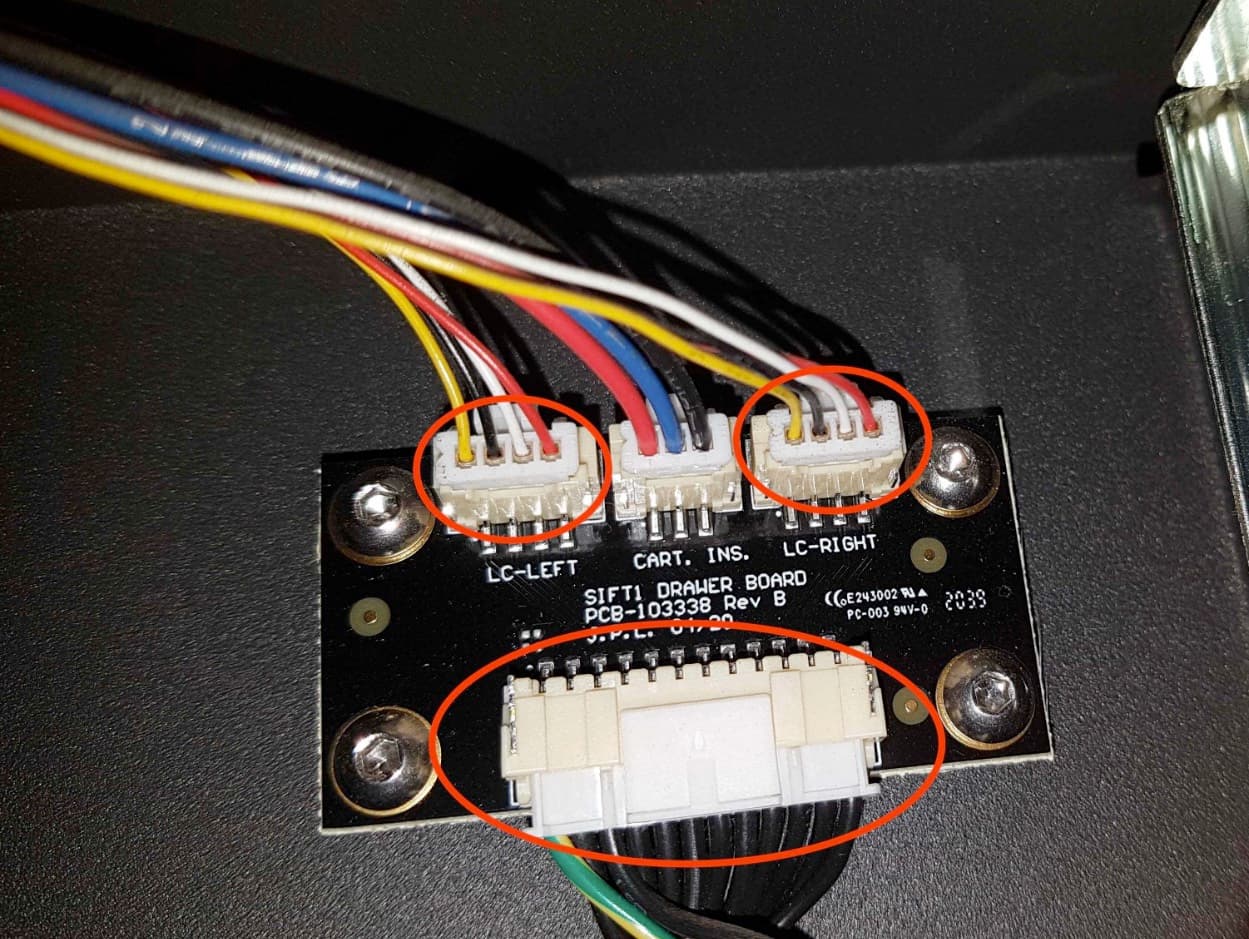
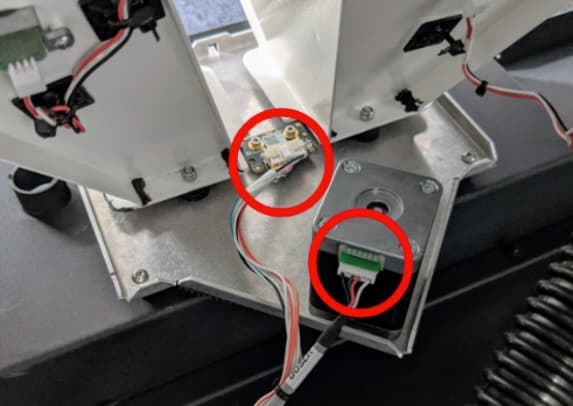
If the issue persists, contact Formlabs Support or a certified service provider.
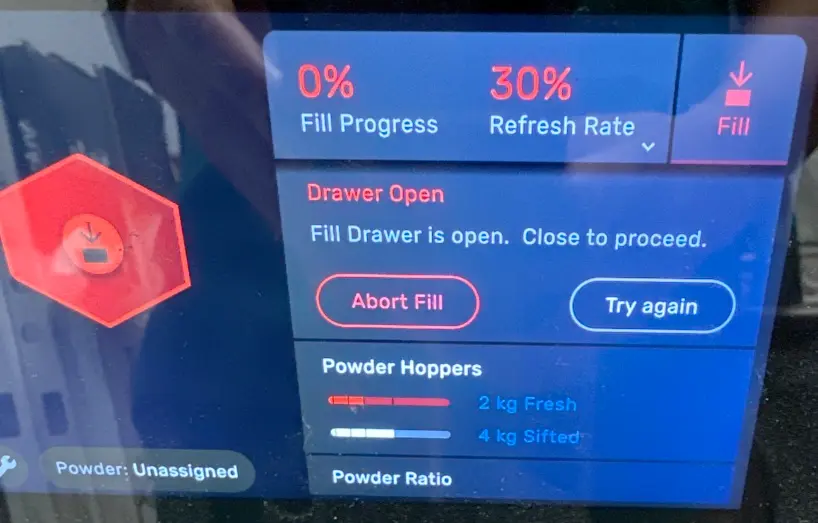
Drawer open
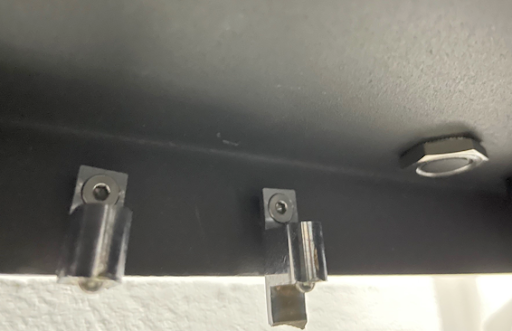
If the drawer of the Fuse Sift is not closed properly, the machine stops and displays the Drawer Open resolution request.
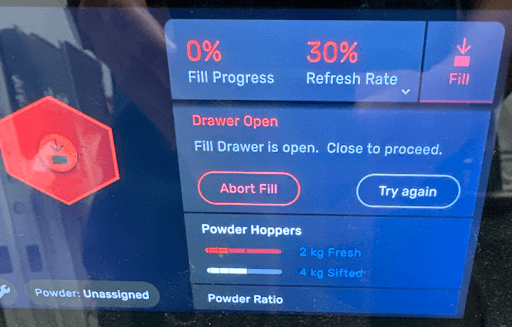
If you see this message:
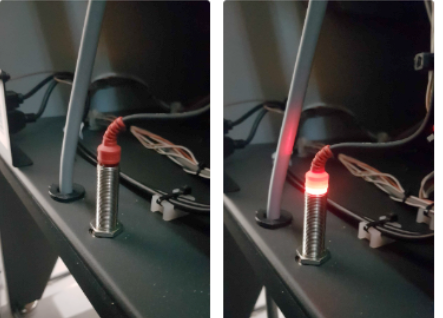
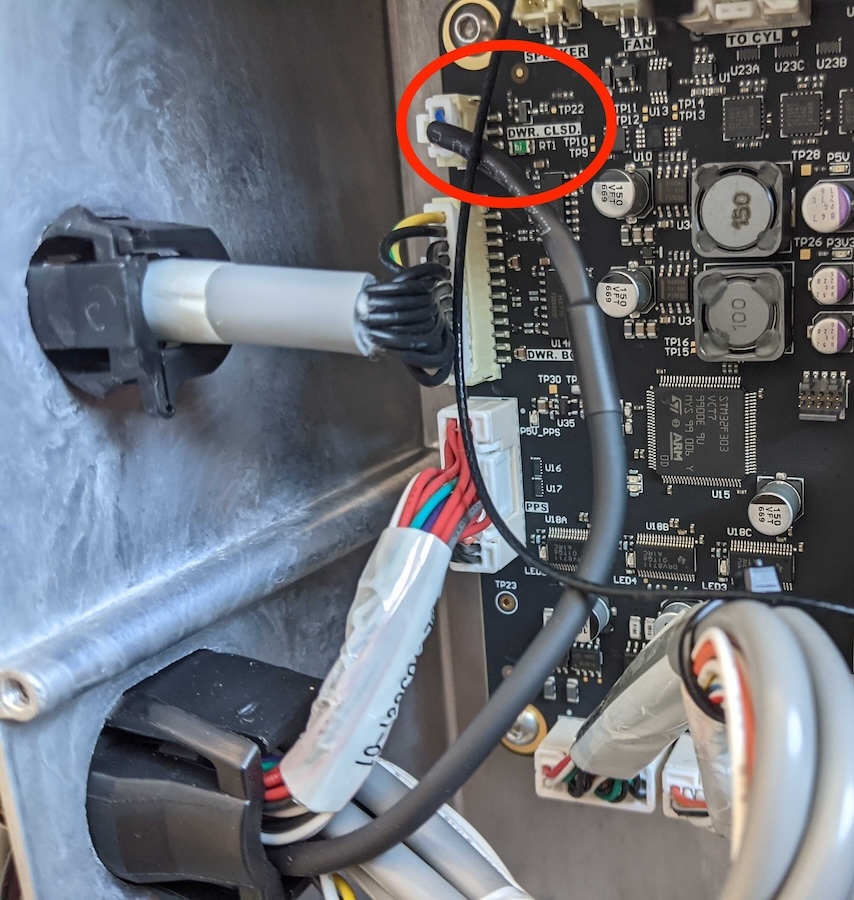
Factory reset instructions
On some occasions, a factory reset may correct unusual Fuse Sift behavior. Formlabs troubleshooting steps for certain error messages, such as Cartridge not present, include initiating a factory reset. Formlabs Support or a certified service provider may also ask you to perform a factory reset while helping you with a Fuse Sift issue.
Notice:
A factory reset erases all saved network connections and diagnostic logs. Upload diagnostic logs before performing a factory reset.
To perform a factory reset, tap the wrench icon to access the Settings menu. Tap System > Factory reset and follow the onscreen instructions to perform a factory reset. The touchscreen displays Factory reset complete before initializing the Fuse Sift.
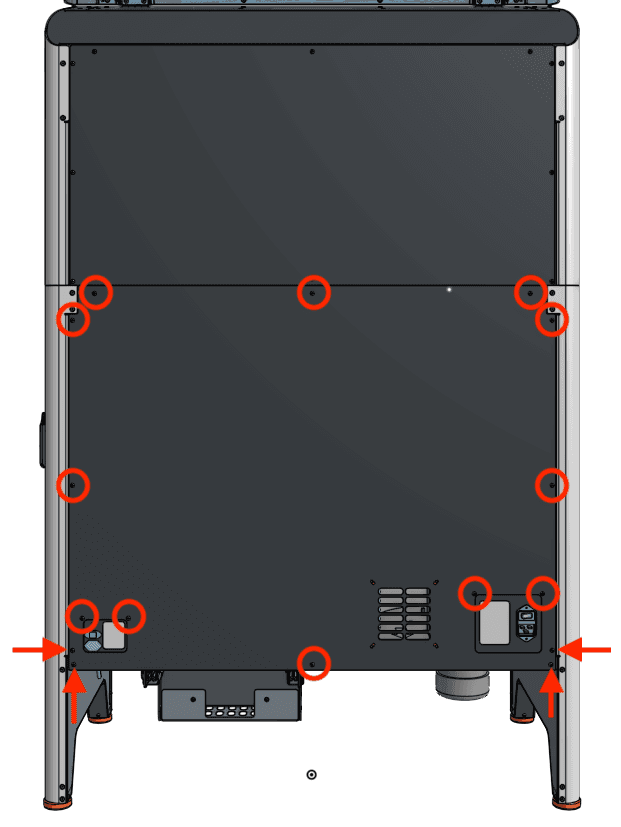
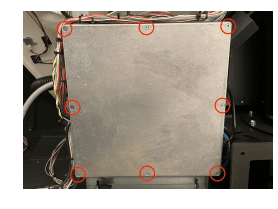
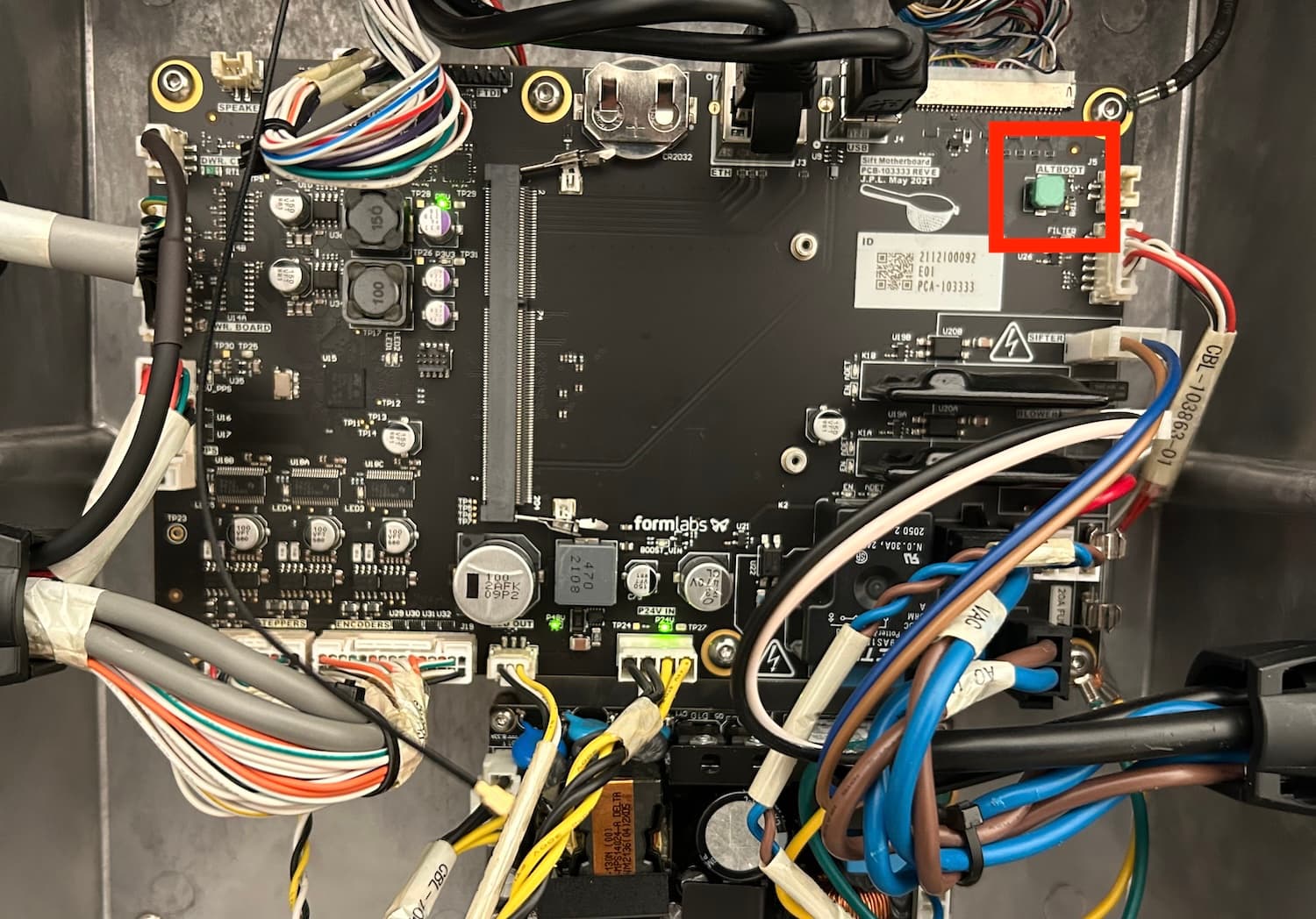
If you cannot perform a factory reset due to a touchscreen issue, you can force a factory reset using a button on the motherboard: