WHITE PAPER
Formlabs Logo

Adjusting the Powder Dosing Offset (Fuse 1+ 30W)

Adjusting the Powder Dosing Offset (Fuse 1+ 30W)

During the printing process, the Fuse 1+ 30W printer dispenses powder into the print bed. Irregularities in powder flow may result in underdosing or overdosing. Overdosing wastes powder and generates debris during the print. Insufficient powder likely results in print failures. Adjust the Powder Dosing Offset on Fuse 1+ 30W printers to prevent print failures or powder waste.

Notice:

The Powder Dosing Offset is currently only validated for the following materials on a Fuse 1+ 30W printer:

  • Nylon 12 Powder (3.0–5.3 print settings)
  • Nylon 12 Tough Powder (V1.1 print settings and above)
  • Nylon 12 White Powder (V1.0 print settings and above)
  • TPU 90A Powder (2.0–2.1 print settings)

Formlabs has not validated this feature with other materials.
Diagnosing an overdosing printer

Overdosing occurs when the printer dispenses excessive amounts of powder during the printing process. Confirm a printer is overdosing powder with the following diagnostic steps:

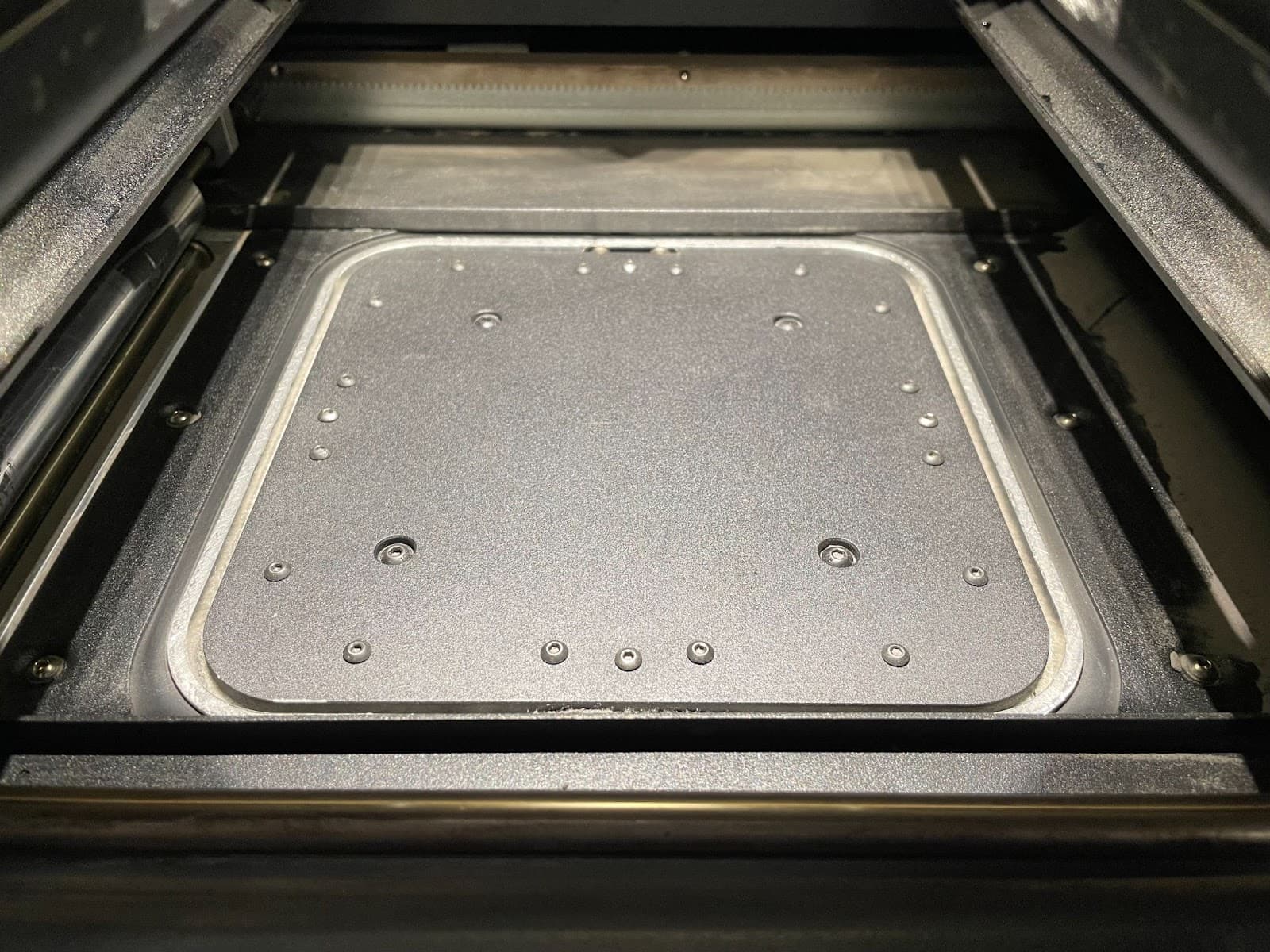
  1. Vacuum the top of the print enclosure, the runways, the areas between the powder troughs, and the top of the build chamber. These areas must be cleaned of all excess powder before starting a print.
A clean print bed.
  1. Run a test print on your printer. The test print needs at least 2700 layers from one large print or multiple smaller prints stacked vertically, as smaller prints do not accumulate enough excess powder to correctly diagnose overdosing.
  2. After approximately 2700 layers of printing, inspect the amount of powder spilled over the edges of the print bed.
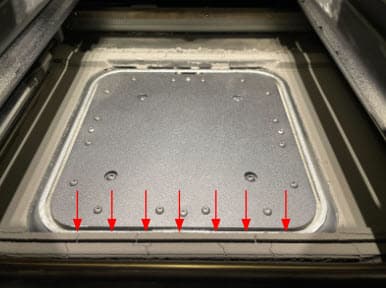
Standard amount of powder buildup
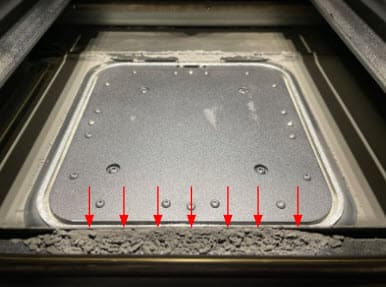
Powder buildup on an overdosing printer
  1. If there is excess powder spilling over the edges of the print bed, lower the powder dosing offset by 1°.
  2. For subsequent prints, incrementally lower the powder dosing offset by 1°. Lowering the powder dosing offset too much may increase the chance of an underdosing print failure.

Overdosing when printing with Nylon 12 Powder and v5.3 print settings

The increased print speed of the Nylon 12 Powder v5.3 setting also results in more quartz tube heater duty cycles. Unsintered powder around the top of the build chamber therefore gets hotter than with previous print settings and is more likely to clump. These clumps of powder can cause a print to fail by jamming the recoater rack and pinion or blocking the recoater from fully traveling across the print enclosure.

To resolve this issue, perform the following checks and adjustments. Run a print after each step to test the result before continuing.

  1. Thoroughly clean any powder over the rails, on runways, and in the powder troughs. This should be done between every print. Also clean the IR sensor housing, optical cassette, and the air filters.
  2. Run the Bed Temperature Tuning print and adjust the Bed Temperature Target as indicated by the calibration result.
  3. Set the on-printer Powder Dosing Offset to -5°.
  4. Use the Print Settings Editor to a) reduce the Flipper Dose Angle under Powder Dosing Ratios by -3° (for every entry in the table), and b) change the Post-Lase Dwell Time parameter from 0 s to 4.0 s.
  5. If the issue still persists, contact Formlabs Support.

Diagnosing an underdosing printer

Underdosing occurs when a printer does not dispense enough powder during the printing process. Prints typically fail as a result of a partial recoat.

During normal operation, Fuse Vision monitors the printing plane for any anomalies like debris, fibers, voids, or a deficit of powder. If Fuse Vision determines that not enough powder is deposited after a recoating pass, it intervenes and aborts the print with Error 112.

Confirm a printer is underdosing powder with the following diagnostic steps:

  1. Check the powder hopper to ensure the printer contains sufficient powder.
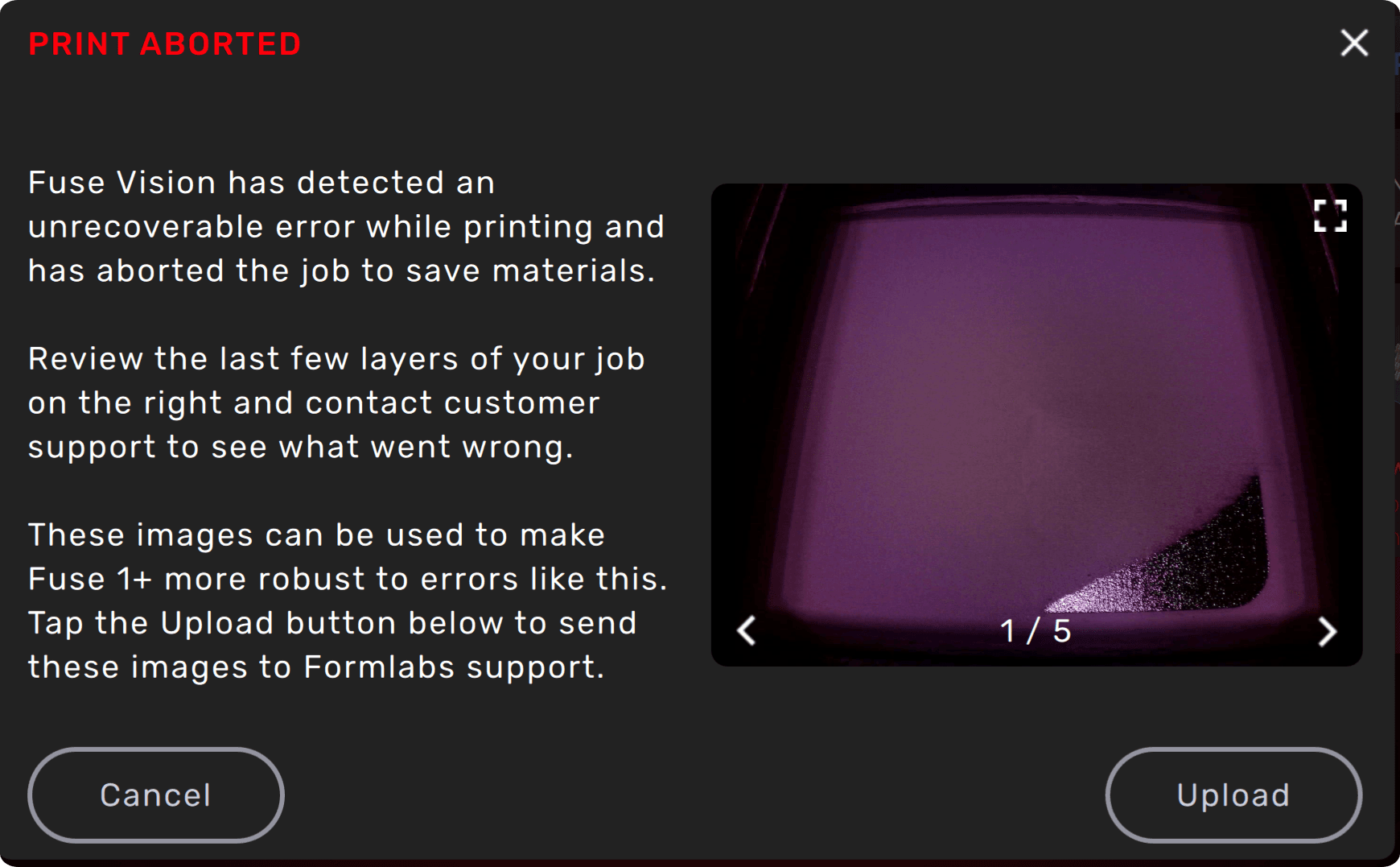
  2. If the printer displays the error message Error 112: Print Aborted, inspect the presented images to determine if the failure was due to partial recoats.
Print Aborted error message screen.
  1. Raise the powder dosing offset by 5°. Raising the powder dosing offset by the maximum offset reduces the chances of print failures.
  2. If the printer is overdosing powder at the new angle, incrementally reduce the powder dosing offset by 1° to prevent powder wastage.
  3. If the issue persists, follow the troubleshooting steps in the support article Underdosing.

Applying the Powder Dosing Offset

The Powder Dosing Offset can be adjusted up to ± 5° in 0.5° increments.

  • When troubleshooting overdosing issues, Formlabs recommends lowering the powder dosing offset by 1° initially, then fine-tuning in 1° increments until optimal results are achieved.
  • When troubleshooting underdosing issues, Formlabs recommends raising the powder dosing offset by 5° initially, then fine-tuning in 1° increments until optimal results are achieved.

Notice:

The Powder Dosing Offset is only available on printers running firmware version 1.17 or later and PreForm version 3.31 or later. The Powder Dosing Offset cannot be applied to print jobs generated with older versions of PreForm or firmware.

To adjust the Powder Dosing Offset:

  1. Update the printer’s firmware to its latest version.
  2. Ensure that the printer is not running a print job and is currently Idle. The Powder Dosing Offset can only be adjusted before a print, not while the print is running.
  3. On the printer’s touchscreen, tap the gear icon. The Settings screen appears.
  4. Tap Calibration > Powder Dosing Offset. The Powder Dosing Offset menu appears.
  5. Tap + to raise the Powder Dosing Offset for an underdosing printer. Tap the - to lower the Powder Dosing Offset for an overdosing printer.
  6. Powder dosing offset UI.
  7. When you are done adjusting the Powder Dosing Offset, tap Done.
  8. Run a test print.
  9. Inspect the print bed for powder buildup or print failures. Further adjust the Powder Dosing Offset if the powder dosing is not yet fine-tuned.
  10. If you see an error message repeatedly, contact Formlabs Support or a certified service provider.

Adjusting powder dosing on a Fuse 1 printer

The Powder Dosing Offset adjustment is not available on Fuse 1 printers, but you can use the Print Settings Editor to adjust powder dosing and troubleshoot underdosing or overdosing. Note that due to variances in powder flow with the gravity-fed Fuse 1 hopper, adjustments may not be as effective as equivalent changes would be on a Fuse 1+ 30W printer.

  1. Open PreForm and create a new print setting with the Print Settings Editor.
  2. Locate the Powder Dosing Ratios parameter, listed under Powder Delivery.
  3. Click Edit Array Field. The Powder Dosing Ratios window appears.
  4. Adjust the Flipper Dose Angle by 2 or 3° for every entry in the table. Reduce the value if your printer is overdosing powder. Increase the value if it is underdosing powder.
  5. Click Save. The window closes. Click Save again to save the changes to your print setting.
  6. Run a print with your custom print setting and check if the dosing issue was resolved.
  7. If dosing issues persist, contact Formlabs Support or a certified service provider.