
備考:
工場出荷時の状態にリセットすると、プリントジョブ情報、それまでにカスタマイズした設定や診断ログがすべて消去されます。工場出荷時の状態にリセットする前に、診断ログをアップロードしておくようにしてください。

プリンターに何らかの異常が発生した場合、エラーメッセージとエラー内容の詳細がプリンターのタッチスクリーンに表示されます。
Dashboard settings(ダッシュボードの設定)で、この記事に掲載されているエラー、およびその他のプリントイベントに関するSMSまたは通知メールが受信できるように設定してください。
診断ログ
Formlabsのプリンターは、何らかの異常が発生した際、その問題の詳細情報を提供するための診断ログを保持しています。問題発生時にFormlabsサポートや正規販売代理店にご連絡いただく際、早期解決が図れるよう、これらの診断ログならびにその他の情報(観察結果や詳しい状況説明など)をご提供ください。
Wi-Fiまたはイーサネットでインターネットに接続されているプリンターの場合:プリンターのホーム画面でプリンターアイコンをタップします。
インターネットに接続されていないプリンタの場合:
Cartridge Dispense Error(カートリッジ供給エラー)
The printer displays a Cartridge Dispense Error if it tries to dispense resin but nothing comes out of the cartridge. 通常、これはカートリッジが空であることを意味しています。各カートリッジは1リットル分のレジンの供給が可能です。1リットル分の供給が完了したら、空になったカートリッジを廃棄し、新しいカートリッジを装着して、プリントを続行します。
カートリッジが空になっていないにもかかわらず、プリンタがレジンを供給しない場合、カートリッジ自体に問題があり、レジンの供給が妨げられている可能性があります。
Cartridge Low(カートリッジ内のレジンの残量が少なくなっています)
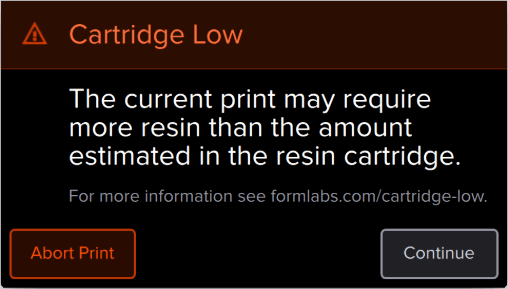
プリンターは、各プリント開始前にカートリッジ内のレジンの推定残量を確認します。レジンの推定供給量がパーツのプリント完成に不十分な場合、プリンターにCartridge Low(カートリッジ内のレジンの残量が少なくなっています)と書かれたエラーメッセージが表示されます。
Tap Ignore on the touchscreen to continue. 但し、プリント中にプリンターのレジンがなくなった場合は、新しいカートリッジが装着されるまでプリントは一時中断します。長時間プリントが中断されると、プリントしたパーツに横線ができてしまう可能性があります。残量が少なくなったカートリッジは、プリント開始前に新しいカートリッジに取り換えておくことをお勧めします。もしくは、プリントを近くで監視し、カートリッジ内のレジンが空になったらすぐに新しいカートリッジを装着できるようにしてください。
Resin Tank Overfilled(レジンタンクにレジンが過剰充填されています)
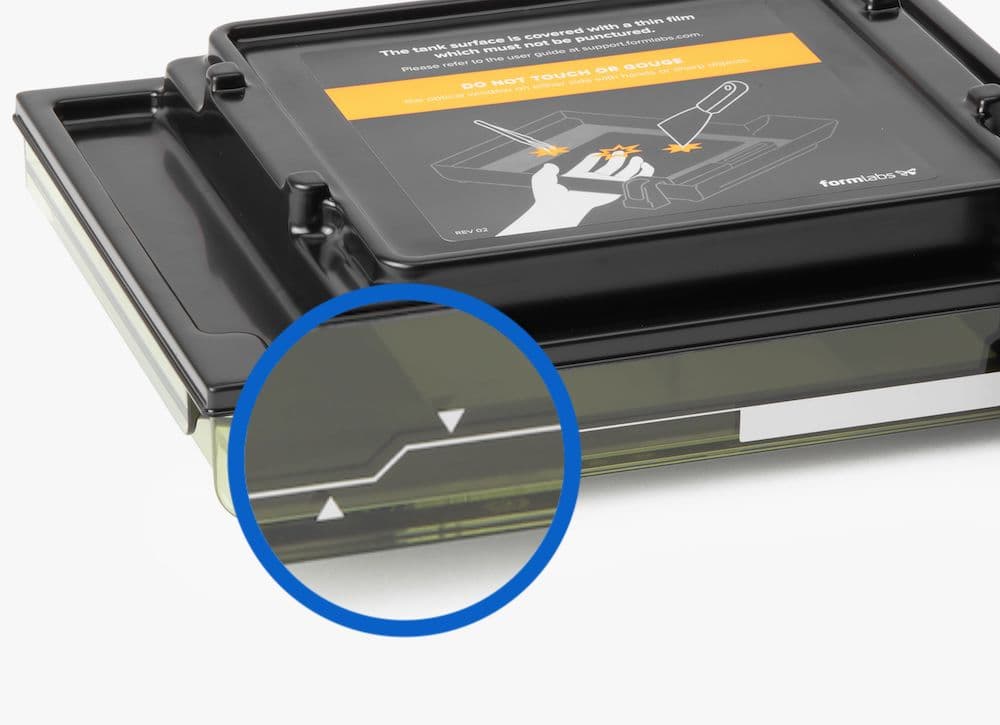
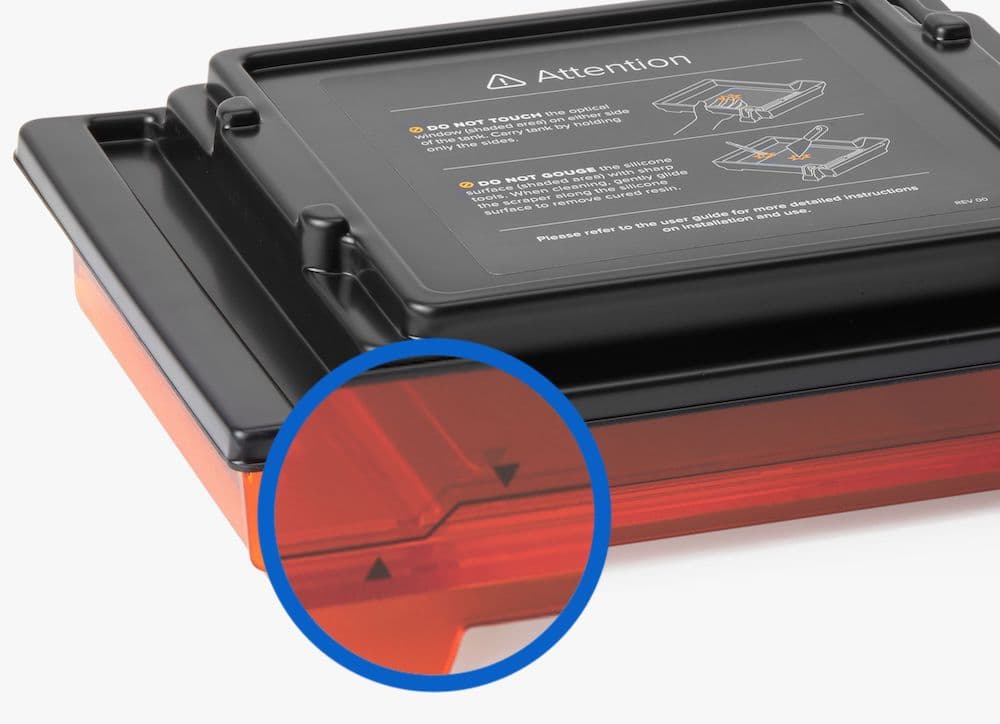
レジンタンクが必要以上に充填された時、プリンターはこのエラーメッセージを表示します。Form 2のレジンタンクには、最小および最大充填ラインが記されています。タンク内のレジンのレベルは、常にこの2本の線の間にあるべきです。
Missing resin tank and missing cartridge errors(レジンタンクまたはカートリッジが検知できないことを示すエラー)
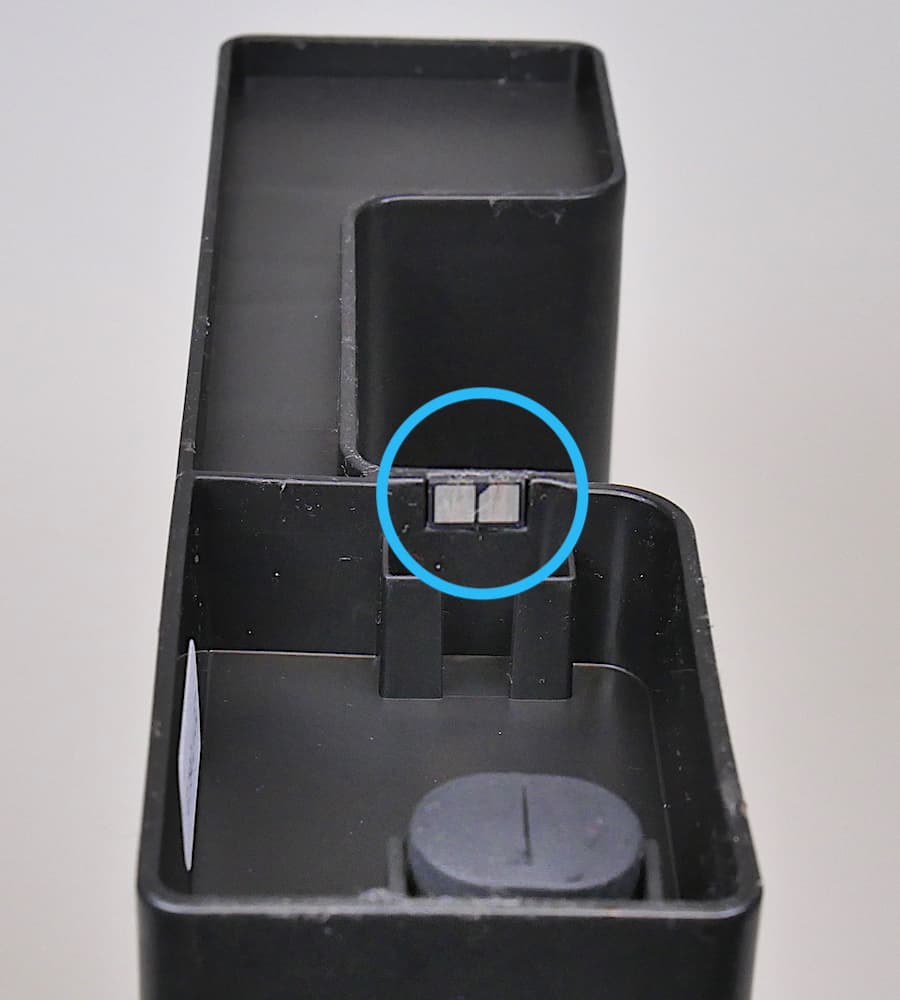
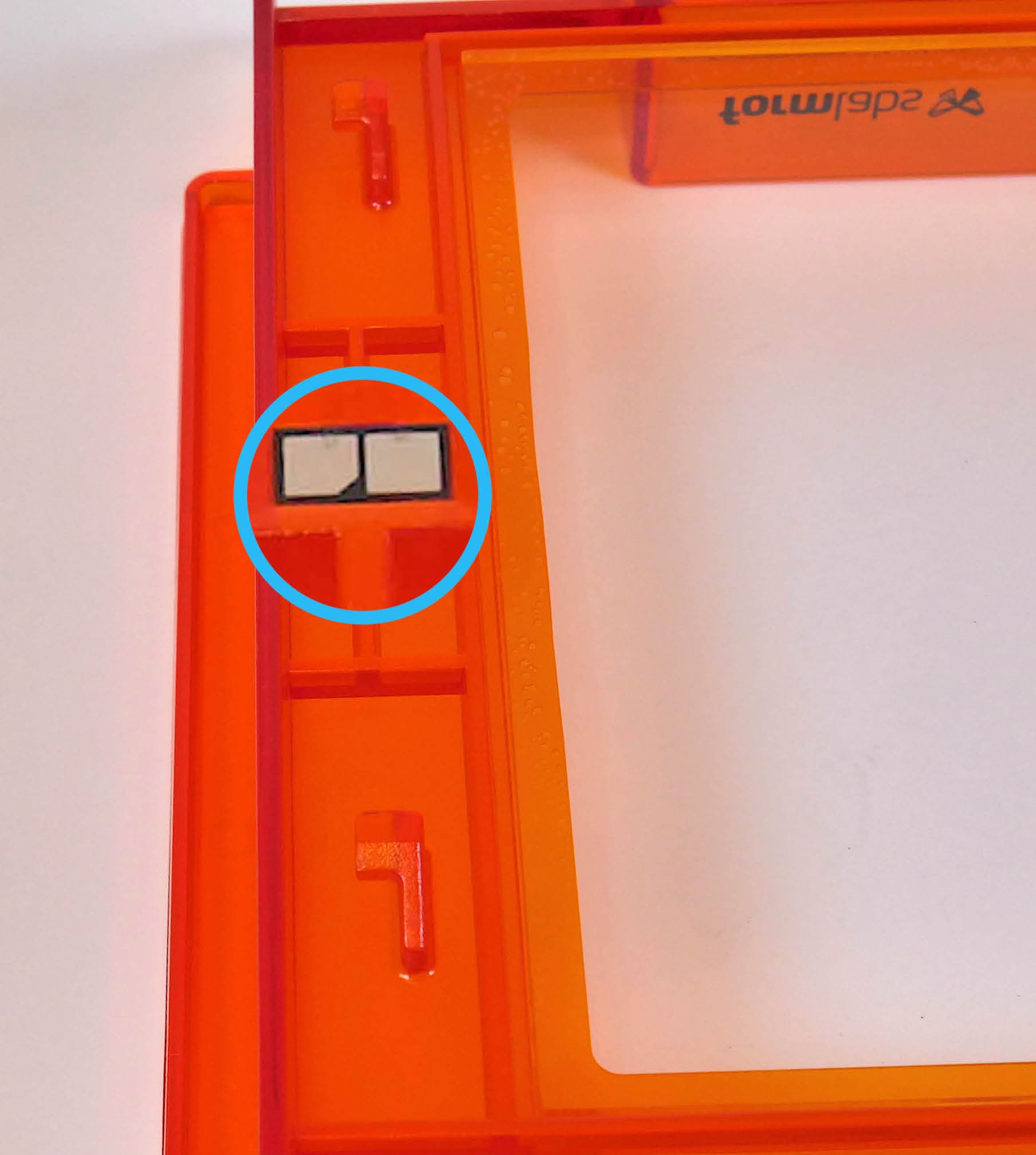
すでに装着されているタンクまたはカートリッジをプリンターが検知しない場合は、レジンタンクまたはカートリッジのIDチップが問題なく埋め込まれていて、汚れていないことを確認します。チップが汚れていたり、埋め込まれていなかったりすると、プリンタがタンクまたはカートリッジを検出できなくなる可能性があります。
Resin tank and cartridge warning(レジンタンクとカートリッジに関する警告)
プリンターは、タンクとカートリッジ内のレジンの種類が現行のプリントジョブで指定されているレジンの種類と合致しているかを確認します。プリントジョブで指定されているレジンの種類と一致しない場合、プリンタはResin Tank and Cartridge Warning(レジンタンクとカートリッジに関する警告)と書かれたエラーメッセージを表示し、プリントジョブ設定と一致するタンクとカートリッジを装着するように促します。
Resin tank warning(レジンタンクに関する警告)
レジンカートリッジが先に装着され、タンクのレジンがカートリッジと一致しない場合、プリンタの画面にResin Tank Warning(レジンタンクに関する警告)と書かれたエラーメッセージが表示されます。レジンタンクを取り外し、レジンカートリッジと一致するタンクに入れ替えます。
レジンタンクで新しい種類のレジンを使用する場合は、タンクを空にして洗浄し、タンクのレジンの種類を再プログラムするためにIgnore(無視)をタップします。
Cartridge warning(カートリッジに関する警告)
レジンタンクが先に装着され、カートリッジ内のレジンがタンク内のレジンと一致しない場合、プリンタの画面にはCartridge Warning(カートリッジに関する警告)と書かれたエラーメッセージが表示されます。カートリッジを取り外し、タンクと一致するカートリッジに入れ替えます。
Motors jammed (モーターが定位置に戻れません)
プリンタには、モーターの動作を追跡するセンサーが取り付けられています。モーターが所定の時間内に元の位置に戻らない場合、プリンターはMotors Jammed(モーターが詰まっています)と表示します。
ワイパーやタンクの動作経路に何かがあると、モーターが正常に動作しなくなる可能性があります。カバーを開き、ビルドプラットフォーム、レジンタンクとワイパーを点検します。障害物を取り除き、ビルドプラットフォーム、ワイパーとレジンタンクを取り外して再度装着します。
Heater error(ヒーターエラー)
プリンターは、60分を経過しても目標温度の30°C(86°F)に達しないと加熱するのを止めるように設計されています。作業環境の気温が非常に低い場合、加温サイクルを一回ではなく、複数回繰り返さないと、プリンターが目標の温度まで上昇しないことがあります。その場合、プリントを再開し、もう一度加熱し直してください。詳しくは、サポート記事 Maintaining resin temperature(レジンの温度を維持する)をご覧ください。
Cartridge worn out(カートリッジが消耗しています)
各カートリッジは1リットル分のレジンの供給が可能です。1リットル分の供給が完了したら、空になったカートリッジを廃棄し、新しいカートリッジを装着して、プリントを続行します。空になったカートリッジを新しいものに交換したら、プリントを再開
します。Formlabs以外のレジンを使って手動でプリントするには、Form 2のOpen Modeをご利用ください。
Resin sensor error(レジンセンサエラー)
レベルセンスボードはレジンタンクのすぐ後ろにあります。レジンタンクが近すぎる、遠すぎる、またはセンサーやタンクが汚れている場合、プリンターにResin Sensor Error(レジンセンサーエラー)と表示されることがあります。
プリンターにResin Sensor Error(レジンセンサーエラー)が表示された場合、以下の手順を実行してエラーが解決するかどうかを確認してください。
Printer tilted(プリンターが傾いています)
Formlabs SLA プリンターが最適に動作するのは、完全に水平になっている時です。水平でない場合は、タッチスクリーン上にプリンターを水平にするように促すメッセージが表示されます。水平状態は、プリンタのタッチスクリーン上でSettings(設定)> Printer Leveling(プリンタを水平にする)を順にタップしていくと確認できます。
タッチスクリーンに表示される指示に従って、付属のレベリングツールを使ってプリンターが水平になるよう調整します。
Reset while printing(プリント中にリセットされました)
プリントジョブの実行中にプリンタの電源が遮断された場合、プリンタを再起動してもプリントジョブは再開されません。タッチスクリーン上にReset while printing(プリント中にリセットされました)と書かれたエラーメッセージが表示されます。予期せぬリセットが発生したら、Formlabsサポートまたは正規販売代理店にご連絡ください。
プリントの開始に失敗しました。
Failed to start print(プリントの開始に失敗しました)エラーメッセージは、プリンタがプリントの開始に失敗した原因を特定できない場合に表示されます。場合によっては、マザーボードが損傷し、レーザーコントローラーやモーターへの適切な接続を妨げている可能性があります。この問題を解決するには、
このエラーメッセージが繰り返し表示される場合は、Formlabsサポートまたは正規販売代理店にご連絡ください。
プリントエラーコード:41
Wi-Fi Errors(Wi-Fi エラー)
プリンターは、接続の試行に対するWi-Fiのアクセスポイントの応答の内容に応じて、特定のエラーメッセージを表示します。Wi-Fi、USBまたはイーサネット経由で接続する方法について知りたい場合は、Connecting to your printer(お使いのプリンタに接続する)と題したサポート記事をご参照ください。プリンターが接続できるように無線ネットワーク環境が設定されていることを、ネットワーク管理者に確認してください。Windows OSをご使用の場合は、アップル社が定めている手順に従って、Bonjourが正しくインストールされていることを確認します。このステップは接続に不可欠です。無線ネットワーク環境でアップロードできるようになるためには、PreFormがプリンターと同じネットワークに接続されている必要があります。
無効なネットワークキー
パスワードが正しく入力されていません。ネットワークのパスワードを確認します。プリンターが接続できるように無線ネットワーク環境が設定されていることを、ネットワーク管理者に確認してください。
接続に失敗しました
プリンターがワイヤレス接続の設定に失敗し、ネットワークに接続できませんでした。プリンターが接続できるように無線ネットワーク環境が設定されていることを、ネットワーク管理者に確認してください。
エラー8
エラー8は、プリンターがFORMファイルを読み込んでいる間に予期せぬエラーが発生したことを示します。この問題を解決するには、プリンタから古いプリントジョブを削除してから再度別のプリントを試します。PreFormとファームウェアを最新バージョンにアップデートします。問題が解決しない場合は、工場出荷時の状態にリセットしてください。ファクトリーリセットを実行すると、ファイルシステムの破損やバグが解決する場合があります。
エラー23
エラー23は、プリンターがモーターを動かそうとした際にエラーが発生したことを示します。この問題を解決するには、プリンタから古いジョブを削除して別のプリントジョブを試します。PreFormとファームウェアを最新バージョンにアップデートします。問題が解決しない場合は、工場出荷時の状態にリセットしてください。ファクトリーリセットを実行すると、ファイルシステムの破損やバグが解決する場合があります。
プリンターを工場出荷時の状態にリセットする
状況によっては、工場出荷時の設定に戻すファクトリーリセットを実行することで、プリンターの異常な動作が解消されることがあります。異常な動作には、Unknown Error(未知のエラー)メッセージ、ファームウェアの更新失敗、タッチスクリーンの無反応、PreFormへの接続トラブルなどが含まれます。ファクトリーリセットを実行すると、キューに保存されている造形ジョブやネットワーク接続など、ファインチューニングを含むカスタム設定がすべて消去されます。
備考:
工場出荷時の状態にリセットすると、プリントジョブ情報、それまでにカスタマイズした設定や診断ログがすべて消去されます。工場出荷時の状態にリセットする前に、診断ログをアップロードしておくようにしてください。
ファクトリーリセットを実行するには:
工場出荷時リセットが成功したことを確認するには、タッチスクリーン上のQueue(キュー)をタップします。リセットが成功していれば、プリントキューは空になっているはずです。リセットをしても異常な動作が解決しない場合は、Formlabsサポートまたは正規販売代理店にご連絡ください。