
Notice:
Do not use the part removal tool, scraper, flush cutters, or any other metal tool to inspect the resin tank or remove cured resin from the tank. Such tools may damage the tank film, leading to failed prints and/or a resin spill.

The printer’s touchscreen displays error messages if the printer encounters any abnormalities and displays more details about the error.
Configure Dashboard settings to receive SMS or email notifications for the errors listed in this article and for other print events.
Diagnostic logs
Formlabs printers maintain diagnostic logs to provide detailed information about the printer. Include these diagnostic logs with other relevant observations and details when contacting Formlabs Support or your authorized reseller to speed up resolution.
For printers connected to the internet over an active Wi-Fi or Ethernet connection:
For printers not connected to the internet:
Learn more about options for network and non-network connections.
Cartridge dispense error
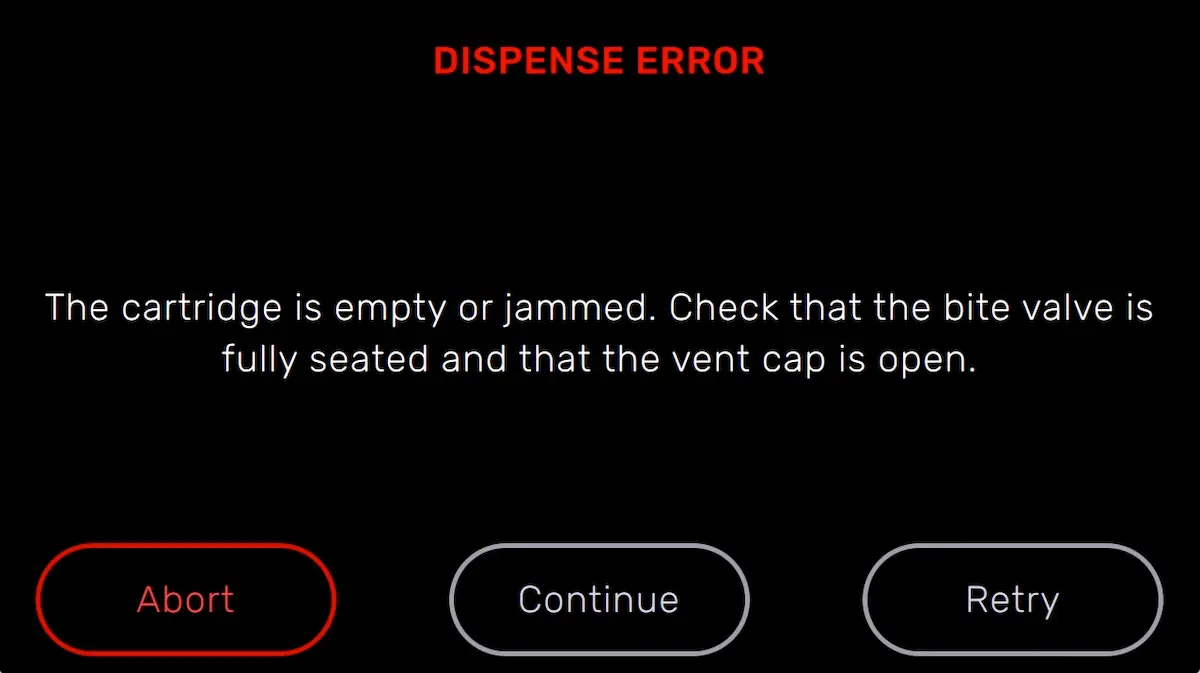
The printer displays Cartridge Dispense Error if it tries to dispense resin but nothing comes out of the cartridge. Usually, this means the cartridge is empty. Each cartridge contains and can reliably dispense one liter of resin. After the full liter dispenses, dispose of the cartridge and continue printing with a new cartridge.
The printer may also fail to fill the resin tank or get stuck during the filling process without displaying an error. If that happens, troubleshoot the printer as you would for a Cartridge Dispense Error. Follow the steps for resolving a Resin Level Sensor Error if the issue persists.
If a cartridge is not empty but the printer is unable to dispense resin, an issue with the cartridge may be preventing resin from dispensing:
Cartridge low
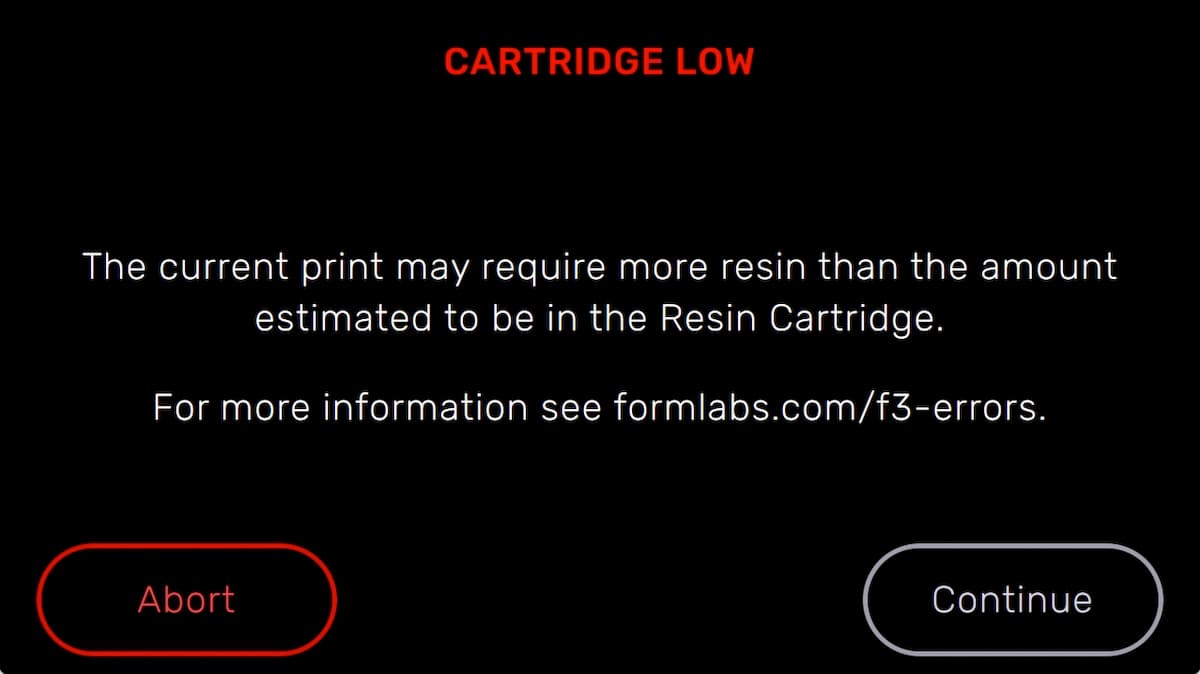
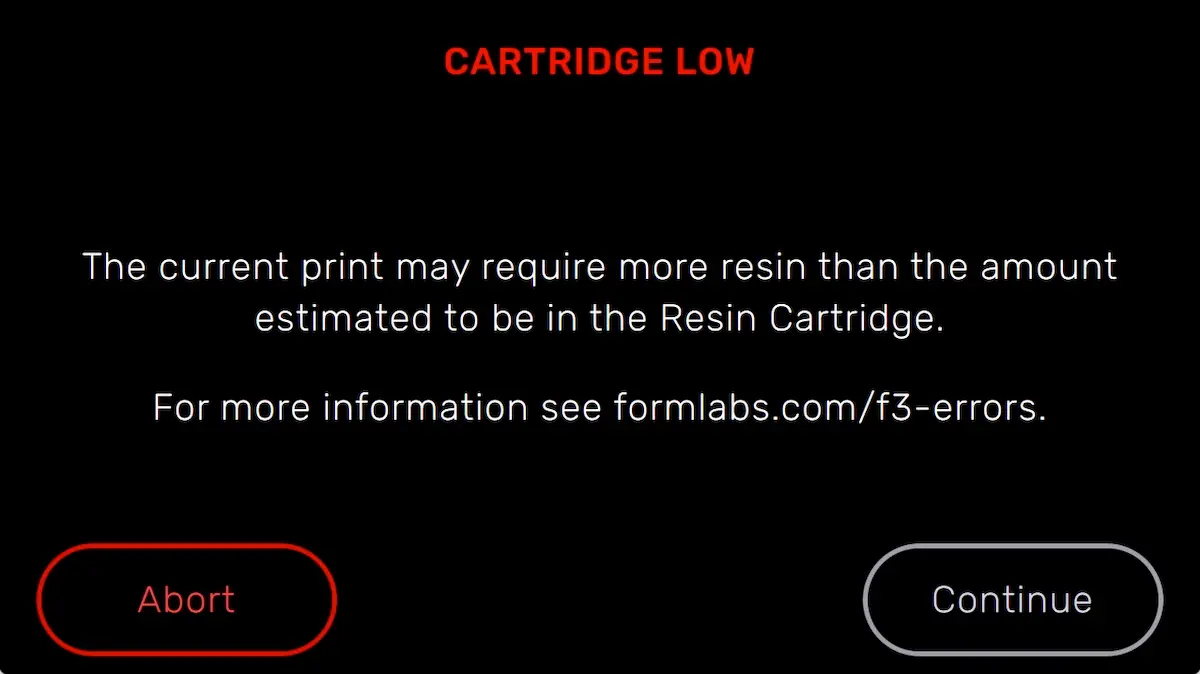
The printer checks the estimated amount of resin in the cartridge before starting each print. If the estimated resin supply isn’t enough to complete the part, the printer displays Cartridge Low.
Tap Ignore on the touchscreen to continue the print. However, if the printer runs out of resin in the middle of a print, it pauses until a new cartridge is inserted. Long print pauses can cause a horizontal line across printed parts. Consider swapping the low cartridge for a full cartridge before starting the print, or monitor the print closely and insert a new cartridge as soon as the current cartridge runs out of resin.
Cartridge error
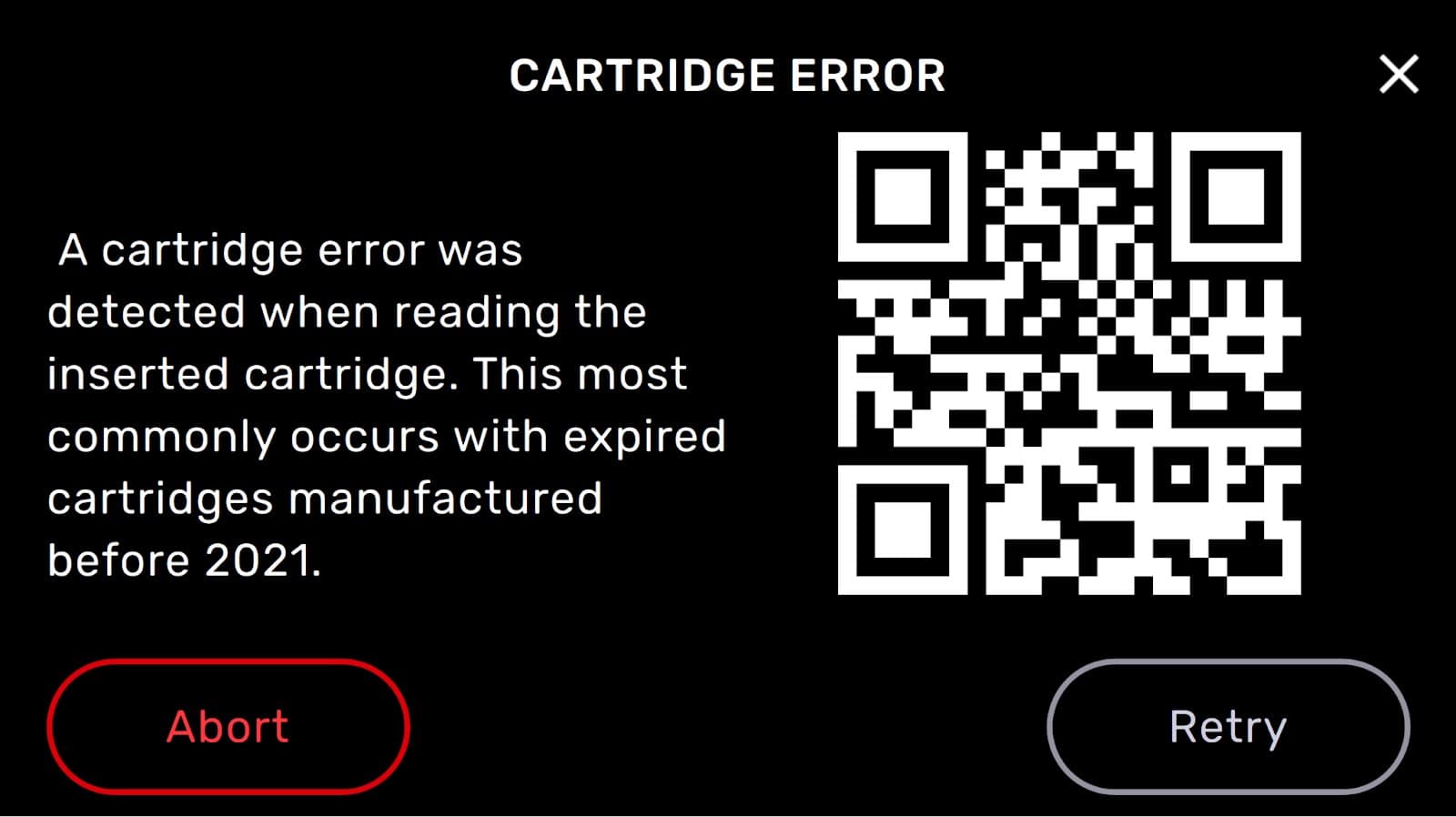
The printer displays Cartridge Error before the preprint cycle when attempting to read and write to the EEPROM chip on older, expired resin cartridges. Check the resin expiration and manufacturing dates on the sticker on the bottom of your cartridge. If the resin has expired, dispose of the cartridge and continue printing with a new cartridge. If the resin has not expired, contact Formlabs Support or your authorized reseller.
Cartridge incompatible
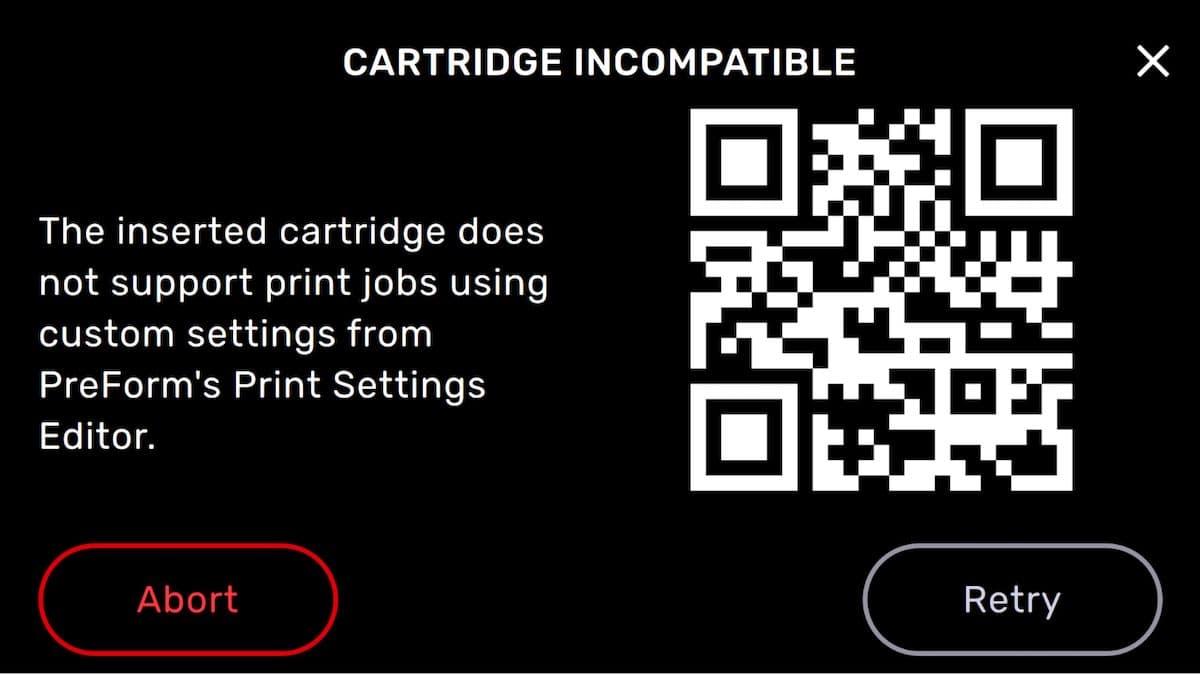
The printer displays Cartridge Incompatible if you attempt to print using custom print settings with most resin cartridges manufactured before 2021. Check the resin expiration and manufacturing dates on the sticker on the bottom of your cartridge. If the resin has expired, dispose of the cartridge and continue printing with a new cartridge. If the resin has not expired, contact Formlabs Support or your authorized reseller.
Resin tank overfilled
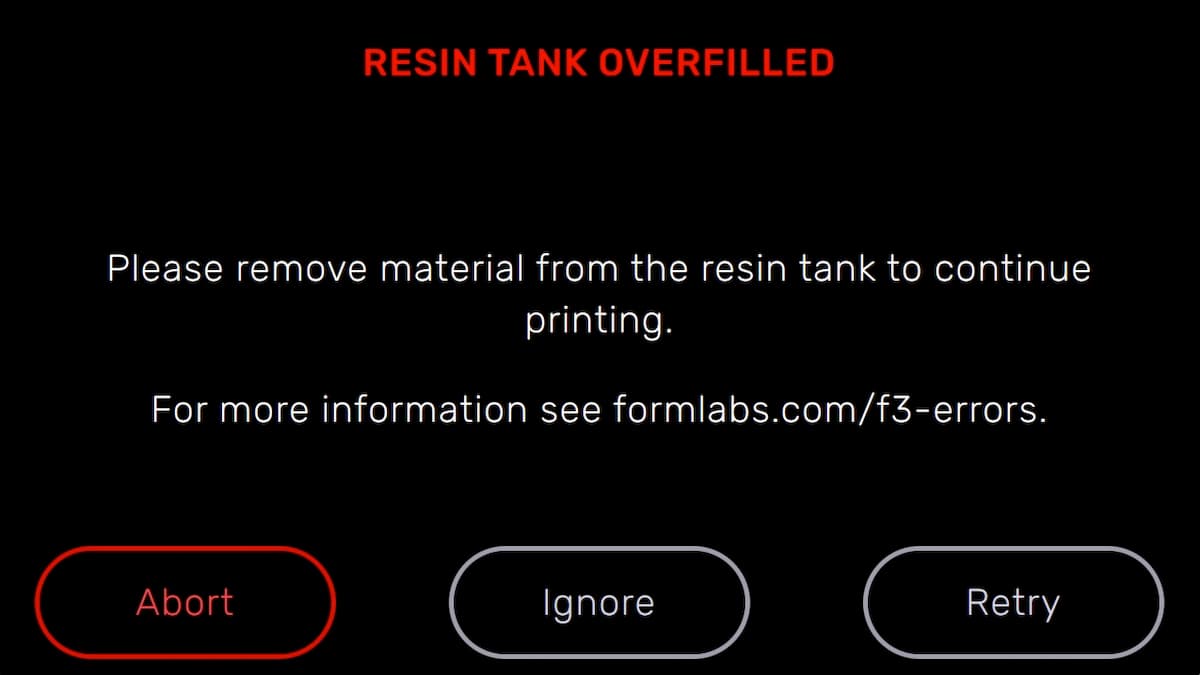
If the resin tank is overfilled, the printer will show this error. Use a syringe or small disposable cup to remove small amounts of resin, and pour it into a separate container. If the printer incorrectly warns of a resin tank overfill, check that the float can move freely and inspect the LevelSense board for damage.
Missing resin tank and missing cartridge errors
If the printer does not detect an inserted tank or cartridge, check the ID chip on the resin tank or cartridge to ensure the chip is present and clean. A dirty or missing chip can prevent the printer from detecting the tank or cartridge.
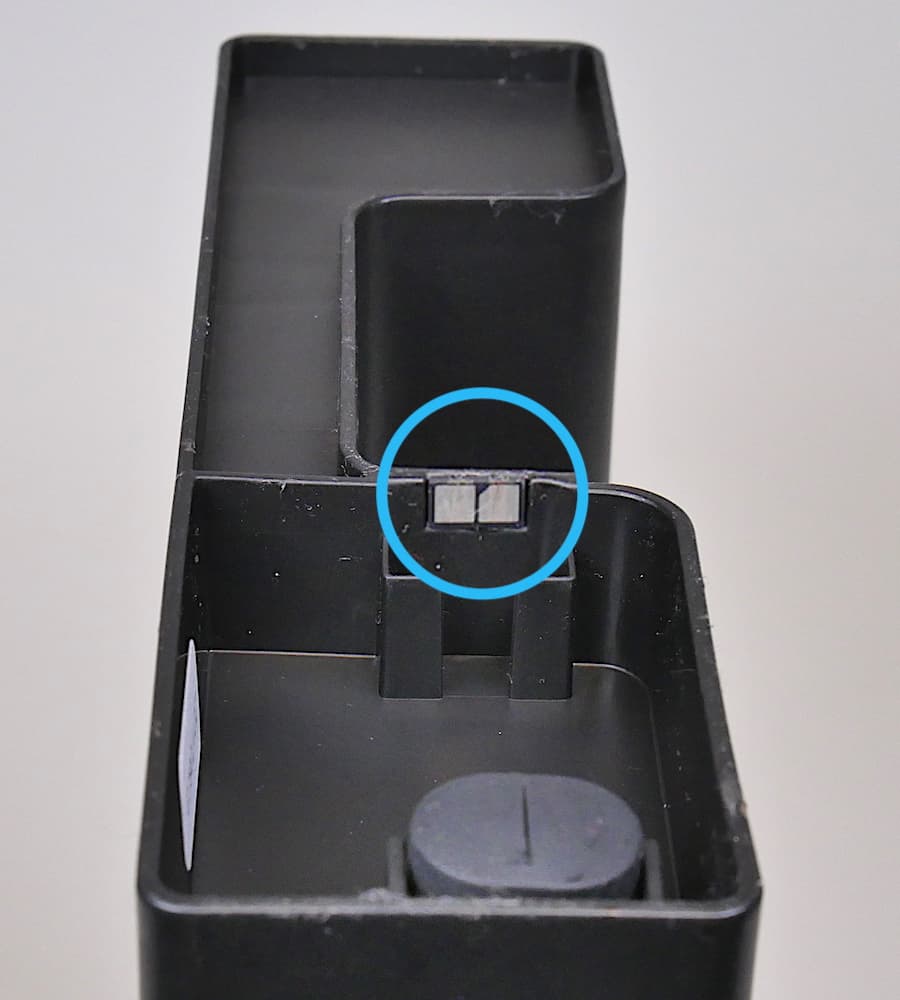
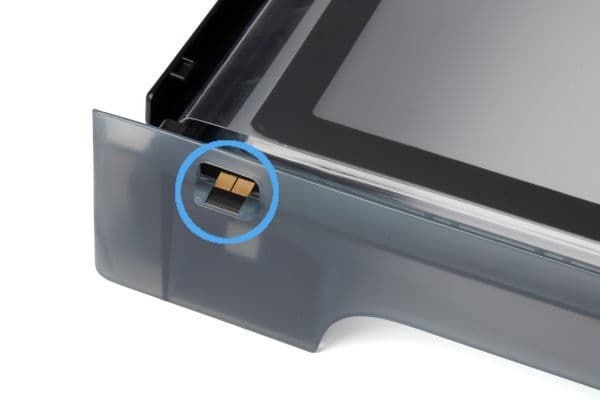
Fully remove and reinsert the resin tank or cartridge. The top of an inserted cartridge should be flush with the rear of the printer. A fully-inserted resin tank locks into the tank carrier rails and will be flush against the back of the printer.
Resin tank and cartridge warning
The printer checks the resin type in the tank and cartridge to ensure they match the current print job. If they do not match the resin type identified in the print job, the printer displays Resin Tank and Cartridge Warning and prompts you to insert a tank and cartridge that match the print job settings.
Resin tank warning
If the resin cartridge is inserted first, the printer displays Resin Tank Warning when the type of resin in the tank does not match the cartridge. Remove the resin tank and replace it with one that matches the inserted resin cartridge.
If the resin tank is unused and clean but has been programmed with the incorrect resin type, tap Ignore to reprogram the tank's resin type.
Cartridge warning
If the resin tank is inserted first, the printer displays Cartridge Warning when the type of resin in the cartridge does not match the tank. Remove the cartridge and replace it with the type of resin that matches the tank.
Motors jammed
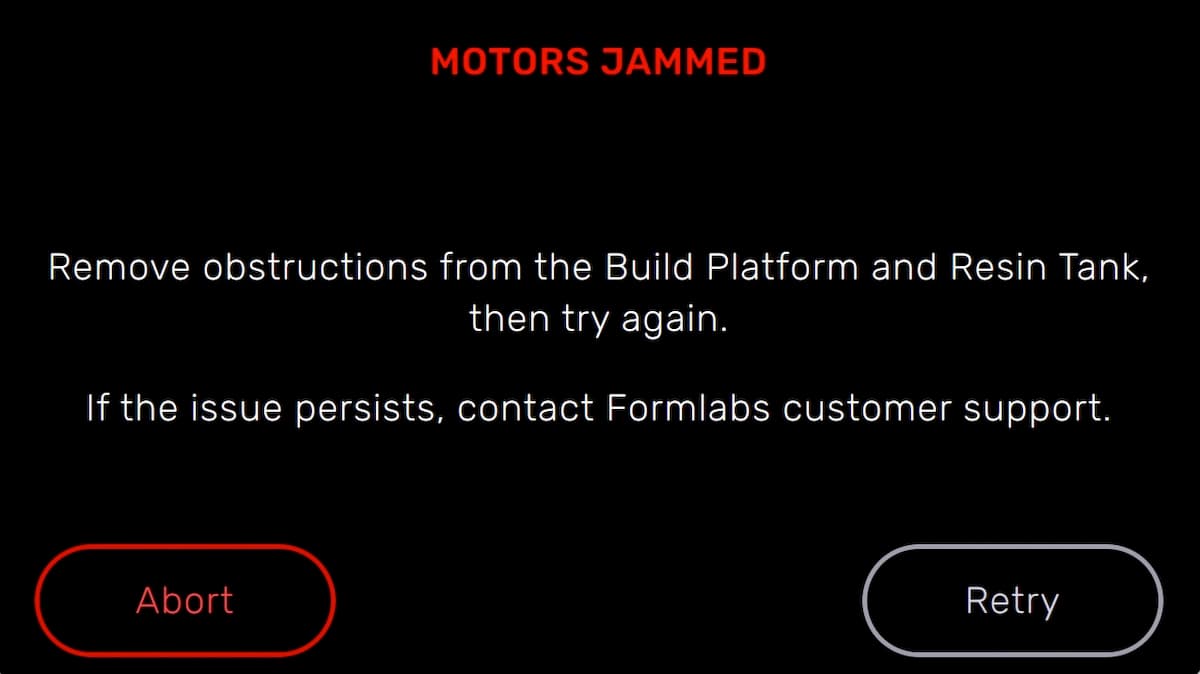
Sensors track the printer's motor movements. If a motor does not return to its original position in the right amount of time, the printer displays Motors Jammed or MOTOR_MOVE_OUT_OF_BOUNDS.
Anything in the path of a moving part may prevent the motor from moving properly. Open the cover to inspect the build platform and Light Processing Unit (LPU). Look inside the printer cavity and remove obstructions along the rails that are located at the rear of the printer cavity, paying special attention to the limit switch on the left side of the rail. Remove and reinsert the build platform and resin tank.
Heater error
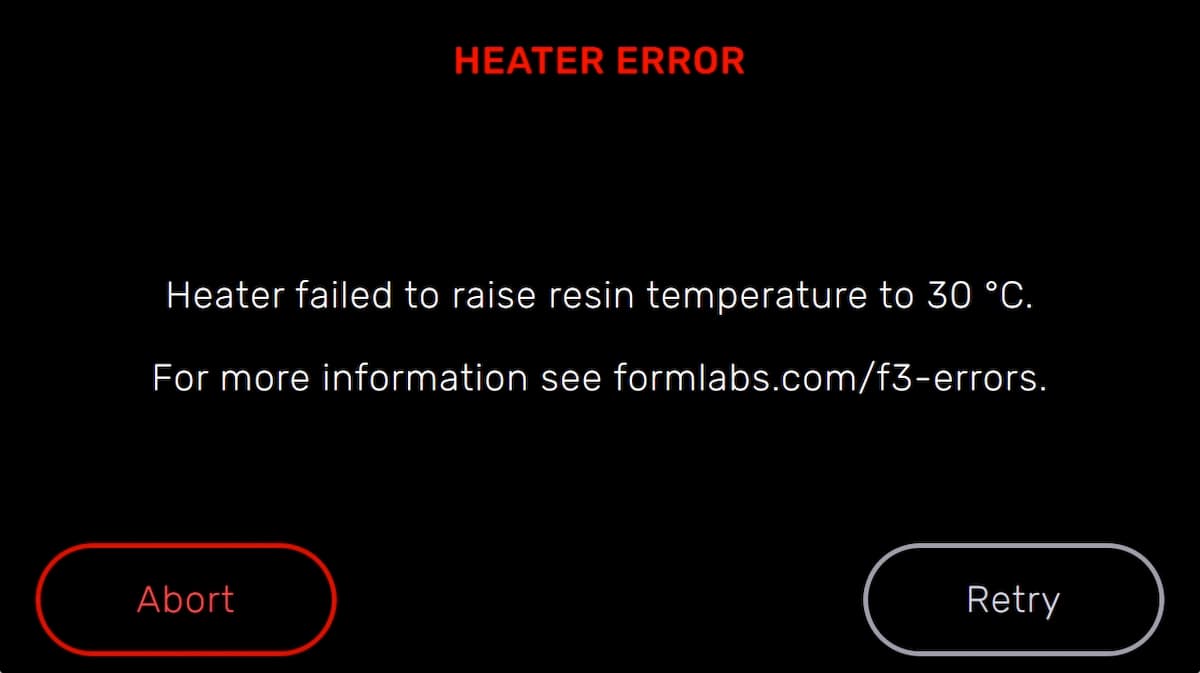
The printer stops heating if it cannot reach the target temperature of 30 °C (86 °F) after 60 minutes. In a cold operating environment, the printer may require more than one heating cycle to reach the desired temperature. Restart the print to begin heating again. For more information, refer to the support article Maintaining resin temperature.
Force sensor timeout
Formlabs LFS printers use a force sensor on the Z-axis to determine when each layer has peeled off the resin tank film. If that force sensor is not responding properly, the printer peels each layer more slowly to prevent damage to the resin tank or print. As of Form 3 generation firmware version 1.13.3 and Form 3L generation firmware version 1.6.3, the printer displays Force Sensor Timeout to notify you if the force sensor is unresponsive. This message does not stop the print. To resolve this issue:
Tensioner errors
Tensioner errors occur when the printer is unable to move the resin tank tensioner system. The printer UI may show one of the following error messages when this issue occurs:
To resolve a tensioner error:
If you see this error message repeatedly, contact Formlabs Support or your authorized reseller.
Error 1
Error 1 is a general error message that can have multiple causes. If you encounter this error:
If the error persists, upload your printer’s logs and contact Formlabs Support or your authorized reseller for further assistance.
Error 61
Every print job is uploaded to the printer from PreForm. If the printer is unable to read the file, the touchscreen displays Error 61. This error is usually caused by incompatible PreForm and printer firmware versions. It is also possible that the file was corrupted due to a poor wireless connection while it uploaded from PreForm.
If the printer displays Error 61:
If the issue persists, contact Formlabs Support or your authorized reseller for further assistance.
Error 67 and 68
These errors are caused by the printer being unable to communicate with the LPU.
Error 131
The LevelSense board monitors the amount of resin in the resin tank based on the height of the liquid resin. Printer firmware updates sometimes include updates to firmware for specific components, such as the LevelSense board. Error 131 relates to issues with reprogramming the LevelSense board. This issue can usually be resolved by updating your printer’s firmware to the latest version.
If you see this error message repeatedly, contact Formlabs Support or your authorized reseller.
Error 137, 147, and 148
Error 137 and Error 147 indicate a problem moving the tensioner. The tensioner pulls the resin tank film taut, but it also needs to move to allow the LPU to enter or exit its garage. Form 3 generation printers throw this error when the printer commands the tensioner to move but does not register any movement after several seconds. Similarly, Error 148 occurs when the printer tries to release the tension on the resin tank but does not get confirmation from the tensioner sensor that the tension was released. When one of these errors occurs, you may also see a Tank Tensioner Failed message displayed on the screen.
These errors could be caused by:
To resolve this issue:
Error 169
At the start of each print, the LPU housing pulls the tank mixer back and forth across the tank film several times. This motion mixes the resin in the tank while also checking for cured resin on the film and on the build platform. If the mixer encounters cured resin blocking its path, its magnets decouple from the magnets in the LPU housing and the printer pauses the print. This is the designed behavior of the mixer and is intended to protect the tank film and prevent further print failures.
The printer will display a Mixer Check Failure message if:
The printer will display Error 169 if:
See the section Mixer Check Failure for troubleshooting information.
Error 186
During a print, Formlabs LFS printers tension the flexible film at the bottom of the resin tank to create a flat, even surface for printing. This stretches the film over time. To account for this, the printer applies tension slowly until the slack in the film is removed before pulling with a specified target force. If this tensioning the film, the printer displays Error 186 or PR_ERROR_TENSIONER_FAIL_TO_SLACKOUT. This may mean that the resin tank is old and the tank film has reached the maximum allowable amount of stretch, or that the tensioner has malfunctioned. To resolve this issue:
If the issue persists, upload your printer’s diagnostic logs, then contact Formlabs Support or your authorized reseller for further assistance.
Error 200
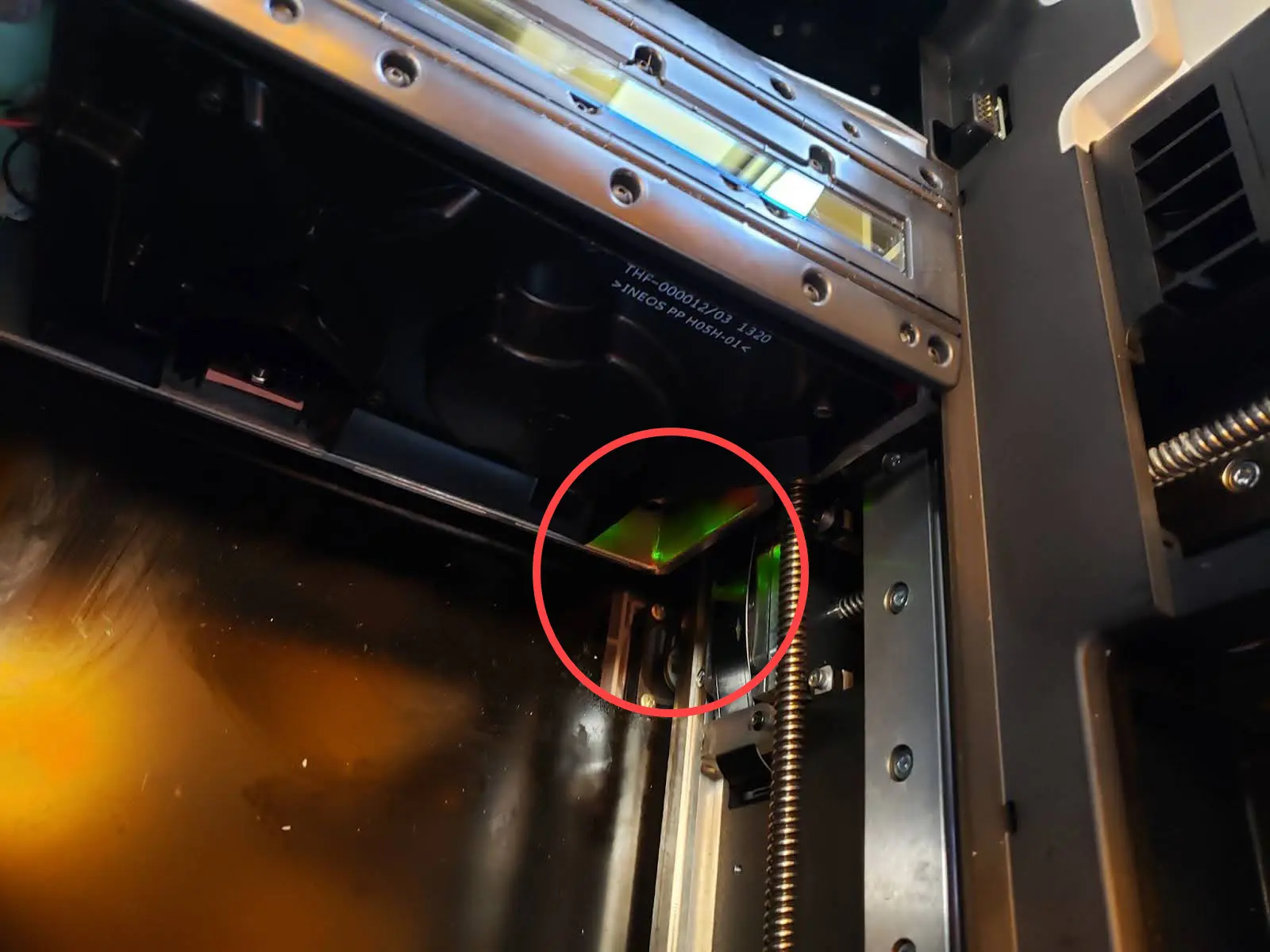
On Form 3 generation printers, Error 200 or PR_ERROR_AUTOSCALE indicates that a component within the Light Processing Unit (LPU) has tripped the printer’s internal electrical fuse. The error is uncommon and sometimes resolves itself. To resolve this error:
Error 246
Error 246 or PR_ERROR_WHIPPET_ERROR_FUSE indicates a communication issue between the printer and the LPU. This could be due to an improper command to the galvanometer in the LPU, a power issue, incorrect LPU calibration, or a software bug. To resolve this issue:
If the issue persists, you may need to replace the LPU. Replacement LPUs are available on the Formlabs Store. Contact Formlabs Support for additional assistance.
Error 293: Reset While Printing
If the printer restarts unexpectedly while in the middle of a print job, it will show Error 293 when it turns back on. This is a generic error that displays when the printer does not finish a print job normally. This error is usually caused by a power outage or a loose power cable. If the problem persists after trying another outlet, contact Formlabs Support or your authorized reseller. If your area has frequent power outages or brownouts, consider purchasing and plugging your printer into an uninterruptible power supply (UPS).
Error 310 and Error 311
Error 310 and Error 311 indicate that the printer encountered an issue while running the Z-axis calibration procedure. The intent of the calibration is to measure the exact pitch of the build platform in relation to the LPU housing, so the printer can compensate for any tilt during the first few layers or a print. The printer lowers the build platform repeatedly as it moves the LPU housing across the build platform. With each move, it measures how far down the build platform has to travel to make contact with the roller holder. The printer displays an error if the left and right sides of the build platform have travel distances that differ by at least 0.4 mm. This can be due to:
To resolve this issue:
If the calibration continues to fail, contact Formlabs Support or your authorized reseller for further assistance.
Error 345
Error 345 indicates that the print couldn't start because of an unexpected error. To resolve this issue:
If the error persists, upload your printer’s logs and contact Formlabs Support or your authorized reseller for further assistance.
Cartridge worn out
Each cartridge contains and can reliably dispense one liter of resin. After the full liter dispenses, dispose of the cartridge and continue printing with a new cartridge. Restart the print once the depleted cartridge has been replaced.
Resin level sensor error
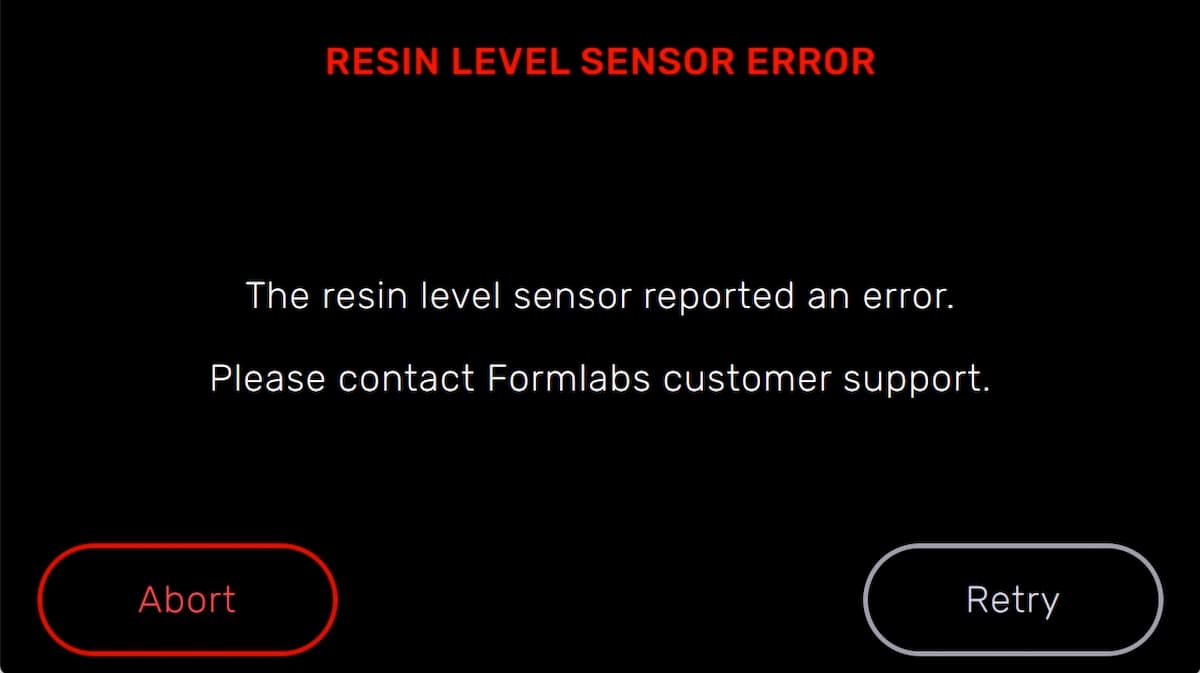
The LevelSense board is located directly behind the resin tank. It senses the position of a metal float in the resin tank to determine the amount of resin in the resin tank. The printer may display Resin Level Sensor Error if there is an issue with the float or the LevelSense board.
If the printer displays Resin Level Sensor Error, follow each step to see if that step resolves the error:
Calibration error
When running the LevelSense calibration routine, the printer may display Calibration Error if the printer cannot reach the required temperature.
If the touchscreen displays Calibration Error, follow these steps:
Mixer check failure
At the start of each print, the LPU housing pulls the tank mixer back and forth across the tank film several times. This motion mixes the resin in the tank while also checking for cured resin on the film and on the build platform. If the mixer encounters cured resin blocking its path, its magnets decouple from the magnets in the LPU housing and the printer pauses the print. This is the designed behavior of the mixer and is intended to protect the tank film and prevent further print failures.
The printer will display a Mixer Check Failure message if:
The printer will display Error 169 if:
If the printer displays Mixer Check Failure or Error 169, follow these steps:
Notice:
Do not use the part removal tool, scraper, flush cutters, or any other metal tool to inspect the resin tank or remove cured resin from the tank. Such tools may damage the tank film, leading to failed prints and/or a resin spill.
Notice:
If the mixer moves incorrectly or erratically, or fails to park, be sure that you are inserting the mixer correctly: magnet side down, with the arms pointing to the left. If the arms or magnets are damaged or missing, the mixer may not move properly.
Printer tilted
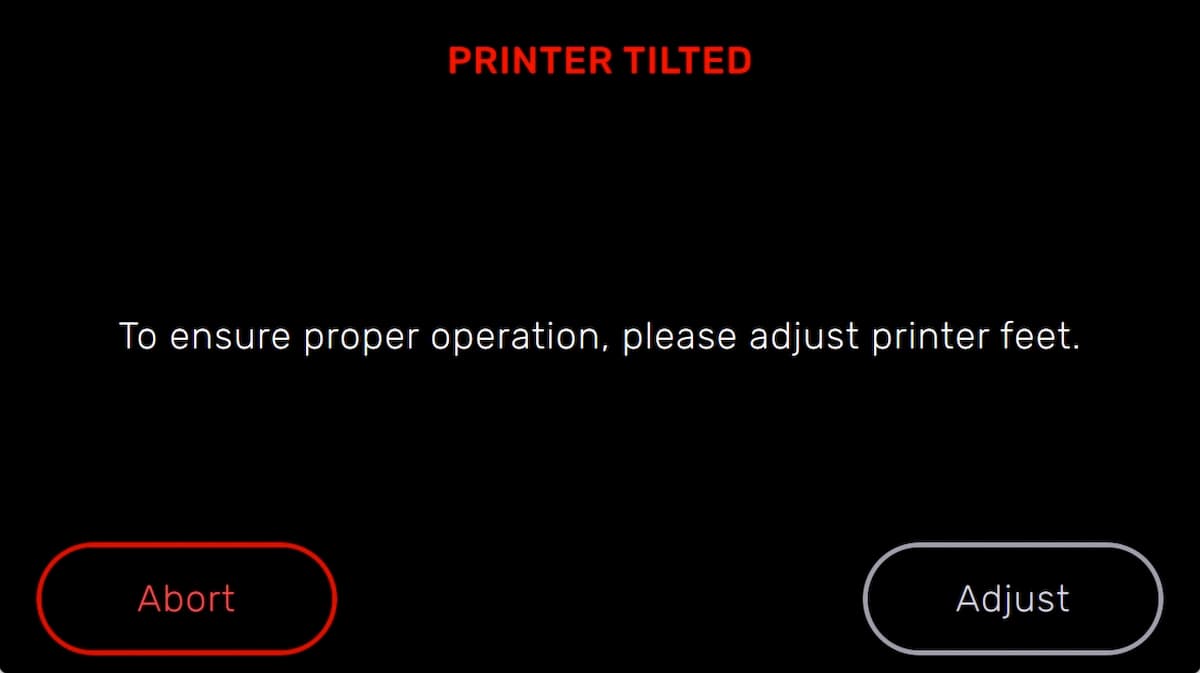
Formlabs SLA printers operate best when perfectly level. The touchscreen prompts you to level the printer when necessary. Tap Settings > Printer Leveling on the touchscreen to view the current level status.
Follow the touchscreen prompts and use the leveling tool to level the printer.
Reset while printing
If power to the printer is interrupted during a print job, the printer does not resume the print job when it restarts. The touchscreen displays Reset While Printing. If the reset was unexpected, contact Formlabs Support or your authorized reseller.
Failed to start print
The Failed to start print error message appears if the printer is unable to determine why the print failed to start properly. In some cases, it can indicate damage to the motherboard that prevents proper connection to the laser controller or motors. To resolve this issue:
If you see this error message repeatedly, contact Formlabs Support or your authorized reseller.
Wi-Fi errors
The printer displays specific error messages depending on the Wi-Fi access point's response to the connection attempt. Refer to the support article Connecting to your printer to set up a connection via Wi-Fi, USB, or Ethernet. Always check with a network administrator to ensure that the wireless network is configured to allow the printer to connect. For a Windows operating system, follow Apple's instructions to ensure that Bonjour is properly installed. This step is required to connect. PreForm must be connected to the same network as the printer for wireless uploading.
Invalid network key
The password was not entered correctly. Check the network password. Check with a network administrator to ensure that the wireless network is configured to allow the printer to connect.
Connection failed
The printer failed to configure the wireless connection and could not connect to the network. Check with a network administrator to ensure that the wireless network is configured to allow the printer to connect.
Unknown error
The printer can display the message An unknown error has occurred in response to a variety of issues. If you see this error repeatedly, upload diagnostic logs and contact Formlabs Support or your authorized reseller.
Enabling Remote Assistance for troubleshooting
During troubleshooting, Formlabs Support may need additional information from or access to your printer. You may be asked to enable Remote Assistance and Dashboard Logging on your machine.
To prepare your printer for remote assistance:
To prepare your printer for dashboard logging:
Factory reset instructions
On some occasions, a factory reset may correct unusual printer behavior. Unusual behavior may include Unknown Error messages, incomplete firmware updates, an unresponsive touchscreen, or trouble connecting to PreForm. A factory reset erases custom settings, including prints saved in the Queue and network connections.
Notice:
A factory reset erases all print job information, custom settings, and diagnostic logs. Upload diagnostic logs before performing a factory reset.
To perform a factory reset:
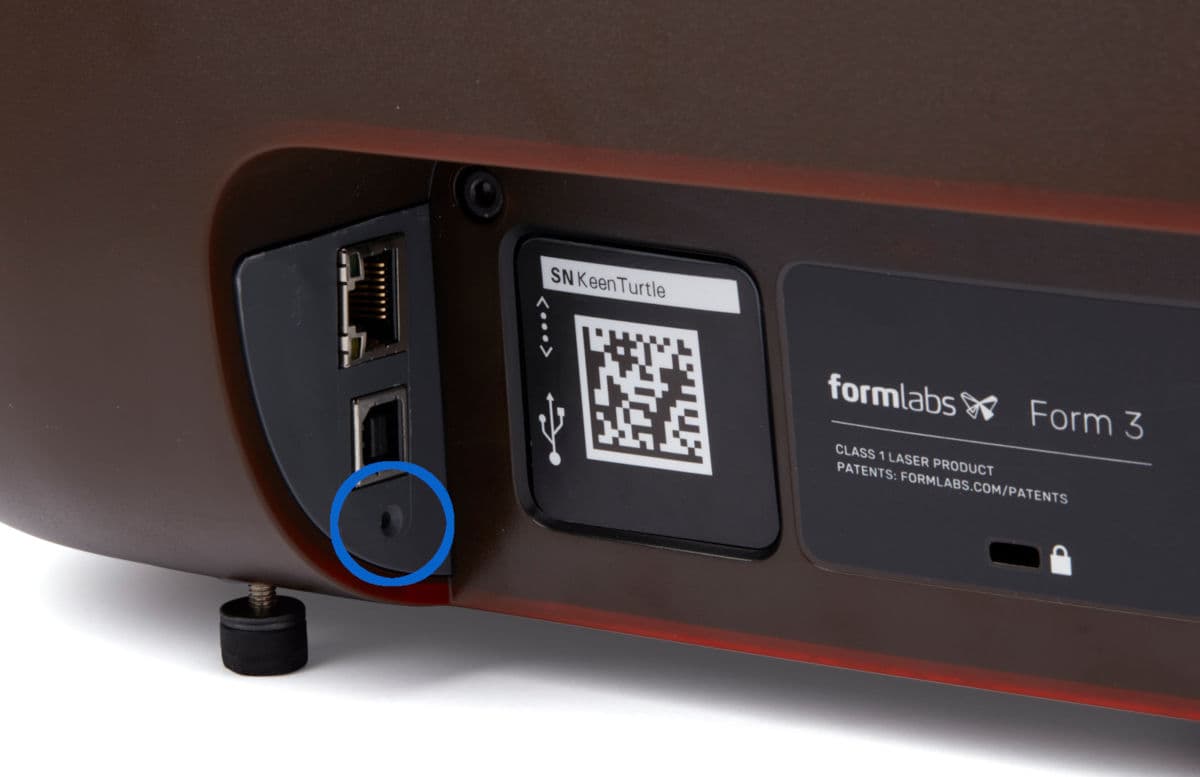
To confirm a successful factory reset, tap Queue on the touchscreen. After a successful reset, the print queue is empty. If the reset does not resolve the behavior, contact Formlabs Support or your authorized reseller.